
Quick answer
Disable film grain and chromatic aberration via engine.ini, use High graphics preset, and enable DLSS 4.5 (NVIDIA) or FSR (AMD) for sharper visuals.
Guide briefing
Halo Campaign Evolved: Disable Film Grain and Fix Blurry Visuals
Disable film grain and chromatic aberration via engine.ini, use High graphics preset, and enable DLSS 4.5 (NVIDIA) or FSR (AMD) for sharper visuals.
Applies to
- — Halo Campaign Evolved on PC
- — Players experiencing visual noise or blurriness
- — Users seeking improved image clarity without sacrificing performance
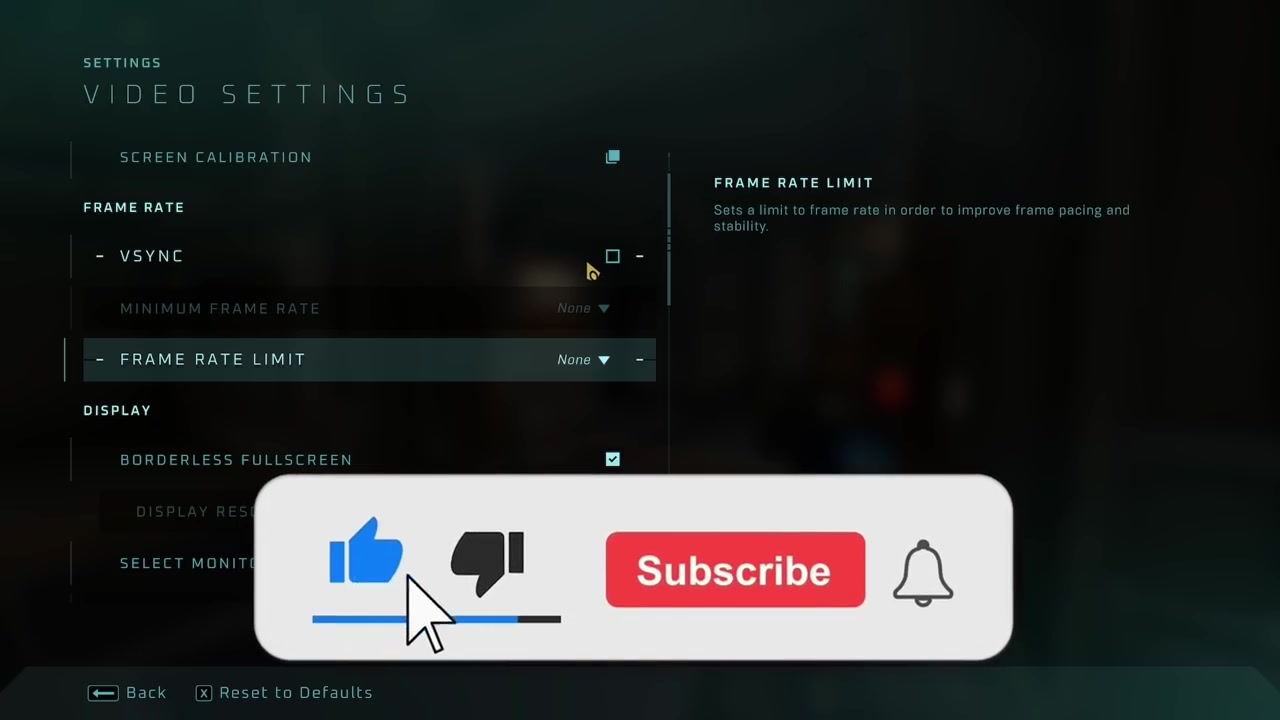
Core video setting adjustments
Optimizing basic video settings can significantly impact performance without sacrificing visual fidelity, especially given the game's poor optimization.
How it works
- Disabling Vsync prevents screen tearing but adds input delay; users should keep it off unless experiencing tearing.
- Setting frame rate limit to 'off' maximizes frames during testing, while limiting to 240 FPS is recommended for systems with high temperatures or older hardware.
Source boundary: Frame rate limits may not be effective if thermal throttling occurs before reaching the set cap, and some systems may still experience stuttering despite limits.
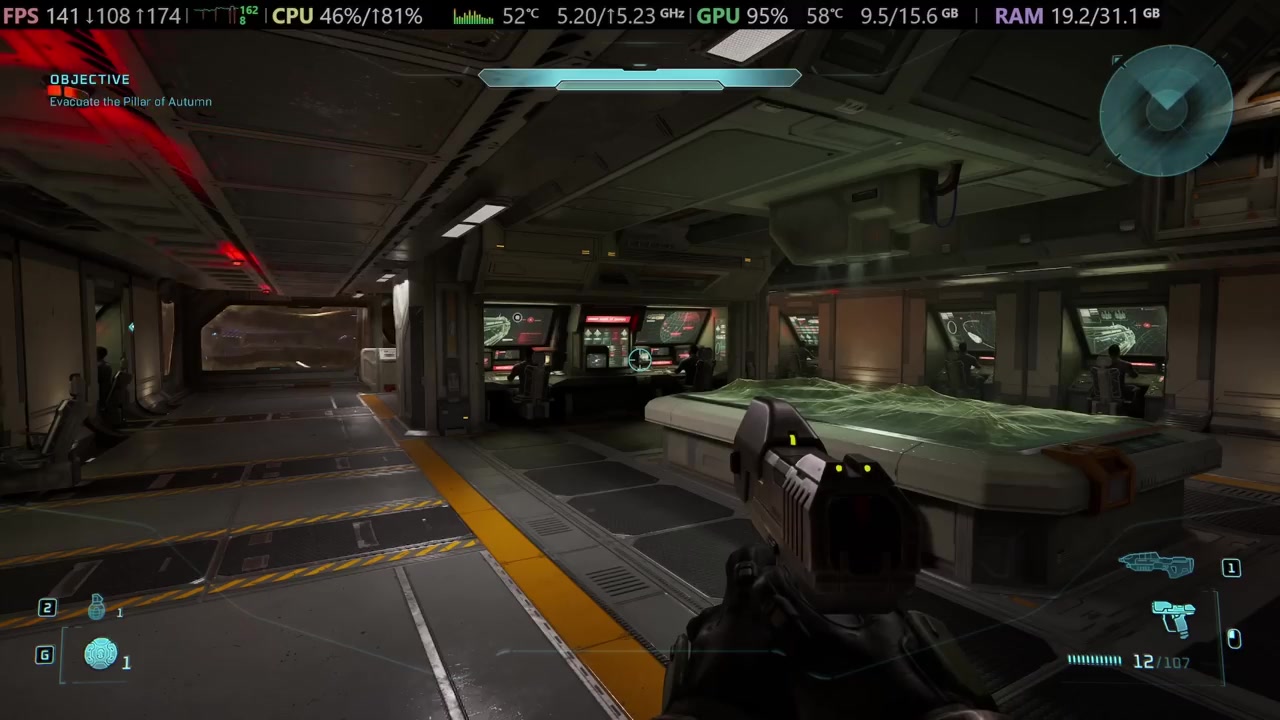
Graphics preset trade-offs
Switching from Ultra to High offers substantial performance gains with minimal visual degradation, making it ideal for balancing quality and frame rates.
How it works
- High preset yields ~20 FPS more than Ultra on the same hardware, with visuals remaining nearly identical.
- Low preset provides only ~10–15 FPS improvement over High, indicating diminishing returns for visual sacrifice.
Source boundary: The performance gain from High to Low is negligible compared to Ultra to High, suggesting the game’s rendering pipeline does not scale efficiently across presets.
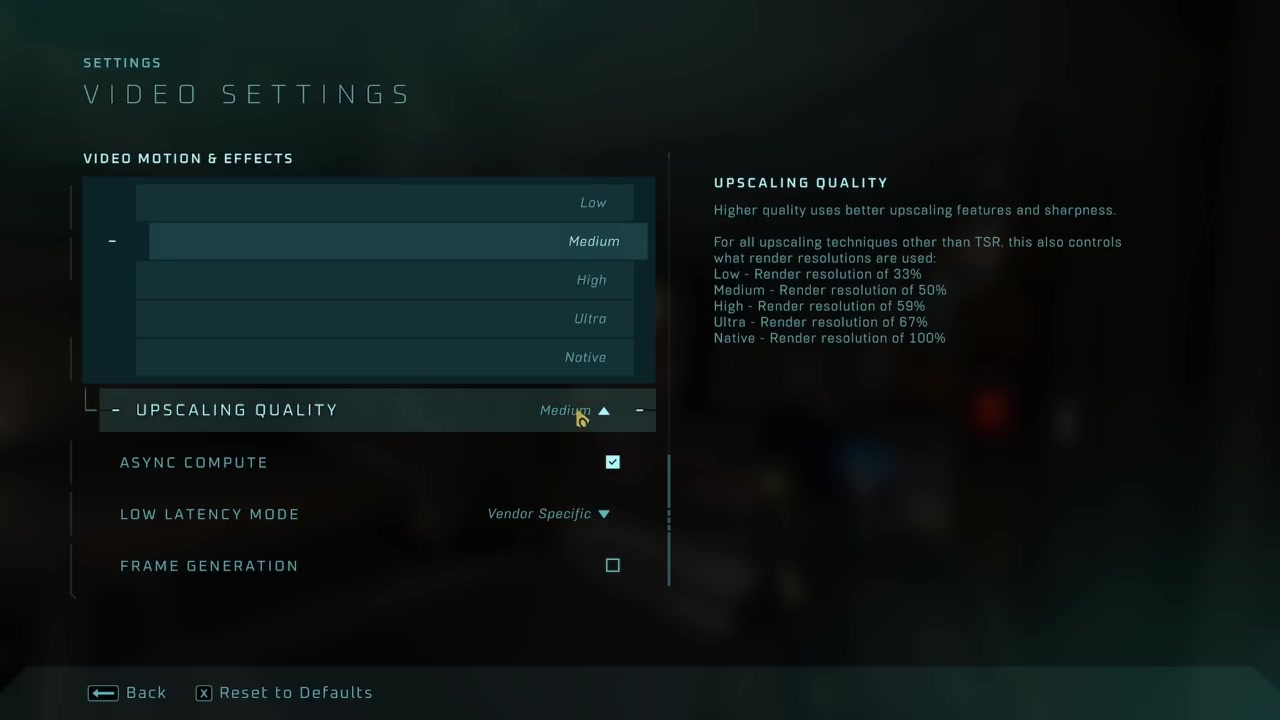
Vendor-specific upscaling configuration
Using the correct upscaling mode (DLSS/FSR) and preset based on GPU generation improves image clarity and performance without introducing artifacts.
How it works
- NVIDIA users should force DLSS 4.5 via Nvidia App and use Performance mode for best FPS; Medium preset M is used if app isn’t available.
- AMD users should enable FSR, though no specific version is confirmed; FSR 4 is expected to outperform DLSS implementation in this game.
Source boundary: Native DLSS mode shows no visual difference from medium, and performance drops sharply when switching to native, indicating broken implementation.
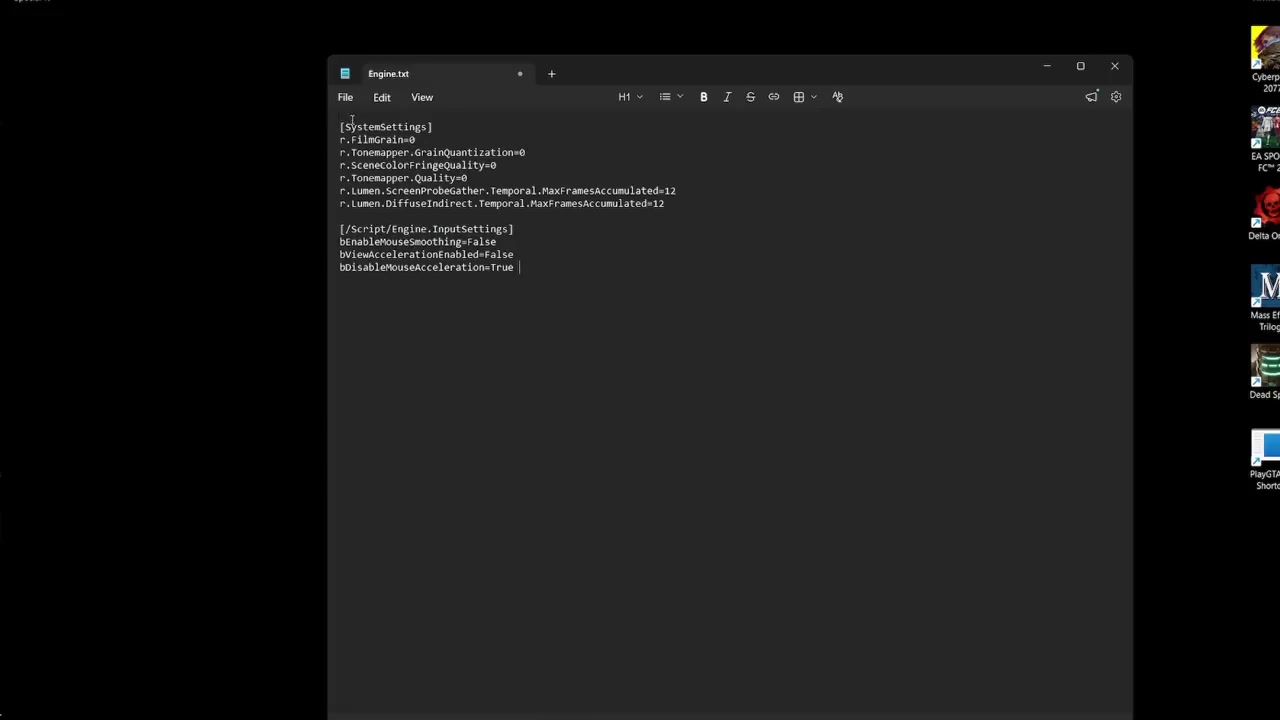
Engine INI customization
Modifying the engine INI file unlocks hidden visual and performance controls—such as film grain and chromatic aberration removal—that are absent from the in-game UI.
How it works
- Adding system settings like 'bDisableFilmGrain=true' and 'bDisableChromaticAberration=true' removes unwanted visual noise.
- Including 'Lumen.Enable=true' reduces graphical noise and improves clarity by enhancing lighting calculations.
Source boundary: The INI must be saved as a .ini file and marked read-only; otherwise, changes will not persist or take effect.