
Quick answer
Start with the default playback device and its Levels tab. Retest, then try 48,000 or 44,100 Hz, disable exclusive control and spatial sound, and only then move to audio and graphics driver updates.
Guide briefing
Halo Campaign Evolved PC Audio Not Working Fix
Start with the default playback device and its Levels tab. Retest, then try 48,000 or 44,100 Hz, disable exclusive control and spatial sound, and only then move to audio and graphics driver updates.
Applies to
- — PC users experiencing no sound in Halo Campaign Evolved
- — Users encountering crackling, stuttering, or muffled audio
- — Windows players who want to test low-risk settings before changing drivers
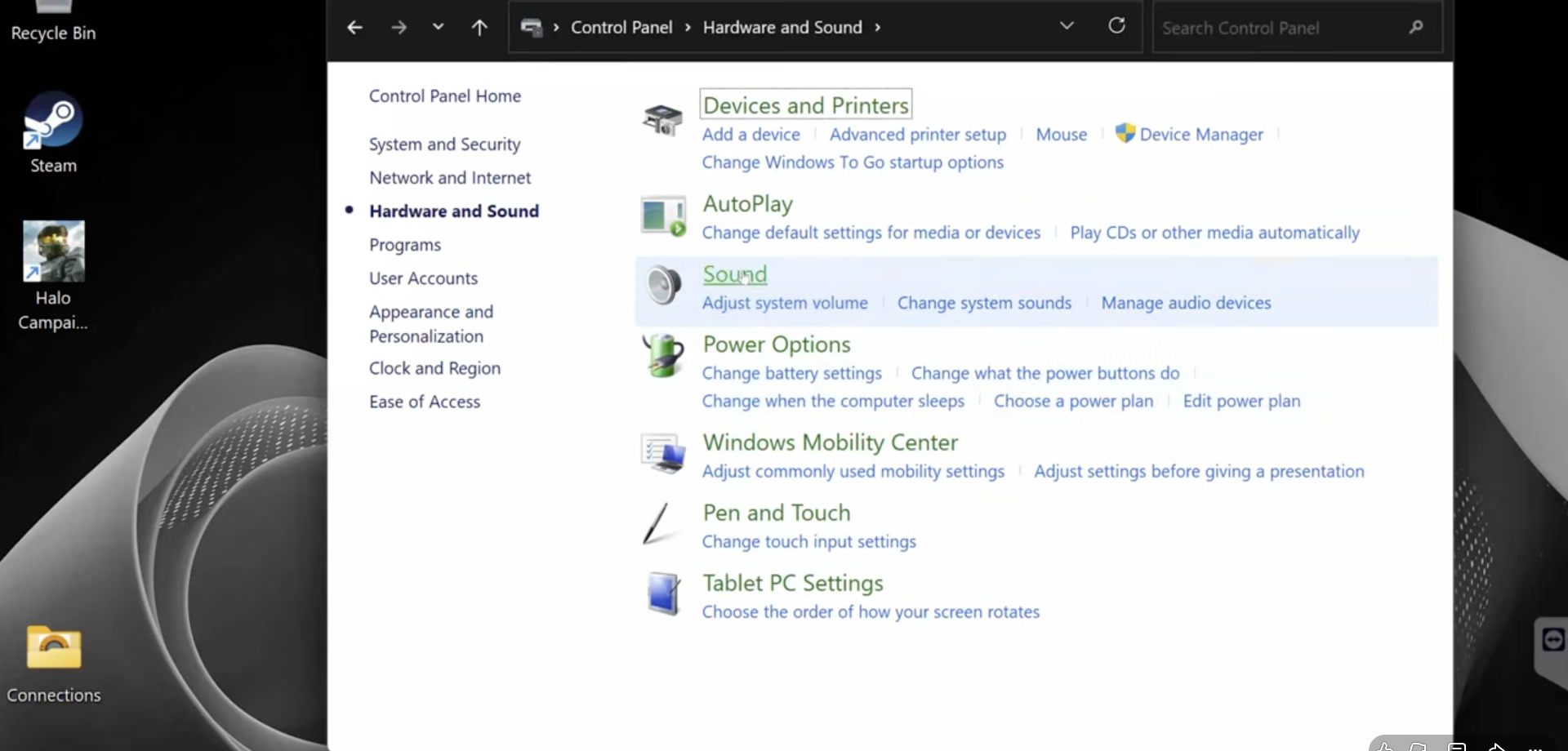
Default Audio Device Configuration
The source starts with the Windows playback route: confirm that the speakers or headphones you actually use are the default device, then check that device's Levels tab for a mute or very low volume.
How it works
- Open Control Panel, choose Hardware and Sound, open Sound, and use the Playback tab to select the intended speakers or headphones and choose Set Default.
- Open that device's Properties and check Levels; raise the level if it is at the bottom and clear mute, then choose Apply and OK.
Source boundary: If the intended device is already default and its level is audible, this checkpoint has not isolated the problem; continue to the next source step.
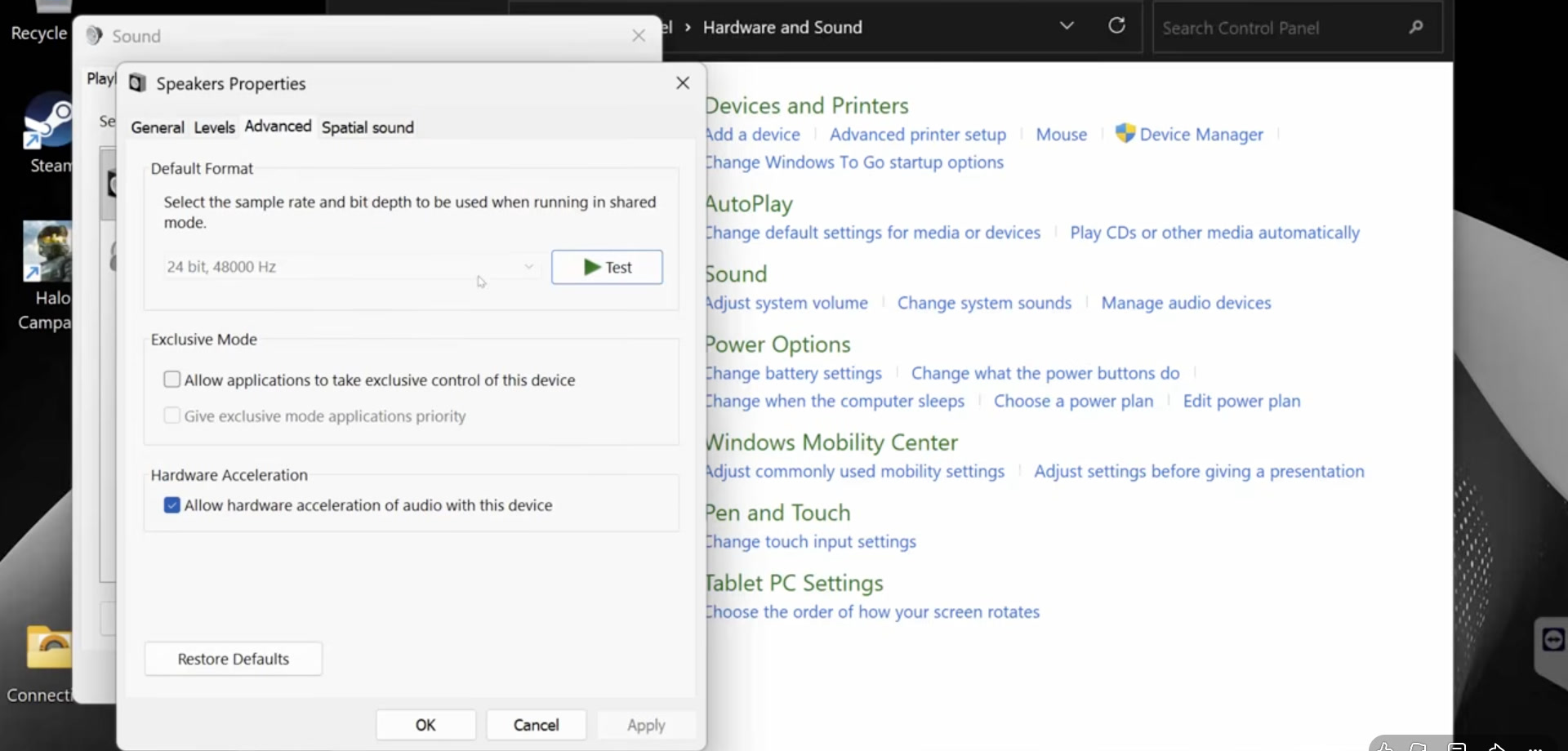
Test sample rate, exclusive control, and spatial sound
If the basic output check does not help, the source groups three device-property changes: try one of two listed sample rates, turn off application-exclusive control, and disable spatial sound.
How it works
- In the device's Advanced tab, select either 48,000 Hz or 44,100 Hz and clear Allow applications to take exclusive control of this device.
- Open the Spatial sound tab, set Spatial sound to Off, choose Apply and OK, then launch the game and listen again.
Source boundary: The source demonstrates these settings as troubleshooting trials, not a guarantee that one particular option causes every audio symptom.
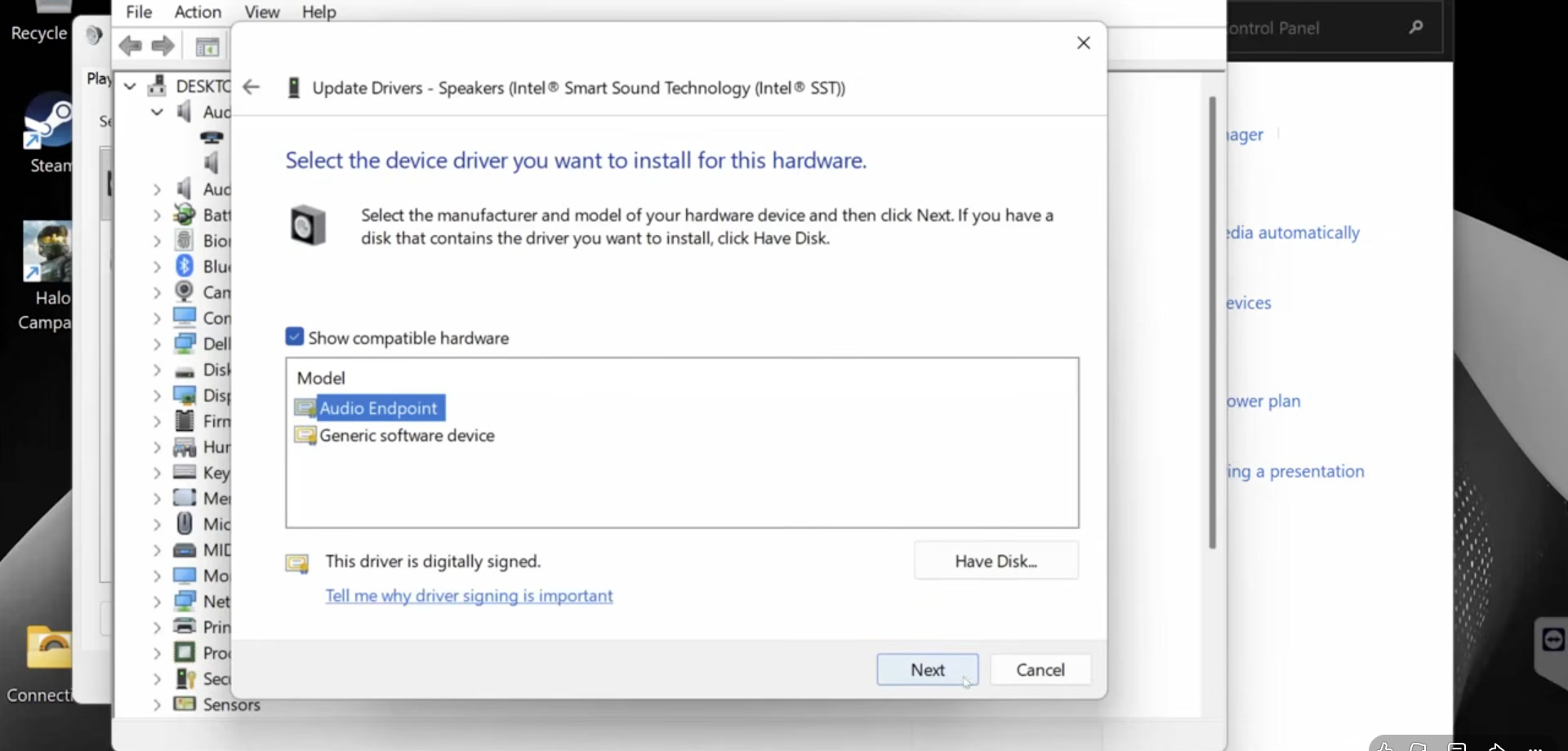
Driver Update via Device Manager
The source next moves to the audio device in Device Manager. It first tries Windows' automatic search, then shows the local driver-list path as a fallback when the automatic search does not help.
How it works
- Expand Audio inputs and outputs, open the affected device's Properties and Driver tab, choose Update driver, then Search automatically for drivers.
- If that path does not help, choose Update driver again, Browse my computer for drivers, Let me pick from a list, select the appropriate listed audio driver, and complete the installation.
Source boundary: The source only demonstrates choosing from drivers Windows already offers for that device; it does not supply a third-party download or a universal model name.
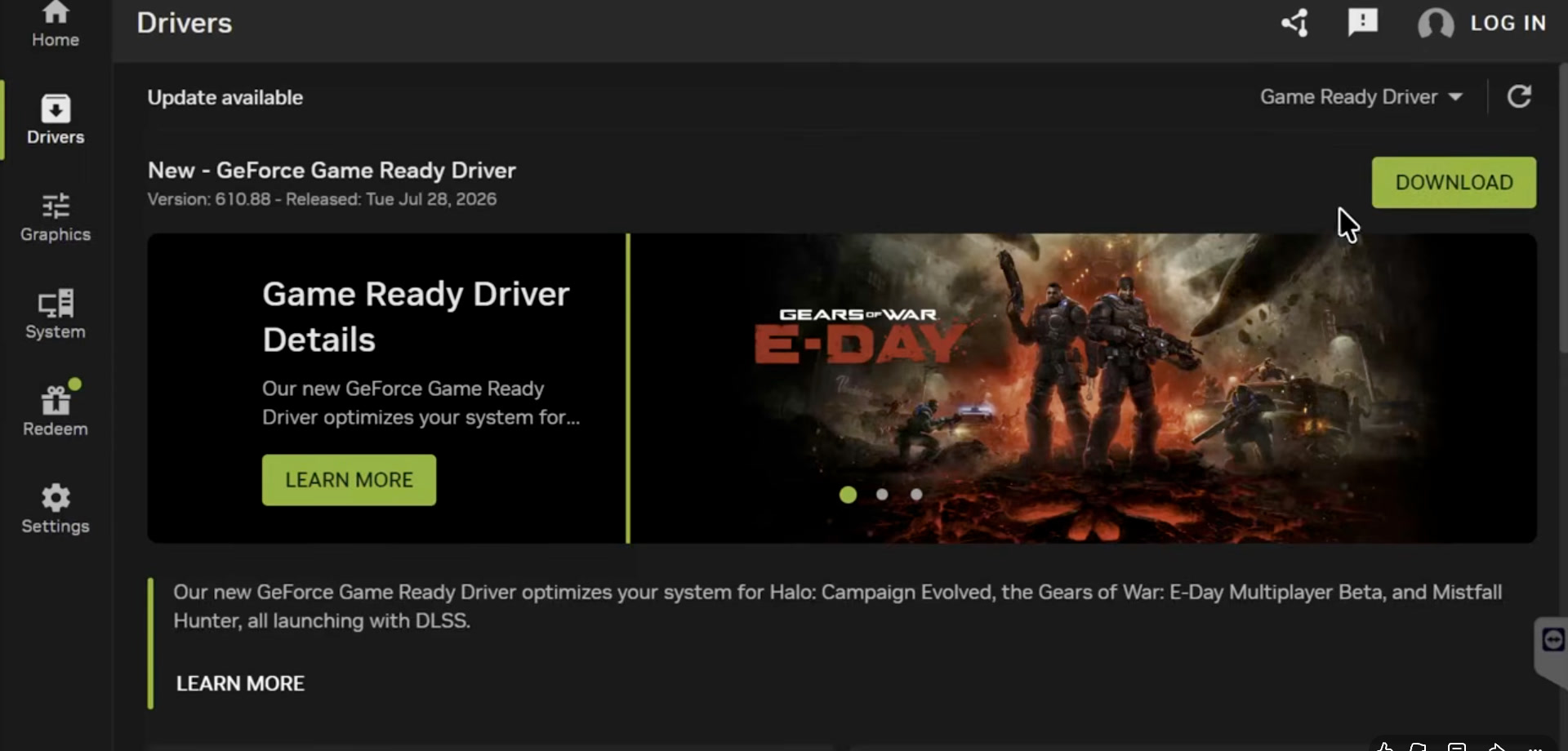
Try the source's final graphics-driver checks
As its final fallback, the source shows updating the display adapter through Device Manager and, for an NVIDIA system, checking the NVIDIA App's Drivers tab for an available update.
How it works
- In Device Manager, expand Display adapters, open the graphics card, choose Update driver, and select Search automatically for drivers; restart after installation.
- On the NVIDIA system shown in the source, open NVIDIA App, select Drivers, choose Check for updates, and install an available driver before launching the game again.
Source boundary: The vendor-app path is demonstrated only for NVIDIA. The source does not provide corresponding AMD or Intel vendor-app steps.