
Quick answer
Update the console first, then clear the game's reserved space, optional Blu-ray persistent storage, and alternate MAC address. Retest before trying manual DNS, account removal, or a full reinstall.
Guide briefing
Fix Halo Campaign Evolved Crashing or Not Launching on Xbox
This Xbox-only ladder follows the source from low-cost checks to disruptive recovery. Confirm the console update, clear the game cache path, clear two console network or media stores, and relaunch. Change DNS only if those checks fail; remove the affected account after that, and leave reinstall as the last step.
Before you start
- — An Xbox Series X or Series S with Halo Campaign Evolved installed.
- — Access to Xbox Settings and My games & apps.
- — Time to relaunch the game after each stage so one successful change is identifiable.
Applies to
- — Xbox Series X|S players whose game crashes during startup
- — Players stuck on loading, freezing, or a black screen
- — Readers who want reversible console checks before reinstalling
Target
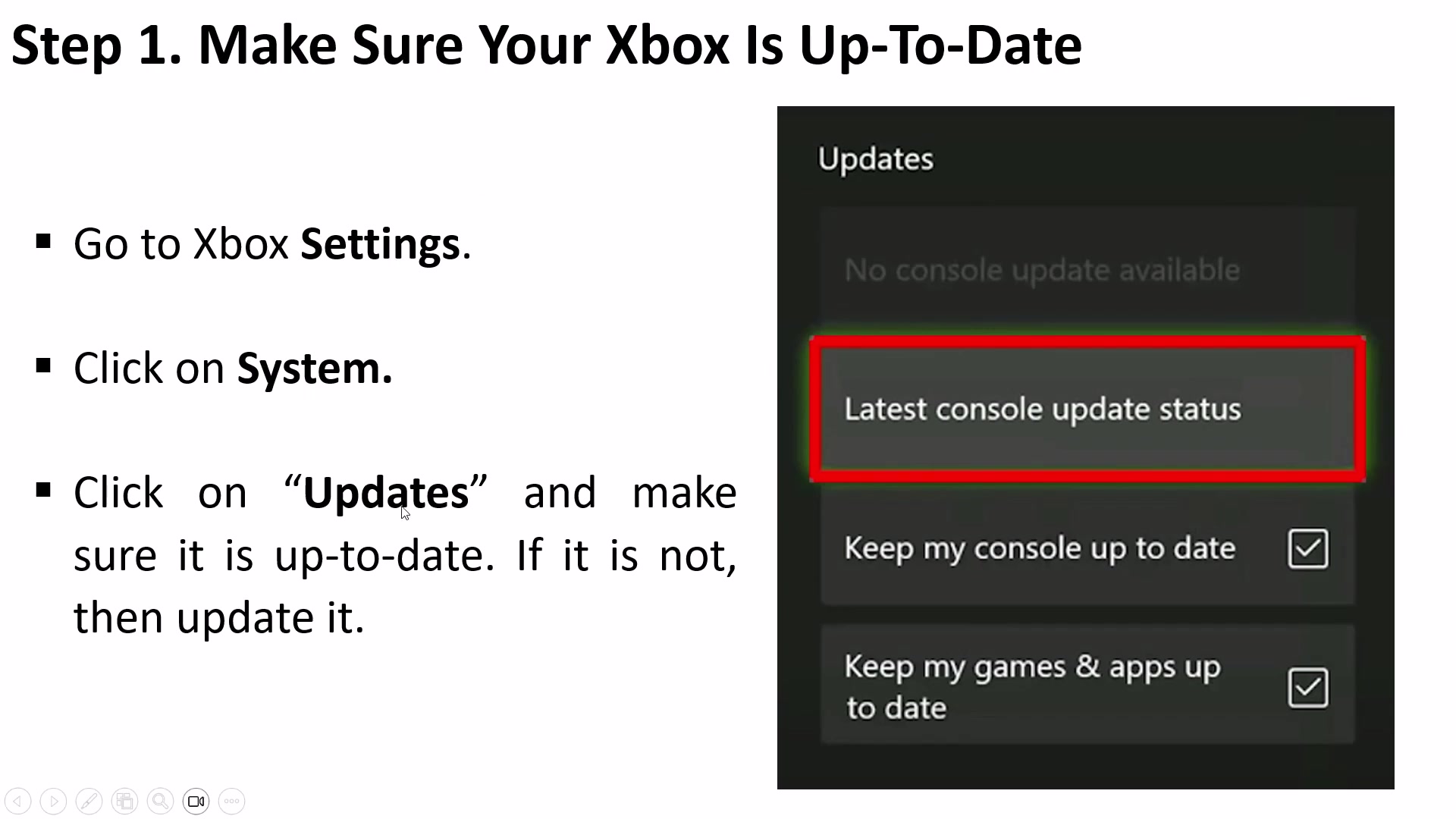
Confirm the Xbox system is current
- Checkpoint
- The game has failed to launch, load, or remain stable
- Landmark
- Xbox Settings > System > Updates with Latest console update status visible
Do this
- 1Open Xbox Settings, select System, and open Updates.
- 2Install the console update if one is offered, then relaunch Halo Campaign Evolved once.
Confirmation
The Updates page reports the latest console update status and the game has been tested once on that system state.
Target
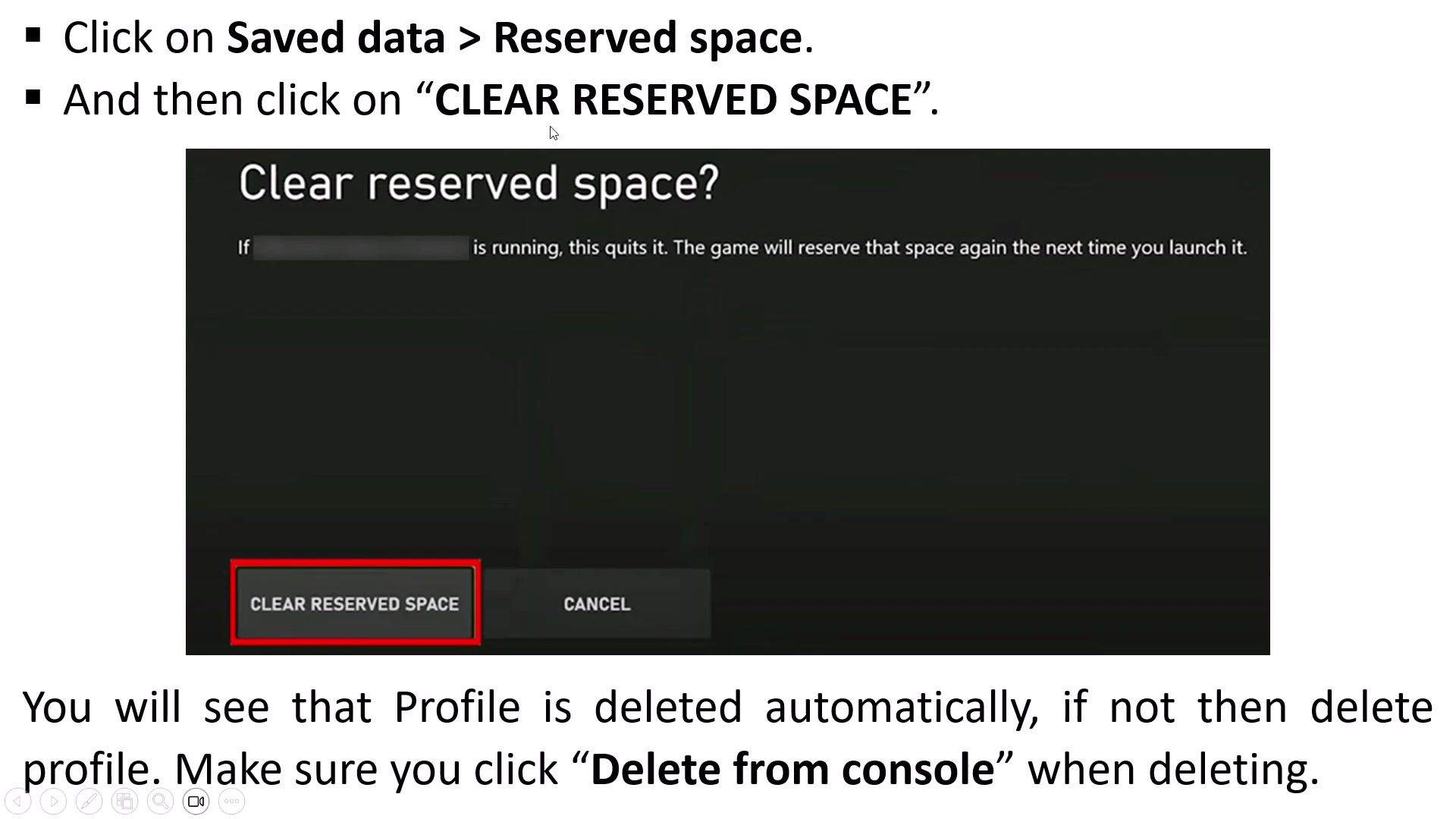
Clear the game's reserved space
- Checkpoint
- The console is up to date but the same launch or loading failure remains
- Landmark
- Halo Campaign Evolved Manage game and add-ons > Saved data > Reserved space
Do this
- 1Open My games & apps > See all, highlight Halo Campaign Evolved, press Menu, and choose Manage game and add-ons.
- 2Open Saved data, select Reserved space, choose Clear reserved space, then relaunch the game.
Confirmation
The reserved-space prompt has completed and a fresh launch has been tested before any network setting is changed.
Target
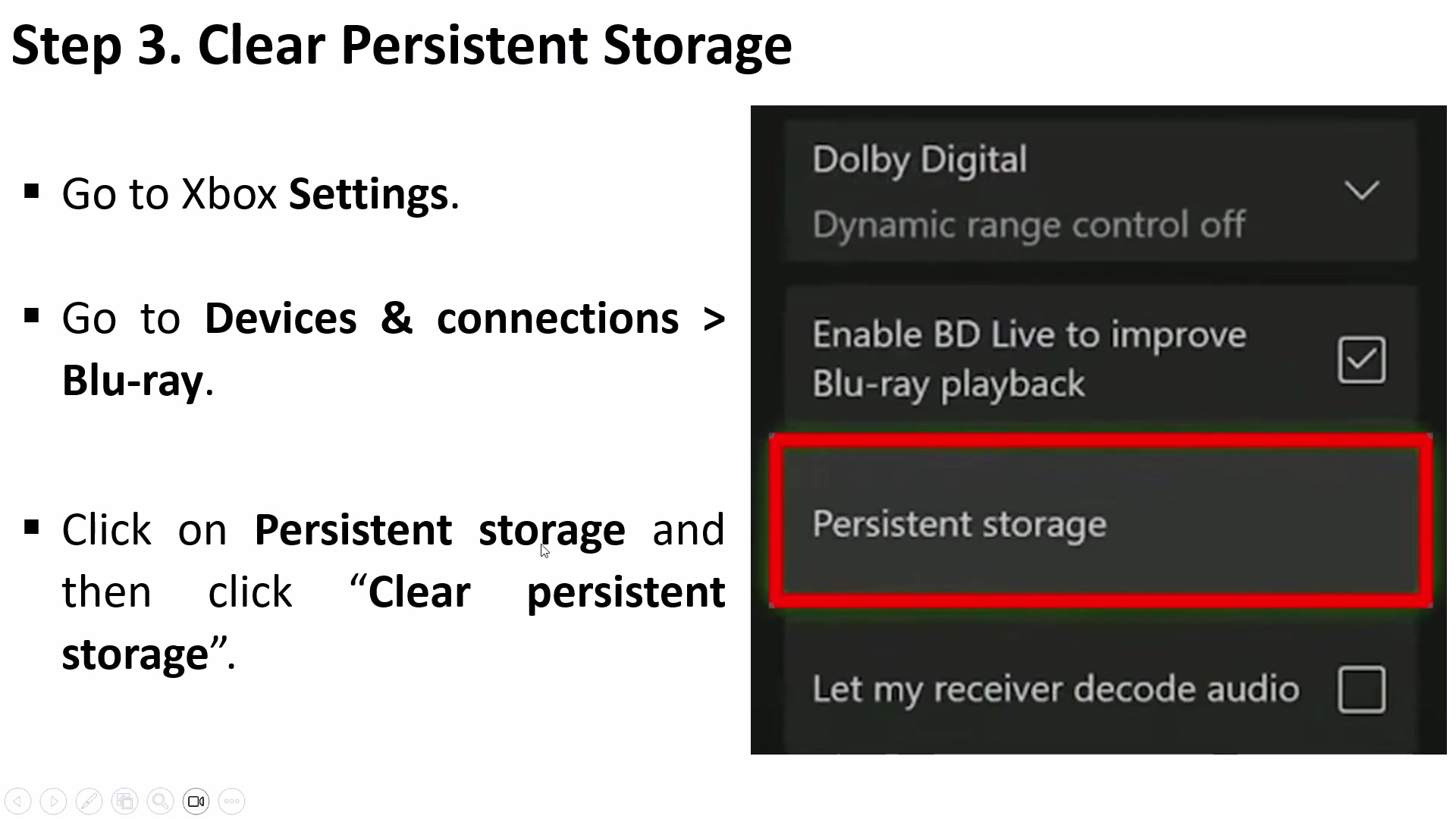
Clear Blu-ray persistent storage when that menu exists
- Checkpoint
- Clearing the game's reserved space did not restore a stable launch
- Landmark
- Xbox Settings > Devices & connections > Blu-ray > Persistent storage
Do this
- 1Open Xbox Settings, select Devices & connections, then open Blu-ray.
- 2Choose Persistent storage and clear it; if the console does not show this feature, skip this section as the source instructs.
Confirmation
Persistent storage was cleared, or the absent Blu-ray option was explicitly skipped, before the next relaunch.
Target
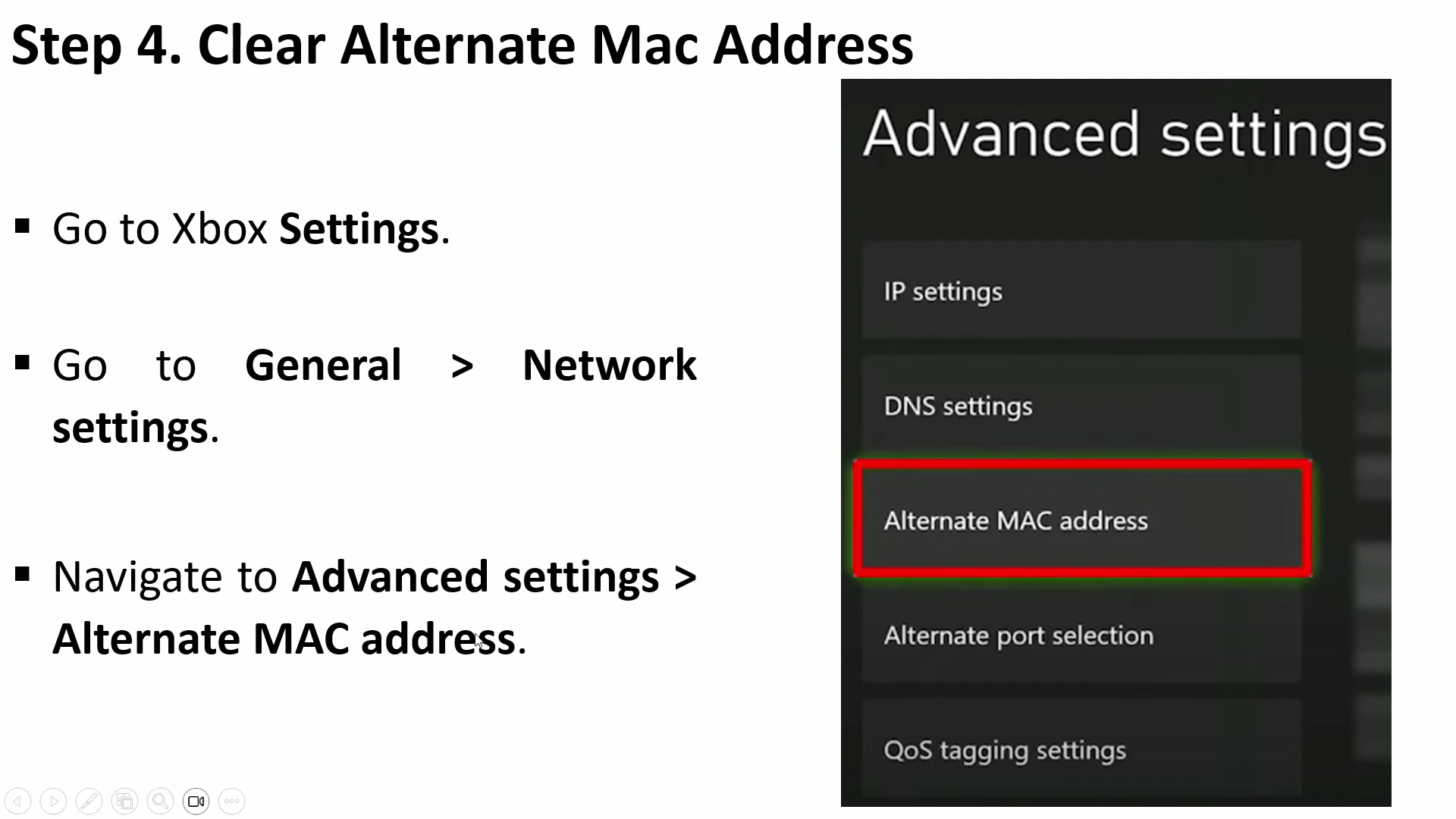
Clear the alternate MAC address and restart
- Checkpoint
- The storage checks are complete and the failure still reproduces
- Landmark
- Xbox Settings > General > Network settings > Advanced settings > Alternate MAC address
Do this
- 1Open General > Network settings > Advanced settings and select Alternate MAC address.
- 2Choose Clear, allow the console to restart, and test one clean game launch.
Confirmation
The Xbox has restarted after clearing the alternate MAC address and the game has been retested.
Target
Test the two manual DNS pairs in source order
- Checkpoint
- The update, storage, and alternate-MAC stages did not fix the launch
- Landmark
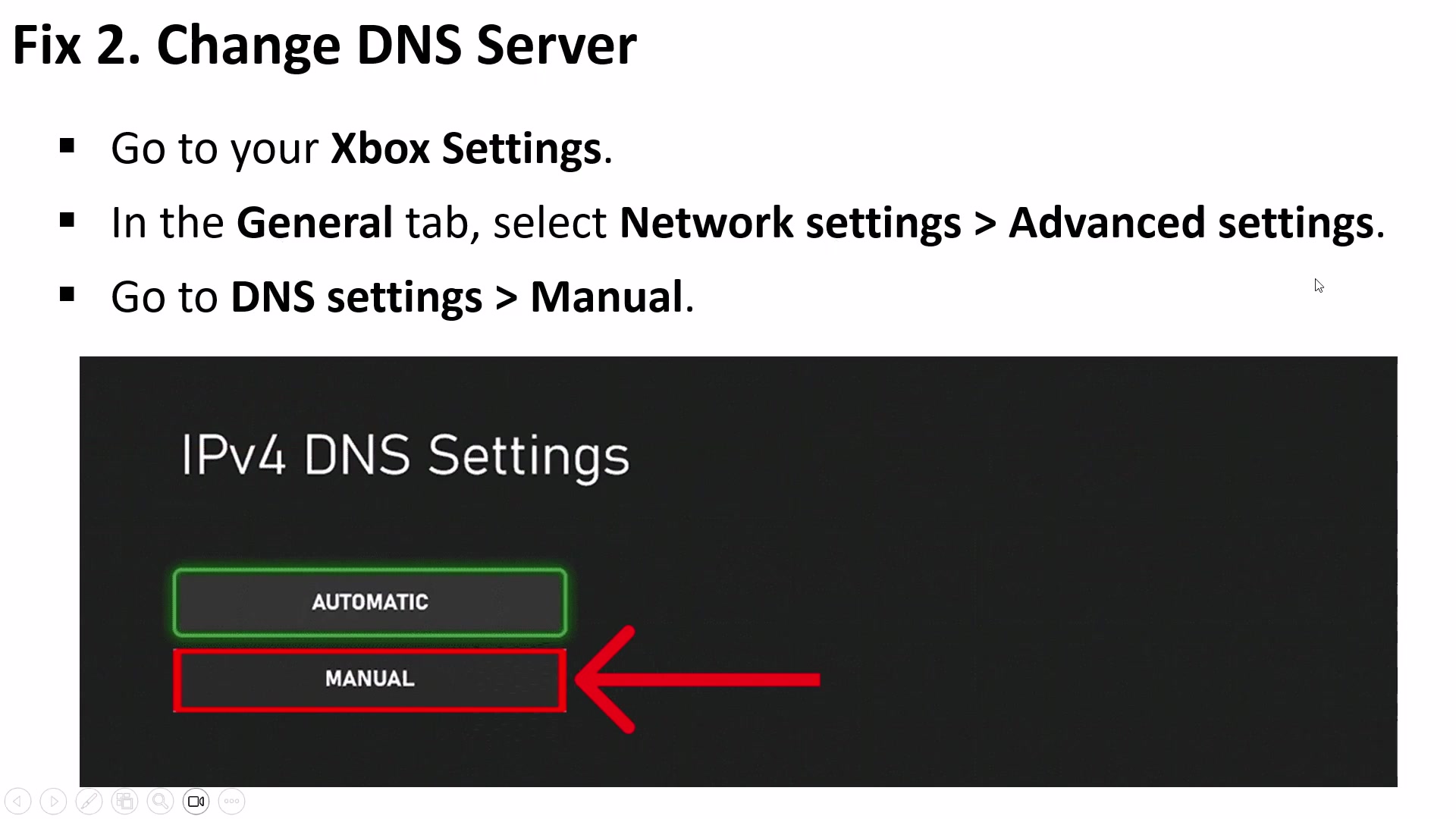
- Xbox Advanced settings > DNS settings > Manual
Do this
- 1Open General > Network settings > Advanced settings > DNS settings > Manual, enter primary 8.8.8.8 and secondary 8.8.4.4, save, and relaunch once.
- 2Only if that test fails, repeat the same path with primary 1.1.1.1 and secondary 1.0.0.1, save, and relaunch again.
Confirmation
Each DNS pair was tested separately, so a successful launch can be tied to one saved configuration.
Target
Remove and add back only the affected Xbox account
- Checkpoint
- Both manual DNS launch tests failed
- Landmark
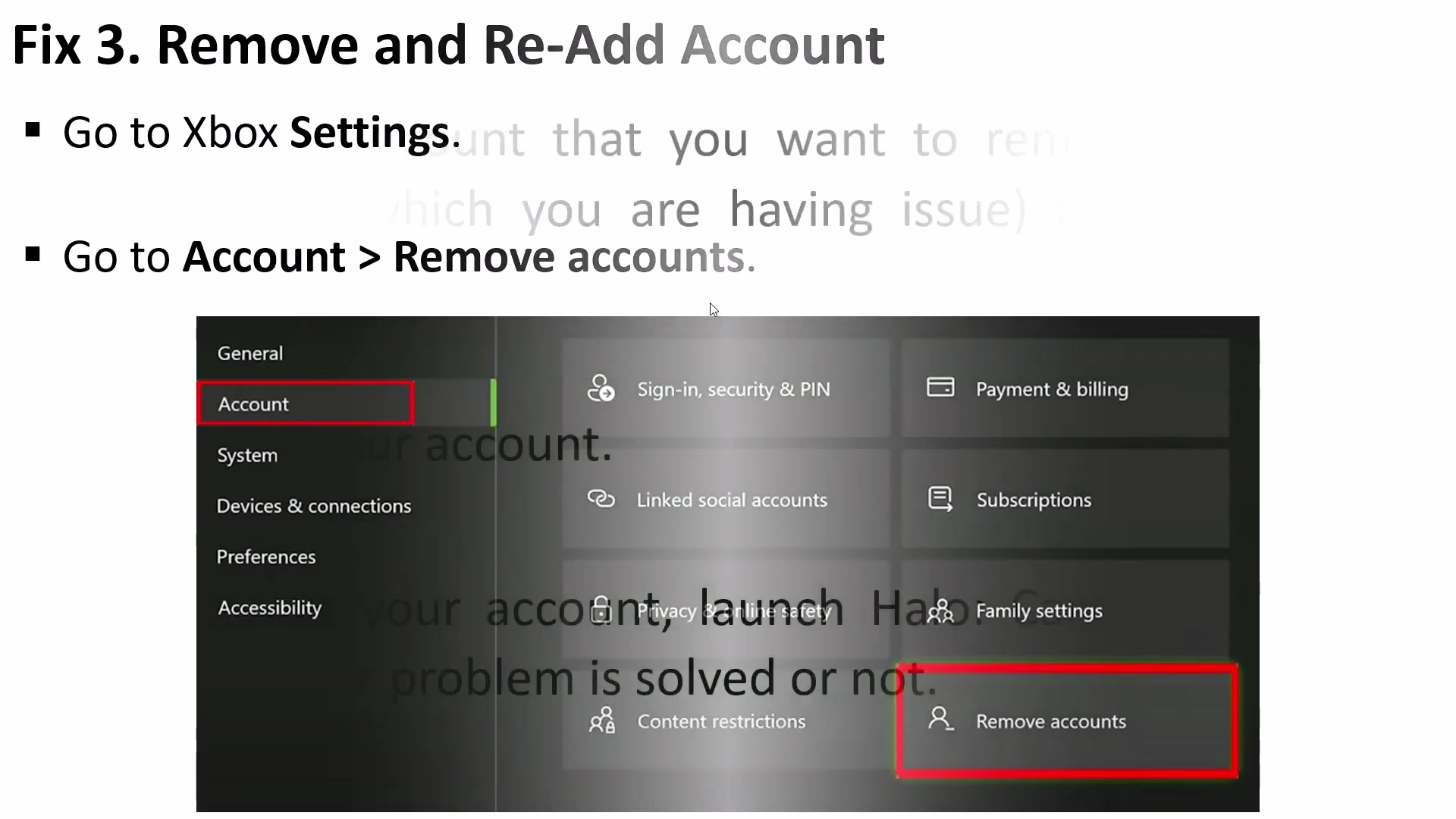
- Xbox Settings > Account > Remove accounts
Do this
- 1Open Xbox Settings > Account > Remove accounts and select the account experiencing the game problem.
- 2Remove that account, add it back to the console, then launch Halo Campaign Evolved and retest.
Confirmation
The same account has been added back successfully and has completed one new launch test.
Target
Reinstall the game only after the earlier checks fail
- Checkpoint
- The re-added account still reaches the same crash, loading, freeze, or black-screen failure
- Landmark
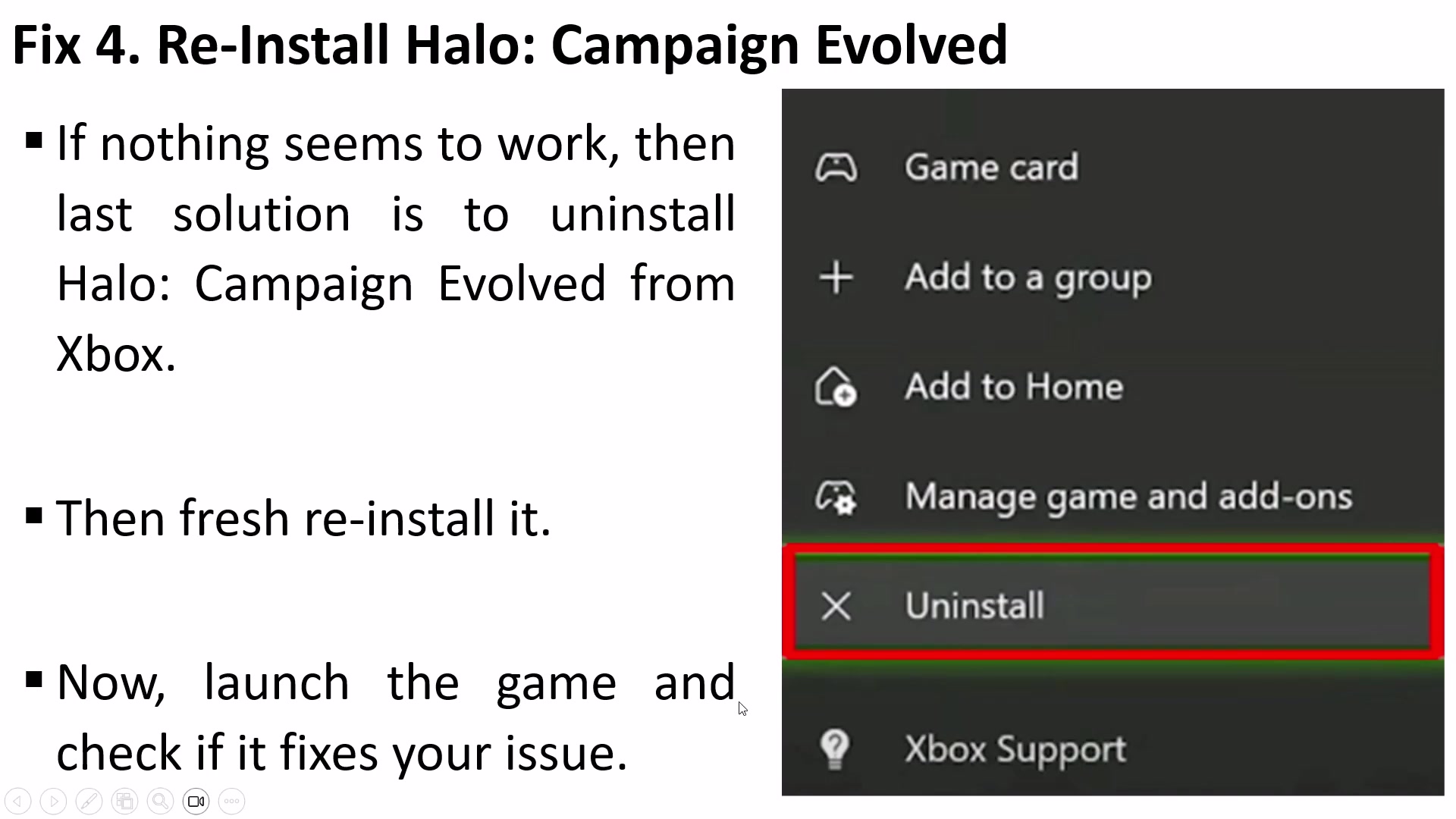
- Halo Campaign Evolved game-card menu with Uninstall highlighted
Do this
- 1Open Halo Campaign Evolved's game-card menu and choose Uninstall only after the previous retests have failed.
- 2Install a fresh copy, wait for installation to finish, and perform one clean launch before changing anything else.
Confirmation
A fully reinstalled copy has completed its first launch test.