
Quick answer
The source checks Windows device state, USB power saving, controller calibration, then Steam controller and per-game Steam Input settings. Work through them in that order and confirm each screen before moving on.
Guide briefing
Fix a PC Controller That Halo Campaign Evolved Does Not Detect
This is a source-bounded Windows and Steam sequence, not a universal driver recipe. Begin by seeing whether Windows still lists the controller, then inspect the device and USB power settings shown in the video. Only after those checks move to calibration and Steam's controller and per-game Steam Input pages.
Before you start
- — The controller connected to the PC used for the game.
- — Access to Windows Device Manager and the Steam client.
- — A short Halo Campaign Evolved launch or menu check to test after each stage.
Applies to
- — PC players whose controller is not detected or stops responding
- — Players using the source's Windows and Steam troubleshooting path
- — Readers who need an observable check after each change
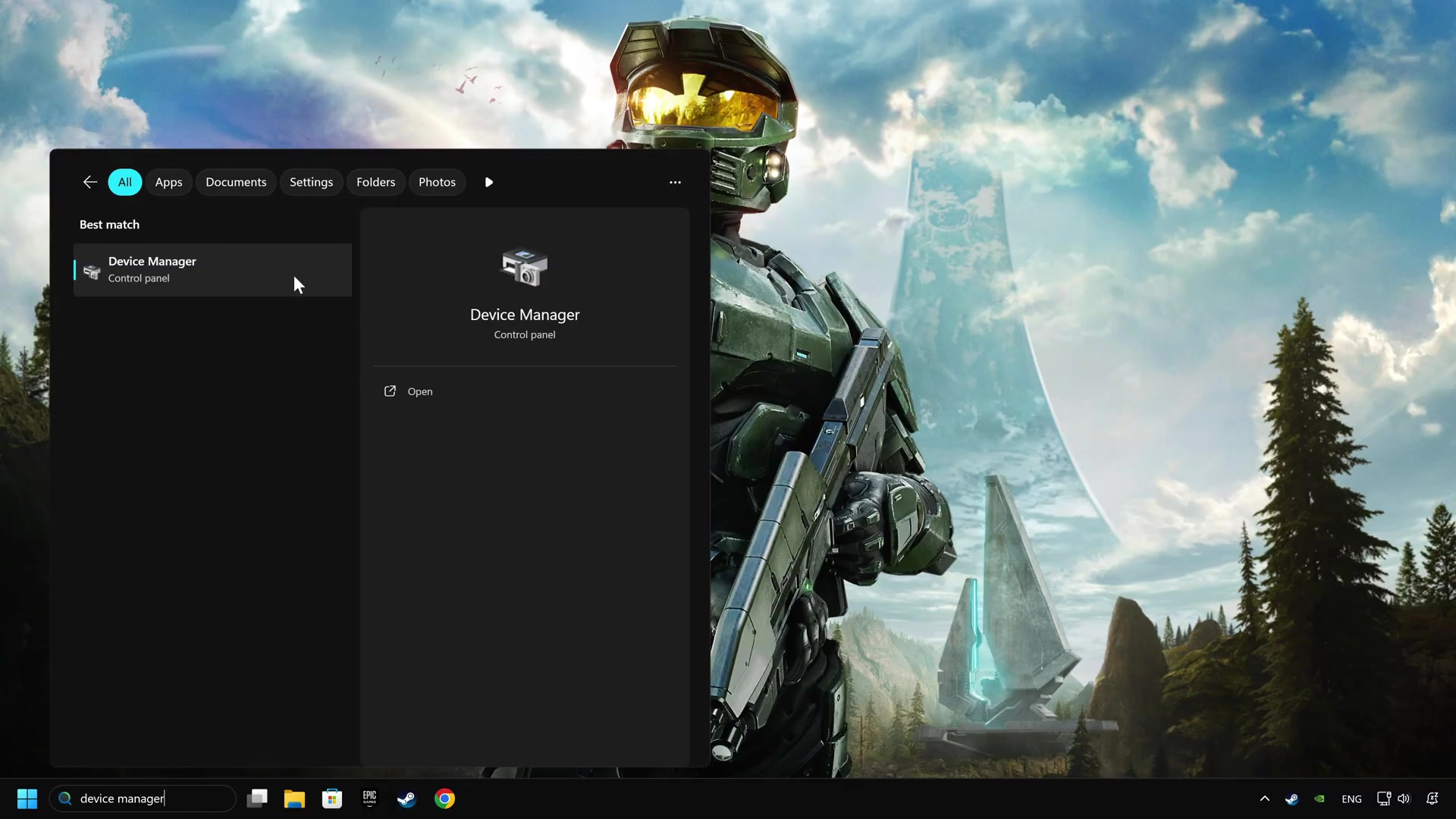
Target
Confirm the controller is still visible before changing game settings
- Checkpoint
- The controller has just failed in or before the game
- Landmark
- The Windows desktop and the connected controller shown before troubleshooting begins
Do this
- 1Disconnect and reconnect the controller, then restart the PC only if the connection has not returned.
- 2Open the next Windows check only after the controller is physically connected again.
Confirmation
You have restarted the connection attempt and are ready to inspect the controller in Windows rather than guessing from the game alone.
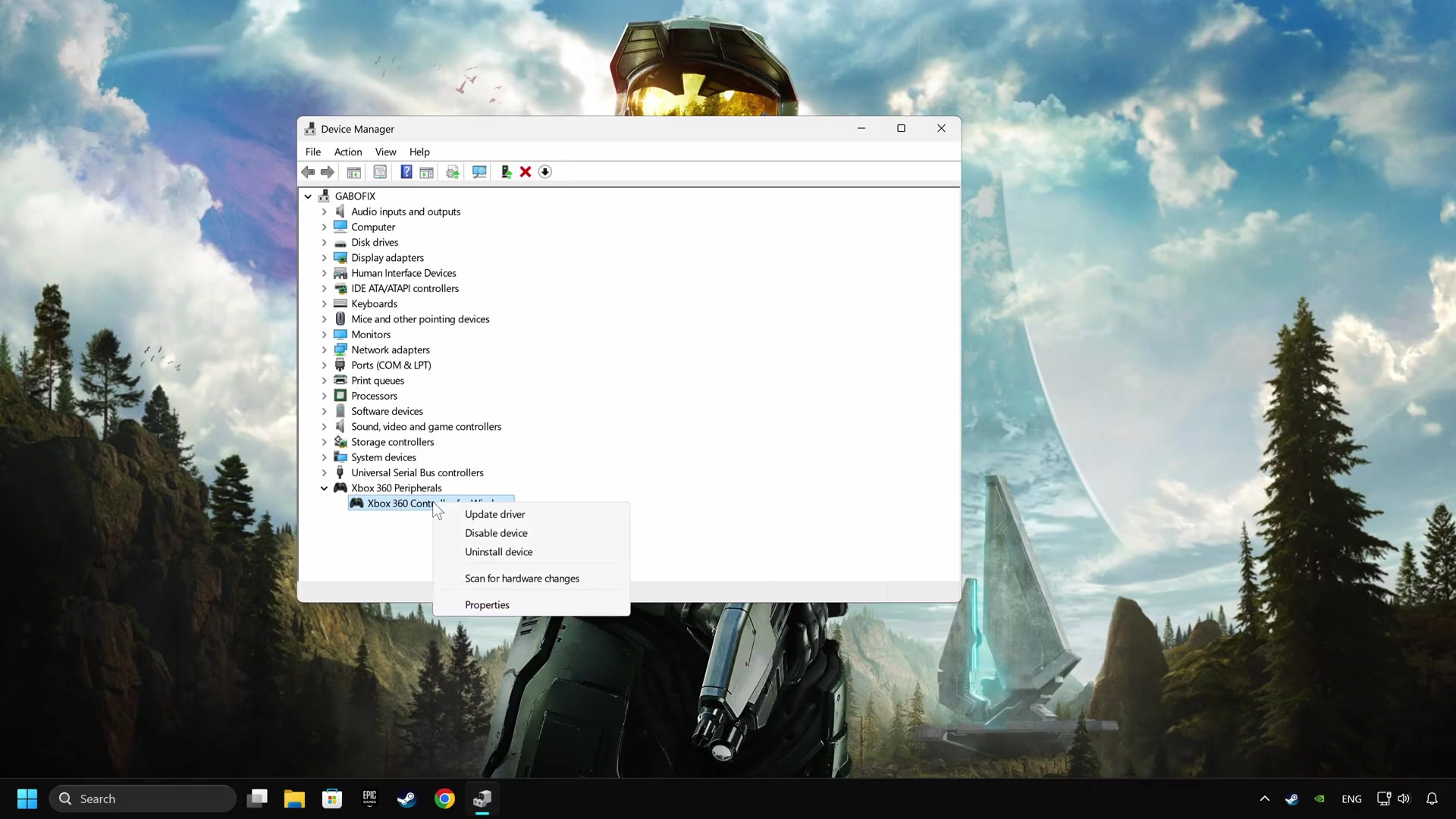
Target
Inspect the controller through Device Manager
- Checkpoint
- The controller is connected and Windows is open
- Landmark
- Device Manager with the controller's device entry selected
Do this
- 1Open Device Manager and locate the controller entry shown by Windows.
- 2Open that device's context menu to reach the driver and device options demonstrated in the source.
Confirmation
The controller entry is visible in Device Manager and you can inspect its device options.
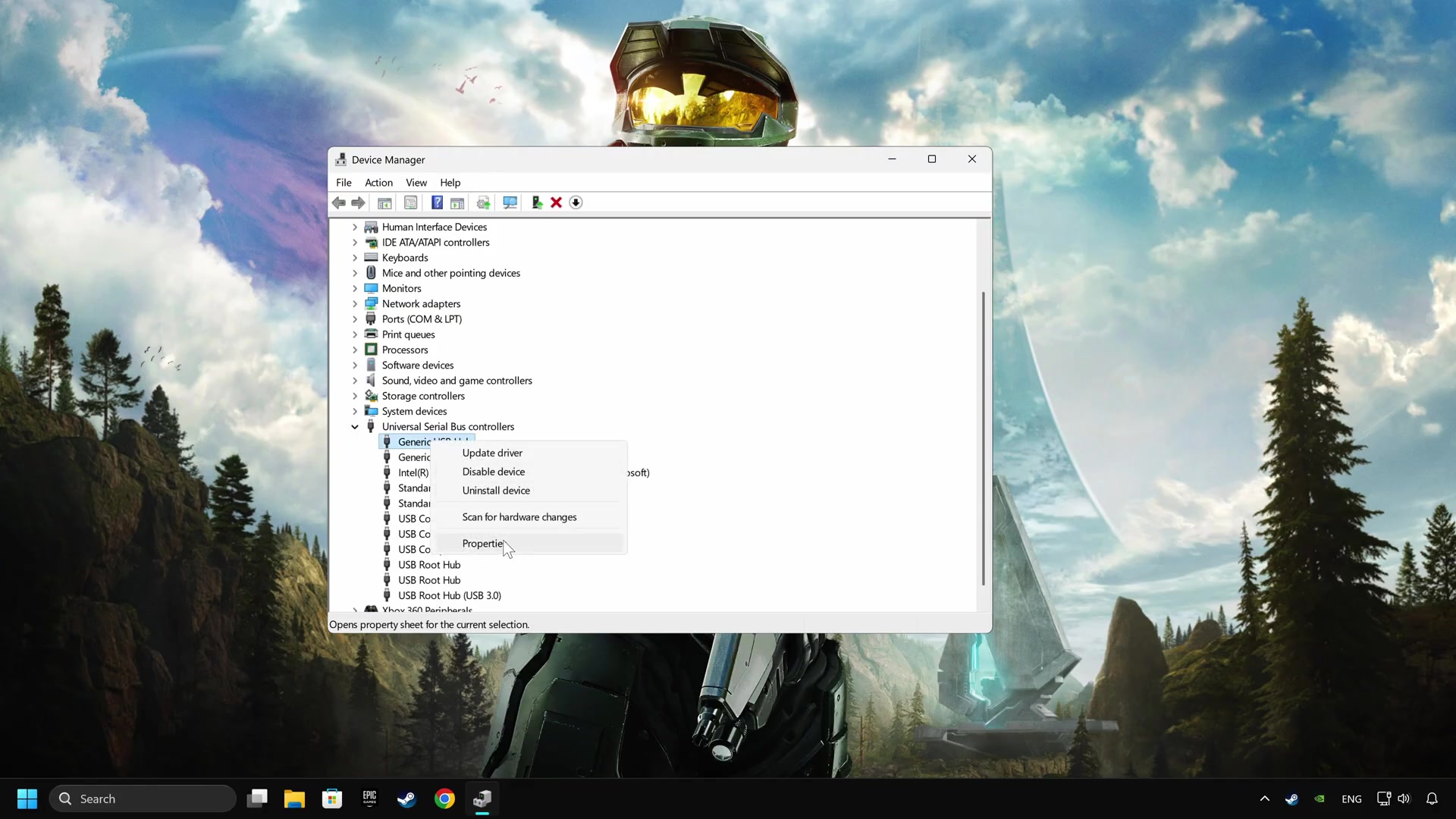
Target
Check the device driver and USB power-saving setting
- Checkpoint
- The controller device options are open
- Landmark
- The driver option followed by a USB Hub power-management page
Do this
- 1Use the device options to check the driver path shown in the source before changing any game control mapping.
- 2Open the USB Hub properties and clear the shown option that lets the computer turn the device off to save power.
Confirmation
The USB power-saving option shown by the source is no longer selected, and the controller remains connected.
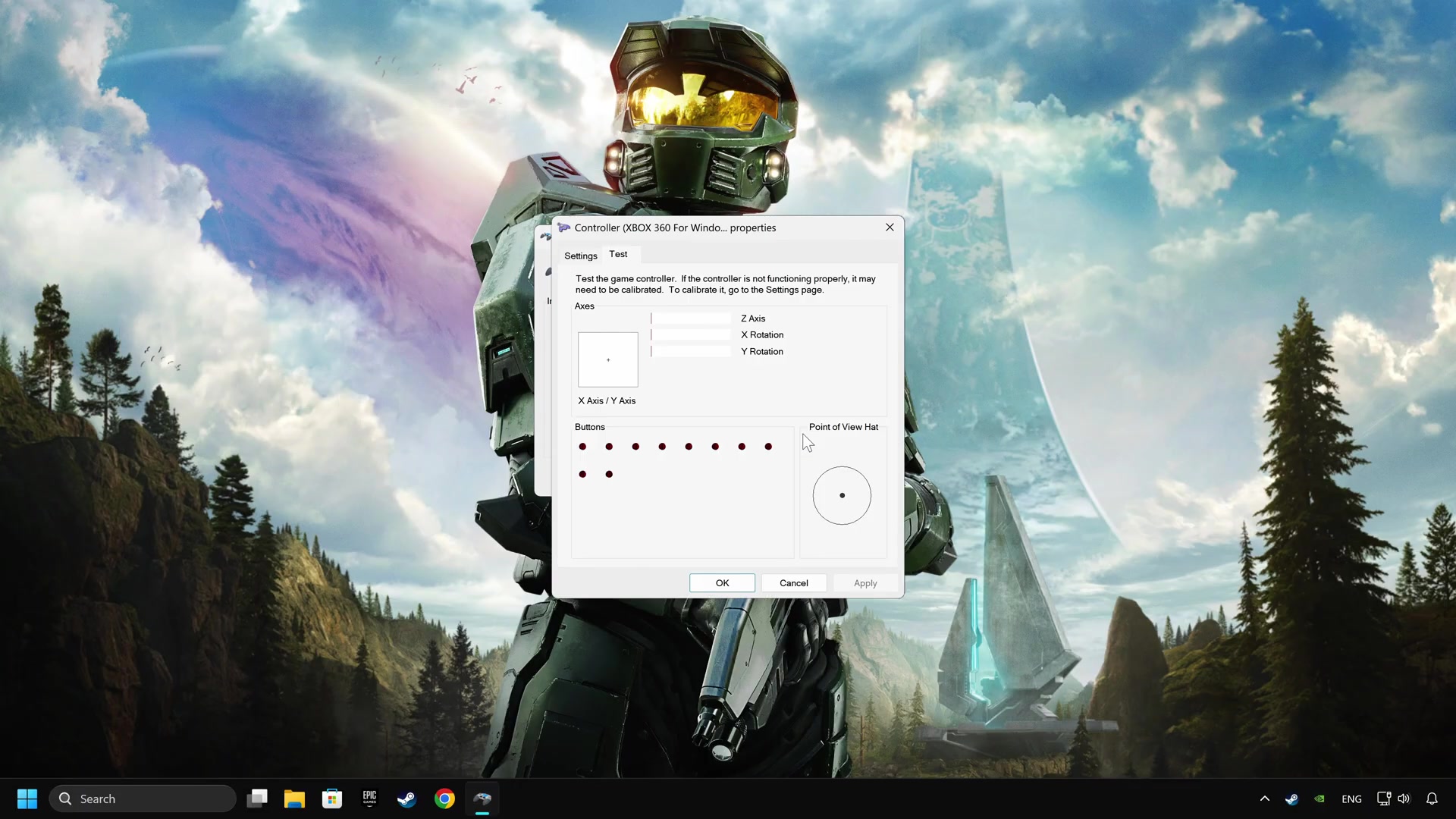
Target
Open the Windows controller calibration check
- Checkpoint
- The controller remains listed after the Device Manager and USB checks
- Landmark
- The Windows game-controller calibration panel shown in the source
Do this
- 1Open the controller calibration screen demonstrated in Windows.
- 2Use its visible controls to check that input registers before returning to Steam or the game.
Confirmation
The calibration screen responds to the controller input you test there.
Target
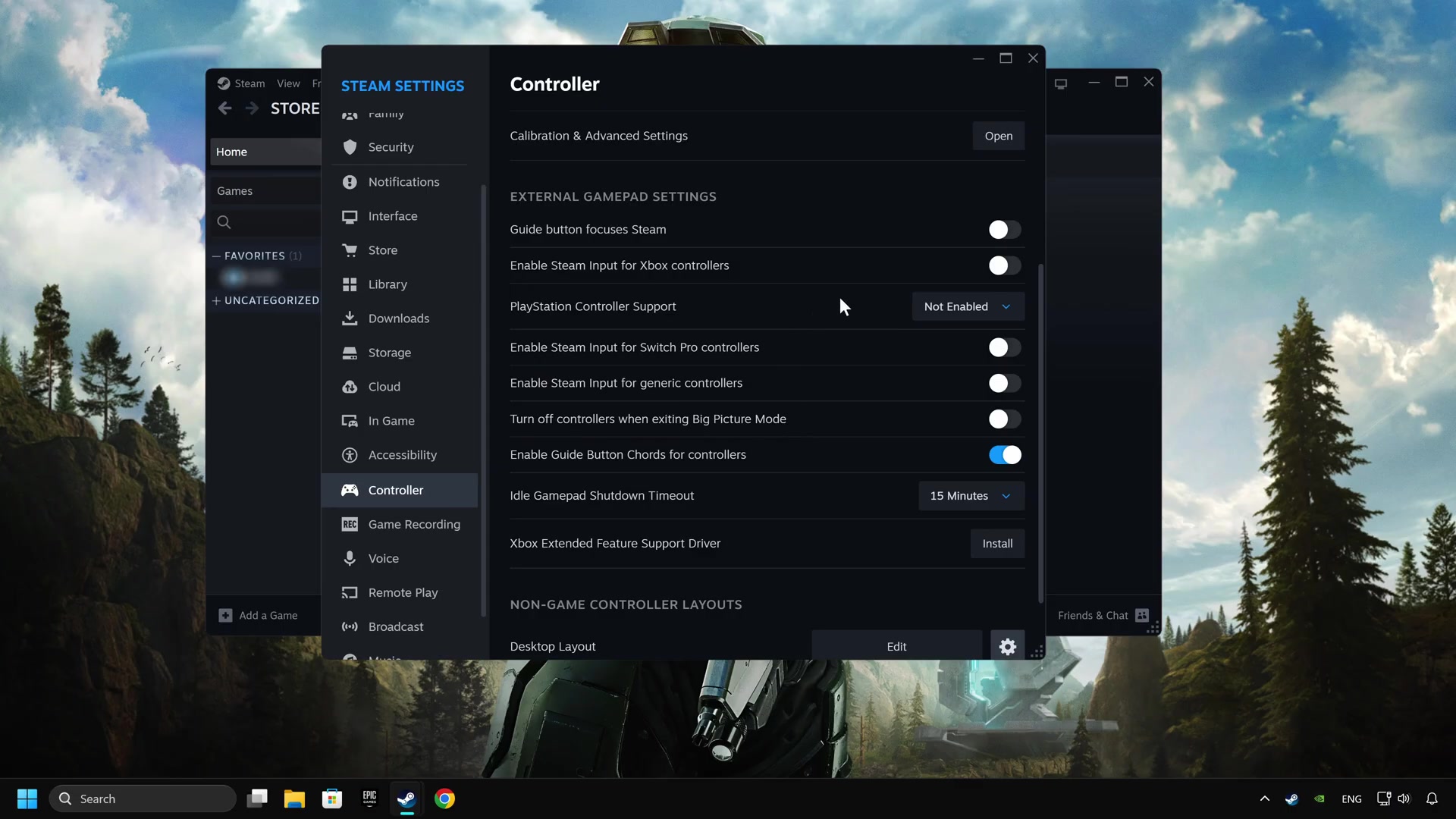
Reach Steam's controller settings after Windows input works
- Checkpoint
- Windows calibration has registered the controller
- Landmark
- Steam's Controller settings page in the source
Do this
- 1Open Steam Settings and go to the Controller area shown in the video.
- 2Check the controller detection/status shown there before opening the game-specific page.
Confirmation
Steam displays the controller on its Controller settings screen.
Target
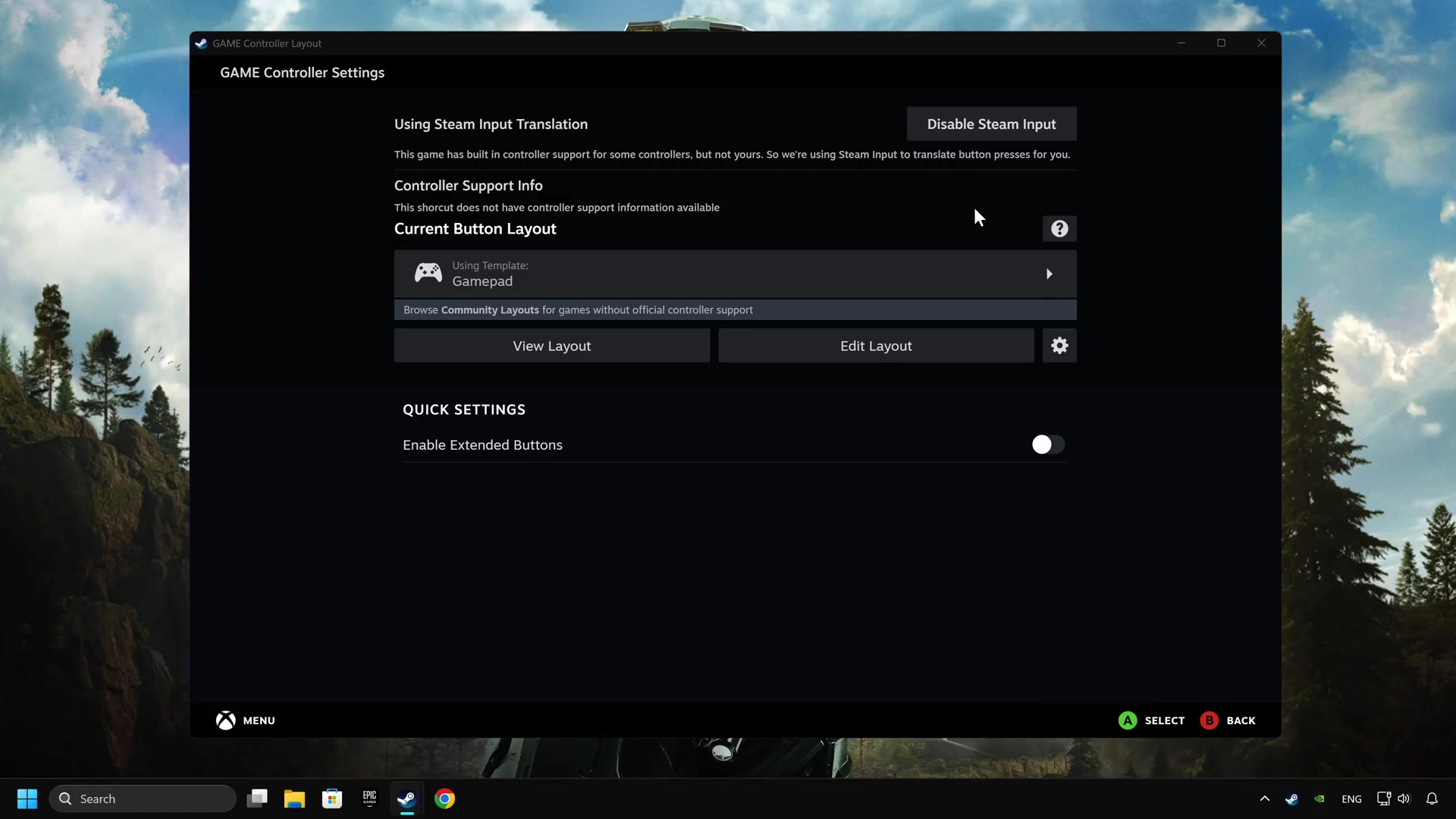
Inspect Halo Campaign Evolved's per-game Steam Input option
- Checkpoint
- Steam has detected the controller
- Landmark
- The game's Steam properties Controller page with the Steam Input dropdown
Do this
- 1Open Halo Campaign Evolved's Steam properties and select the Controller page shown by the source.
- 2Use the displayed Steam Input control, then launch to a menu and test one input before making any unrelated changes.
Confirmation
The game-specific Steam Input setting has been checked and a fresh in-game input test has been made.