
Quick answer
Start with horizontal and vertical sensitivity at 8, look acceleration at 6, and axial and radial dead zones at 8%. Raise acceleration toward 10 only if turning feels slow, and raise dead zones toward 10–12% only to stop stick drift.
Guide briefing
Optimal Settings Guide for Halo Campaign Evolved
Start with horizontal and vertical sensitivity at 8, look acceleration at 6, and axial and radial dead zones at 8%. Raise acceleration toward 10 only if turning feels slow, and raise dead zones toward 10–12% only to stop stick drift.
Applies to
- — Halo Campaign Evolved on Xbox Series X|S
- — Players seeking competitive edge or comfort
- — New players adjusting baseline controls
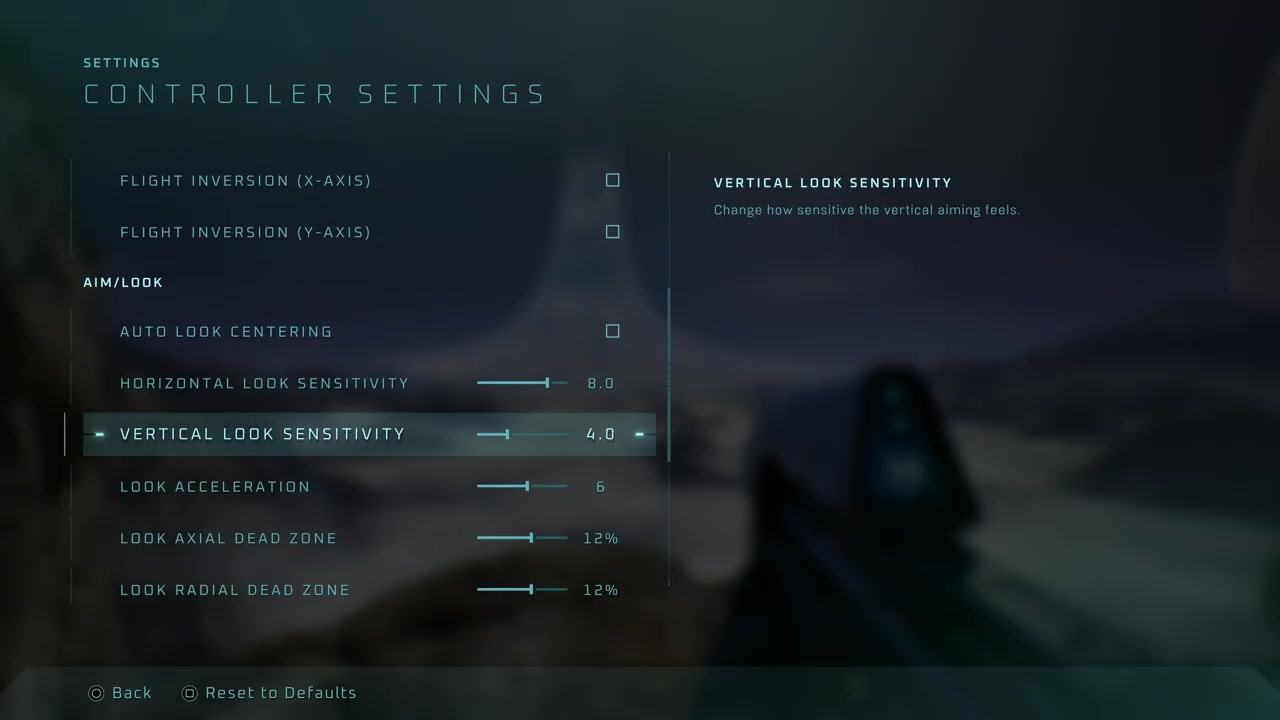
Look sensitivity adjustment
Adjusting horizontal and vertical look sensitivity controls how quickly the camera turns when moving the controller stick. A higher value allows faster panning and aiming, which is useful for quick reactions in combat.
How it works
- Increasing the sensitivity value (e.g., to 8) makes the camera turn more rapidly with minimal stick movement.
- Decreasing the sensitivity value slows down the camera response, reducing accidental over-rotation.
Source boundary: Excessive sensitivity may cause unintentional camera drift or difficulty in precise aiming at long range.
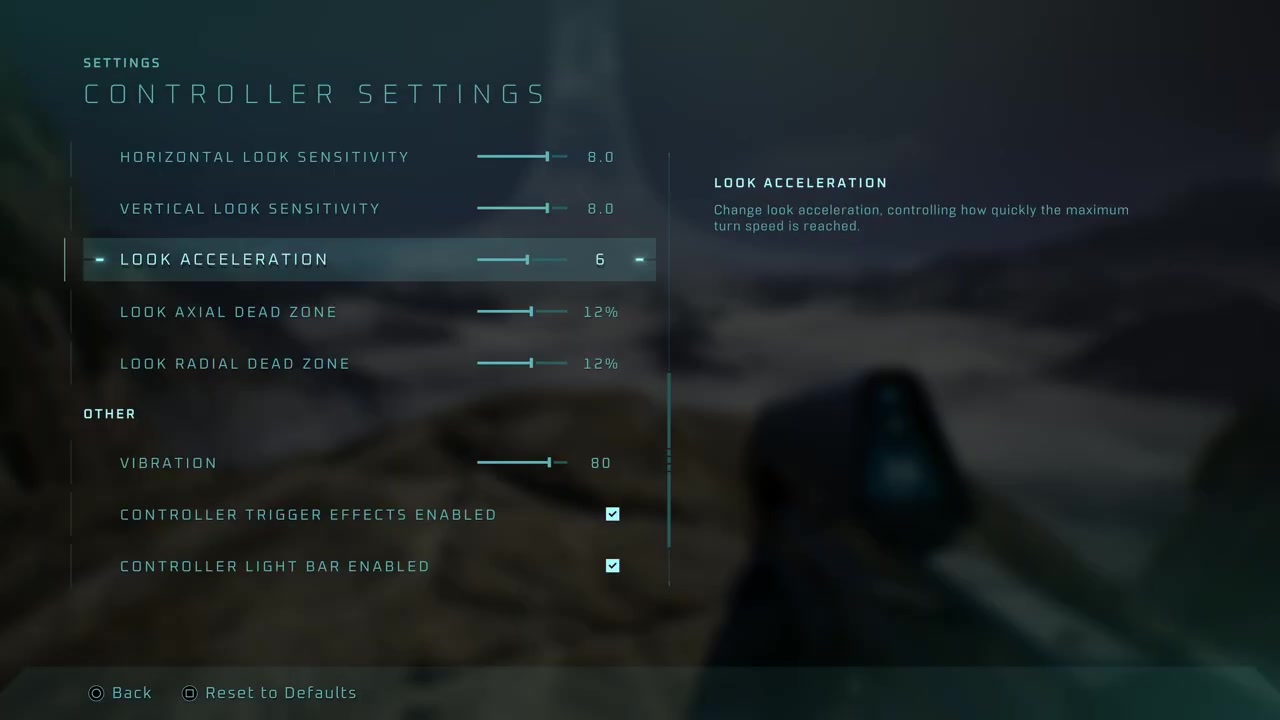
Look acceleration tuning
Look acceleration determines how quickly the camera reaches its maximum turning speed after stick input. Higher values reduce the time to full turn, improving reaction speed.
How it works
- Raising the look acceleration value (e.g., to 10) lets the player reach peak turn speed faster after initiating a turn.
- Lowering it (e.g., to 6) results in a more gradual acceleration curve, easing motion sickness for sensitive players.
Source boundary: High acceleration can cause disorientation or nausea for players prone to motion sickness.
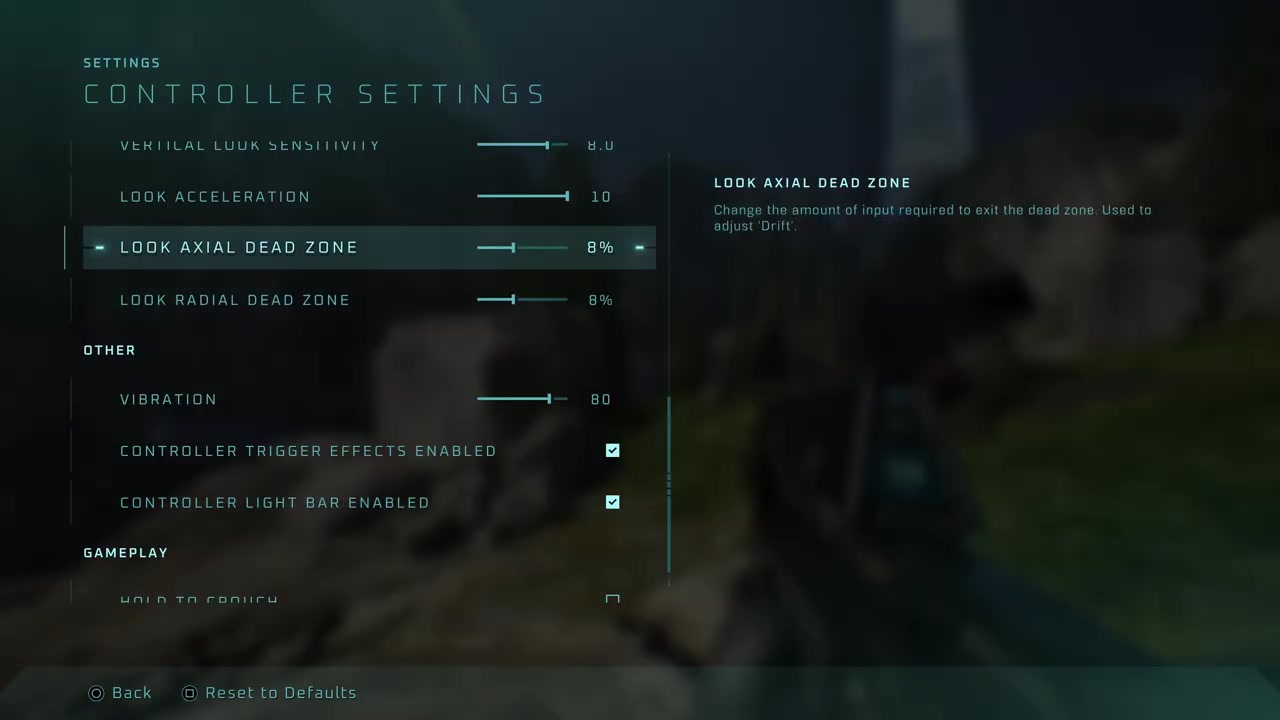
Look dead zone calibration
The dead zone defines the minimum stick movement required before the game registers input. Lowering it improves responsiveness by allowing smaller movements to register.
How it works
- Setting axial and radial dead zones to 8% reduces the threshold for input detection, making the controller react faster to subtle stick shifts.
- Increasing the dead zone (e.g., to 12%) helps mitigate stick drift but delays input response.
Source boundary: Too low a dead zone may cause unintended camera movement due to minor stick drift or hand tremor.
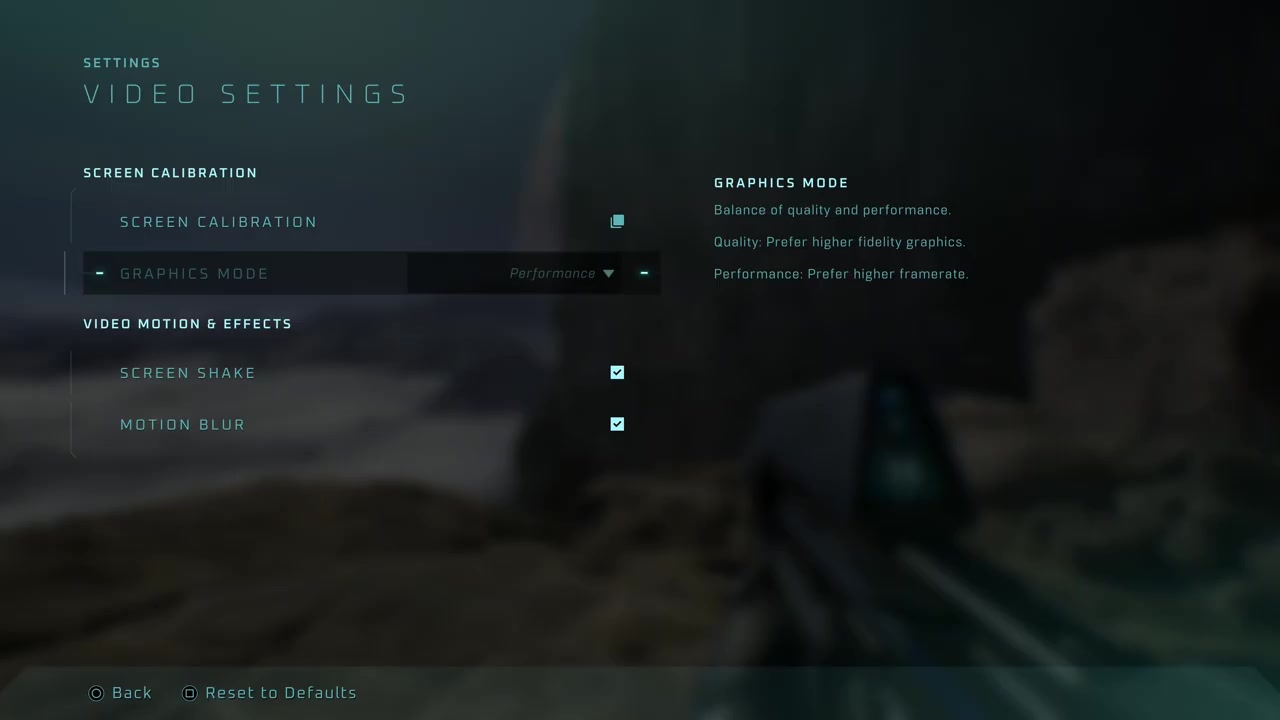
Graphics mode selection
Graphics mode affects frame rate and visual fidelity. Performance mode prioritizes smooth gameplay at the cost of some graphical detail, while fidelity mode enhances visuals at the expense of frame stability.
How it works
- Performance mode delivers higher frame rates (e.g., 60 FPS), resulting in smoother motion and reduced input lag.
- Fidelity mode increases rendering quality but may drop below 60 FPS on lower-end hardware, potentially affecting responsiveness.
Source boundary: Performance mode is only available at the main menu and cannot be changed mid-session.
Gameplay audio balance
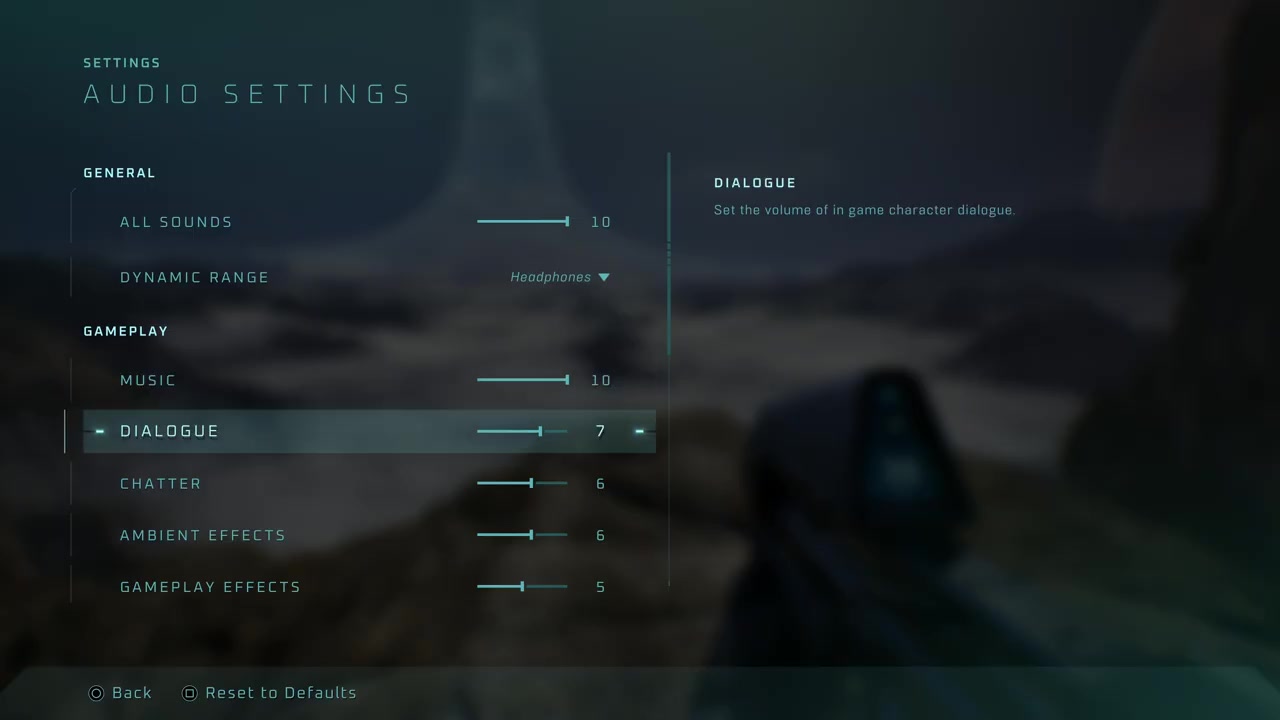
Balancing audio volumes ensures that music, dialogue, and sound effects are heard clearly without masking key auditory cues. The default setting (all at 10) drowns out music and background ambiance.
How it works
- Setting music to 10 preserves original soundtrack intensity, while dialogue at 7 and ambient effects at 6 maintain speech clarity and environmental awareness.
- Lowering gameplay effects to 5 prevents them from overpowering music and dialogue, especially during intense combat moments.
Source boundary: Dynamic range settings must match output device (headphones, TV, etc.) to avoid clipping or distortion.
Field of view configuration
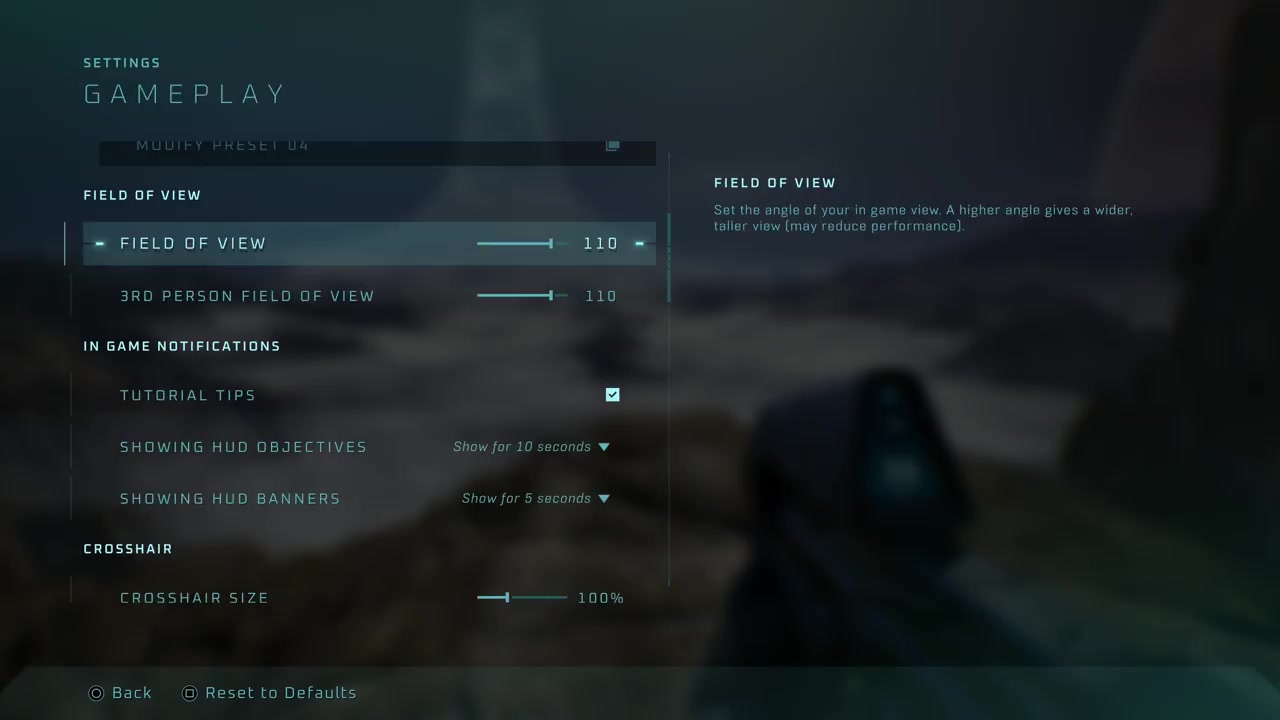
Field of view (FOV) determines how much of the environment is visible on screen. Wider FOV improves peripheral awareness but may distort edges; narrower FOV offers sharper focus at the center.
How it works
- Setting FOV to 110 on a monitor under 32 inches provides wider peripheral visibility in large combat spaces.
- Using 90 on larger TVs or when sitting farther away avoids fish-eye distortion and maintains natural perspective during close-quarters combat.
Source boundary: Third-person FOV should match first-person FOV to prevent inconsistent camera behavior across perspectives.