Quick answer
Set HDR maximum brightness to your display’s actual peak brightness (e.g., 1,500 nits for LG G4) or 2,000 nits if higher; start contrast at +5 and brightness at +10, avoiding decreases to prevent washout.
Guide briefing
HDR Calibration Guide for Halo Campaign Evolved on PlayStation 5 Pro
Set HDR maximum brightness to your display’s actual peak brightness (e.g., 1,500 nits for LG G4) or 2,000 nits if higher; start contrast at +5 and brightness at +10, avoiding decreases to prevent washout.
Applies to
- — PlayStation 5 Pro users with HDR-capable displays
- — Users seeking optimal visual fidelity in Halo Campaign Evolved
- — Those calibrating for screens like LG G4 with known peak brightness
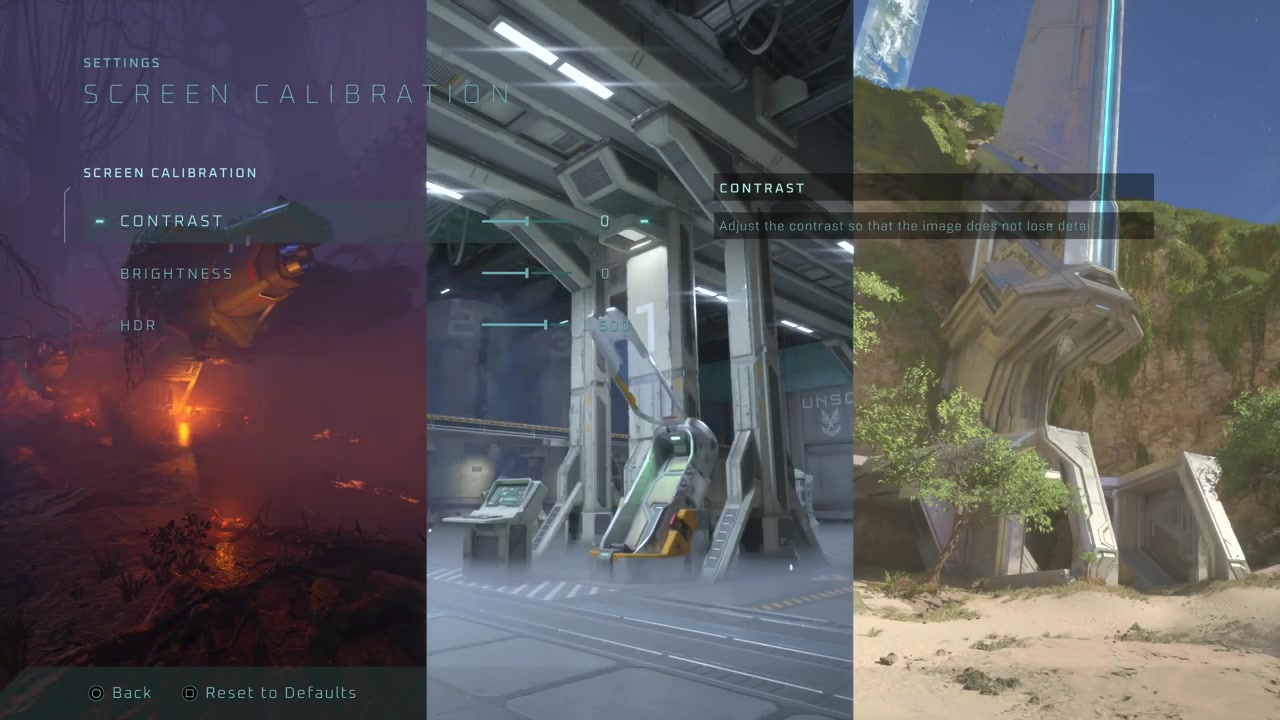
HDR slider structure in Halo Campaign Evolved
The game provides three dedicated HDR calibration sliders: contrast, brightness, and HDR maximum brightness. Unlike modern consoles with system-level HDR calibration, these are the only controls available—no external display or OS settings affect them.
How it works
- HDR maximum brightness sets the peak luminance ceiling for the game's HDR output, capped at 2,000 nits.
- Contrast and brightness sliders adjust midtone and overall luminance levels independently of the HDR floor or ceiling.
Source boundary: The HDR maximum brightness slider is hard-capped at 2,000 nits regardless of display capability; higher-end screens cannot exceed this limit without a patch.
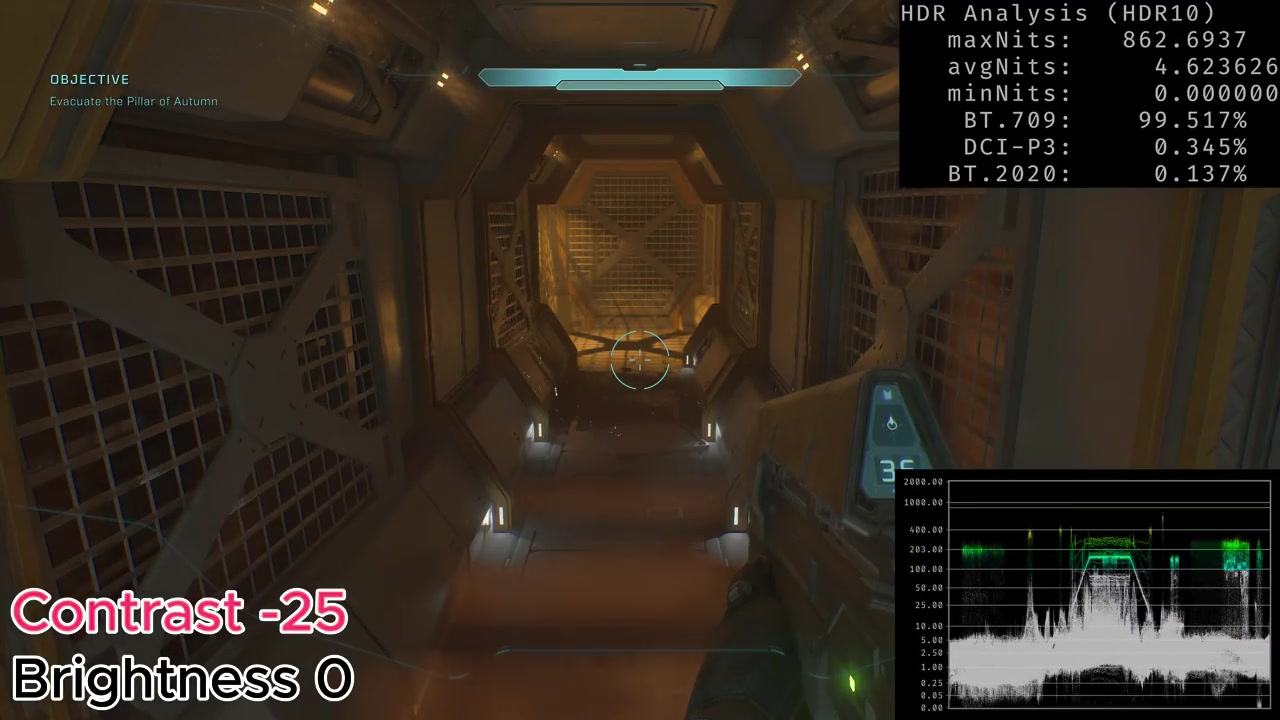
Impact of contrast and brightness adjustments
Decreasing either contrast or brightness alters the HDR signal’s dynamic range, affecting black level fidelity and highlight intensity. The game does not apply artificial black lift, so changes directly reflect in the output.
How it works
- Lowering contrast reduces specular highlight brightness and lifts the effective black level floor, causing washed-out visuals.
- Lowering brightness darkens the entire image, compounding the default presentation’s darkness on certain displays like LG G4 with HGiG enabled.
Source boundary: Contrast above +10 risks clipping fine shadow details; brightness above +15 may cause loss of texture in midtones depending on display gamma.
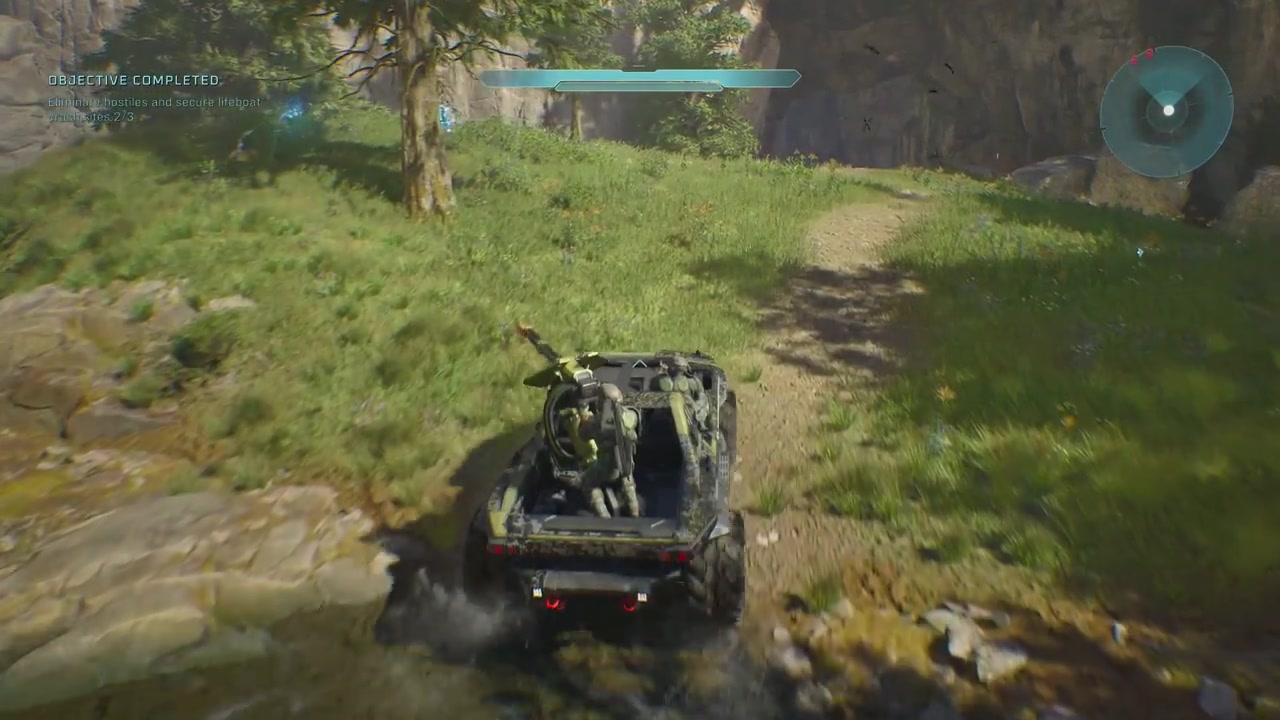
Artistic choice vs. technical limitation in HDR rendering
The game’s HDR appearance includes intentional low-contrast, hazy environments as part of its art direction. This design choice means even perfectly calibrated HDR will lack punchy highlights, unlike games that prioritize dynamic range over stylistic consistency.
How it works
- The absence of artificial black lift ensures accurate signal tracking but preserves the artist’s intended low-contrast look.
- OLED screens maximize the benefit of clean black levels, but the hazy aesthetic still limits perceived HDR 'pop'.
Source boundary: No in-game option exists to override the low-contrast art style; it is baked into the rendering pipeline and cannot be adjusted via sliders.