
Quick answer
Navigate to Settings > Accessibility and uncheck the 'narrate screens' option.
Guide briefing
Halo Campaign Evolved: Turn Off Menu Narrator in 30 Seconds
Navigate to Settings > Accessibility and uncheck the 'narrate screens' option.
Applies to
- — Players who prefer silent navigation
- — Users in environments where audio feedback is disruptive
- — Players requiring visual-only interaction for accessibility
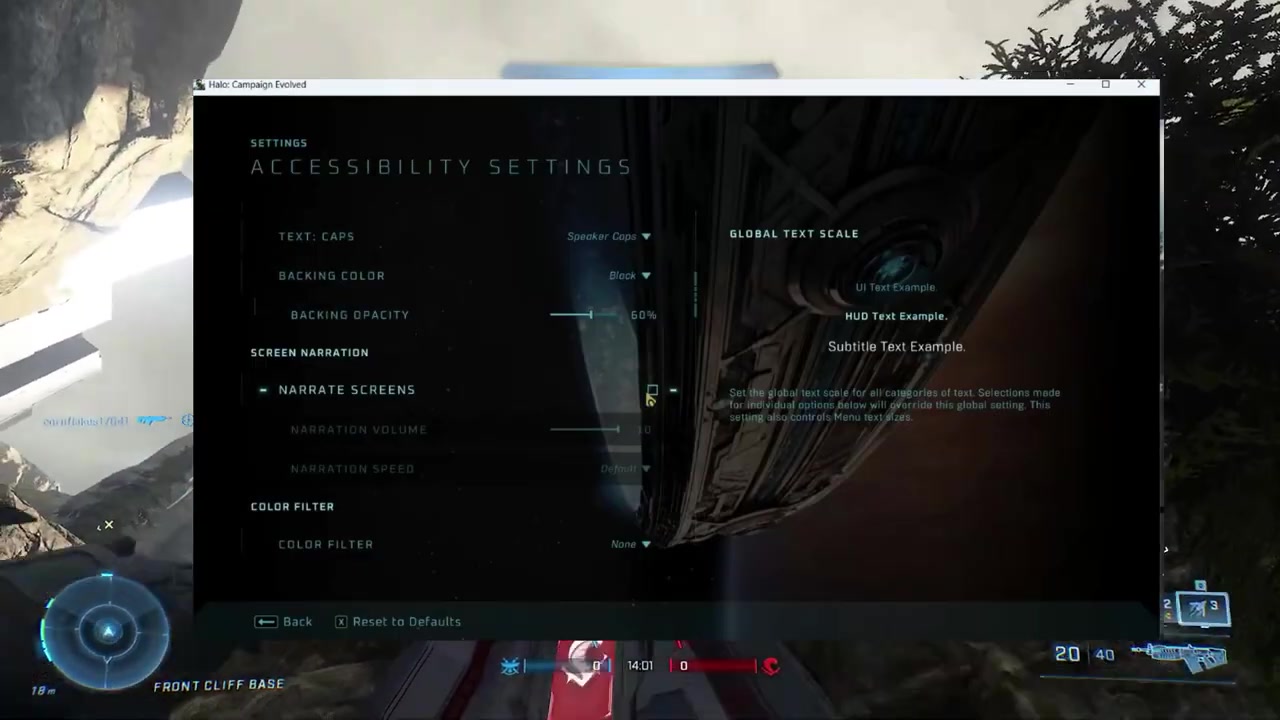
Screen menu narration toggle
The screen menu narration feature reads interface elements aloud during gameplay or menu navigation. It is controlled via a dedicated accessibility setting that can be enabled or disabled by the user.
How it works
- Accessing the Settings menu from the bottom-right corner of the screen opens the main configuration panel.
- Within Settings, selecting the Accessibility section reveals the 'narrate screens' option.
Source boundary: Disabling this setting only affects screen menu narration; it does not affect voice lines, combat alerts, or other in-game audio cues.
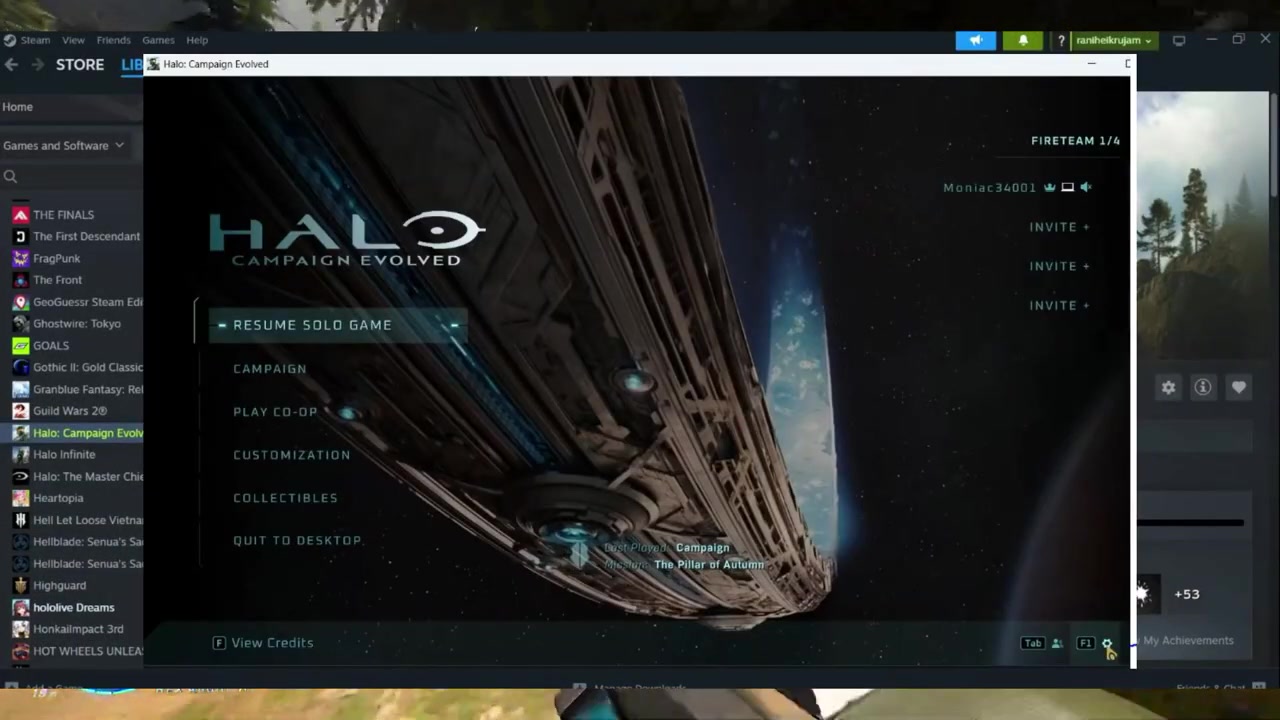
Menu navigation path
The source demonstration opens Settings from the bottom-right corner of the main menu before selecting Accessibility.
How it works
- From the demonstrated main menu, use the gear icon in the bottom-right corner.
- Clicking this icon opens the Settings overlay, which includes categories such as Audio, Display, and Accessibility.
Source boundary: This navigation path is only available in the main menu and does not apply during active gameplay or cutscenes.
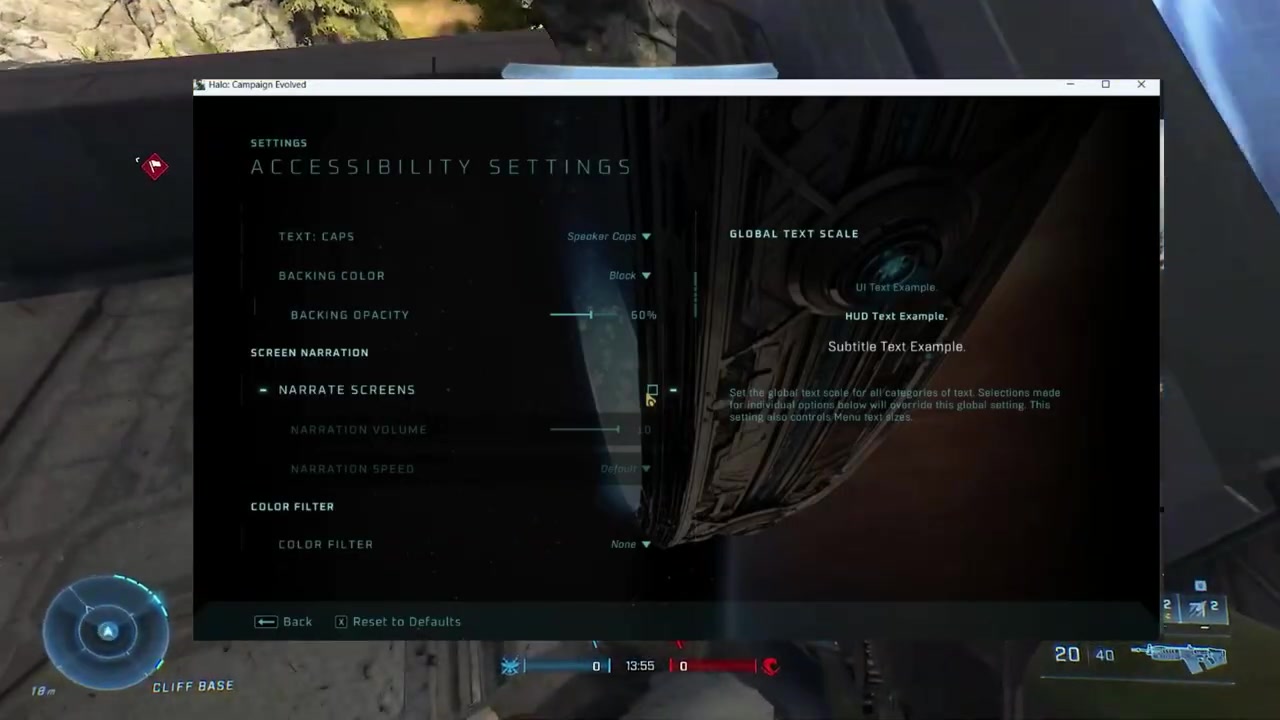
Accessibility feature scope
The 'narrate screens' option is part of the broader Accessibility suite, which also includes options like colorblind mode, text size, and controller vibration. It specifically governs spoken feedback for UI elements.
How it works
- The Accessibility section is scrollable and contains multiple sub-options; 'narrate screens' is typically located near the bottom of the list.
- Uncheck the option, then move to another menu screen to verify that the spoken feedback has stopped.
Source boundary: This setting does not affect narration during cinematic sequences or dialogue scenes unless explicitly enabled elsewhere in the game.