
Quick answer
The source demonstrates one Steam PC mod arrangement: extract its package, copy its contents to the game executable folder, connect two gamepads, begin Co-op Campaign, then use Ctrl+Y for the second player. It is not proof for every game version or mod release.
Guide briefing
Set Up the Source's PC Split-Screen Local Co-op Route
This route records one public video's mod-based PC setup. It does not claim that every build, platform, or mod package behaves the same way. Keep the source's order intact: inspect the Steam game files, place the extracted package where the video shows, confirm two gamepads, then enter Co-op Campaign and use the displayed join command.
Before you start
- — A Steam PC installation of Halo Campaign Evolved.
- — The exact split-screen package demonstrated by the source, kept separate until the copy step.
- — Two connected gamepads for the source's local-player check.
Applies to
- — PC players who deliberately choose the exact split-screen mod workflow shown
- — Players with two gamepads
- — Readers who want to separate source-demonstrated steps from unverified compatibility claims
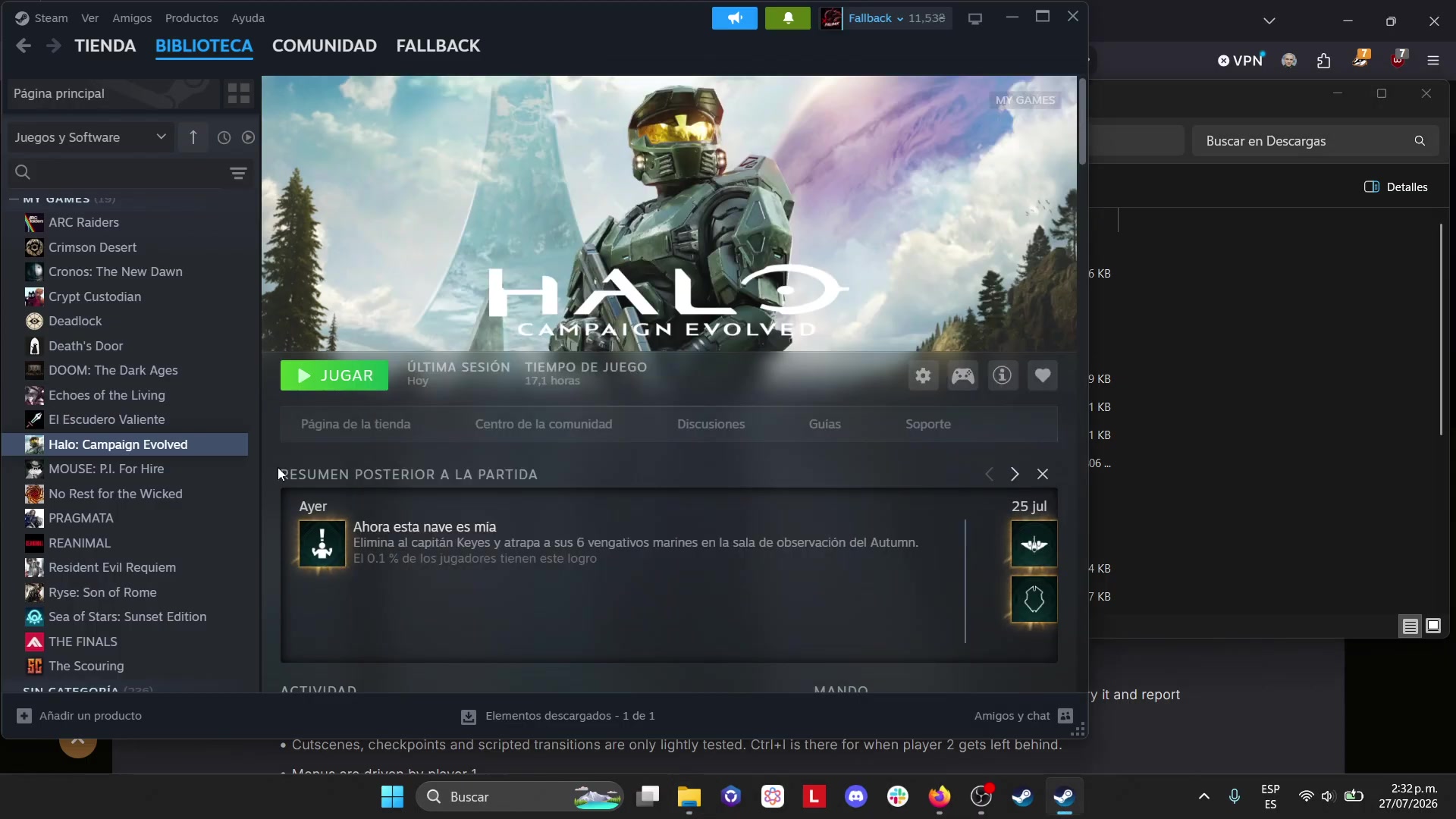
Target
Confirm this is the source's Steam PC mod route
- Checkpoint
- Before downloading or replacing game files
- Landmark
- The source's opening Steam and split-screen demonstration
Do this
- 1Treat this as one demonstrated mod arrangement, not an official cross-platform co-op instruction.
- 2Continue only if you are using the Steam PC context and can test with two gamepads as the source does.
Confirmation
You have limited the attempt to the shown PC setup rather than applying it to another platform or an unknown package.
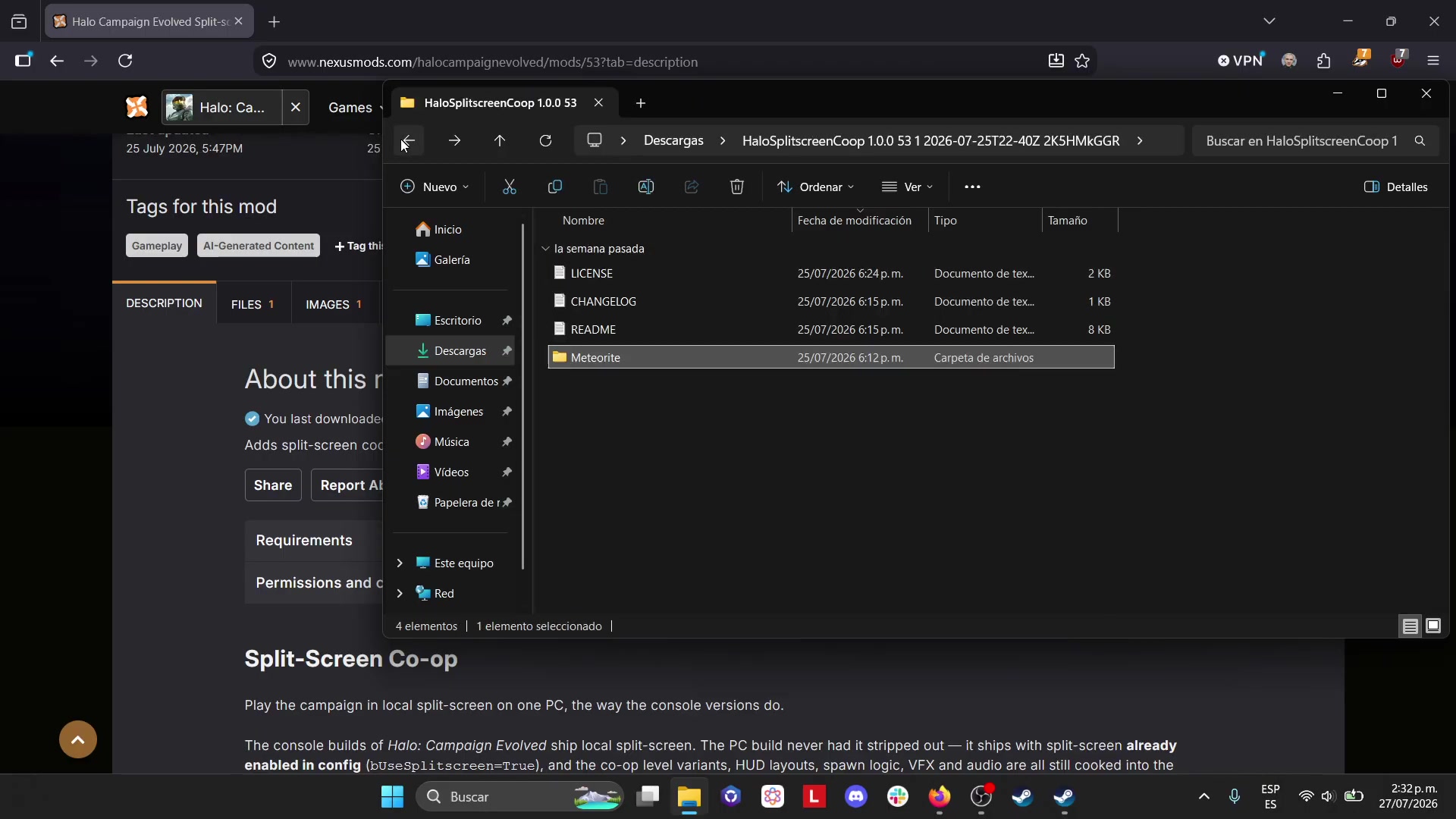
Target
Extract the downloaded split-screen package
- Checkpoint
- The source package has been obtained
- Landmark
- The extracted folder shown before its contents are copied
Do this
- 1Extract the package so its contents are visible as a complete folder.
- 2Keep the extracted folder open until you have located the game's local files; do not copy partial pieces into an unknown directory.
Confirmation
The package has been extracted and its files are ready to copy as one visible set.
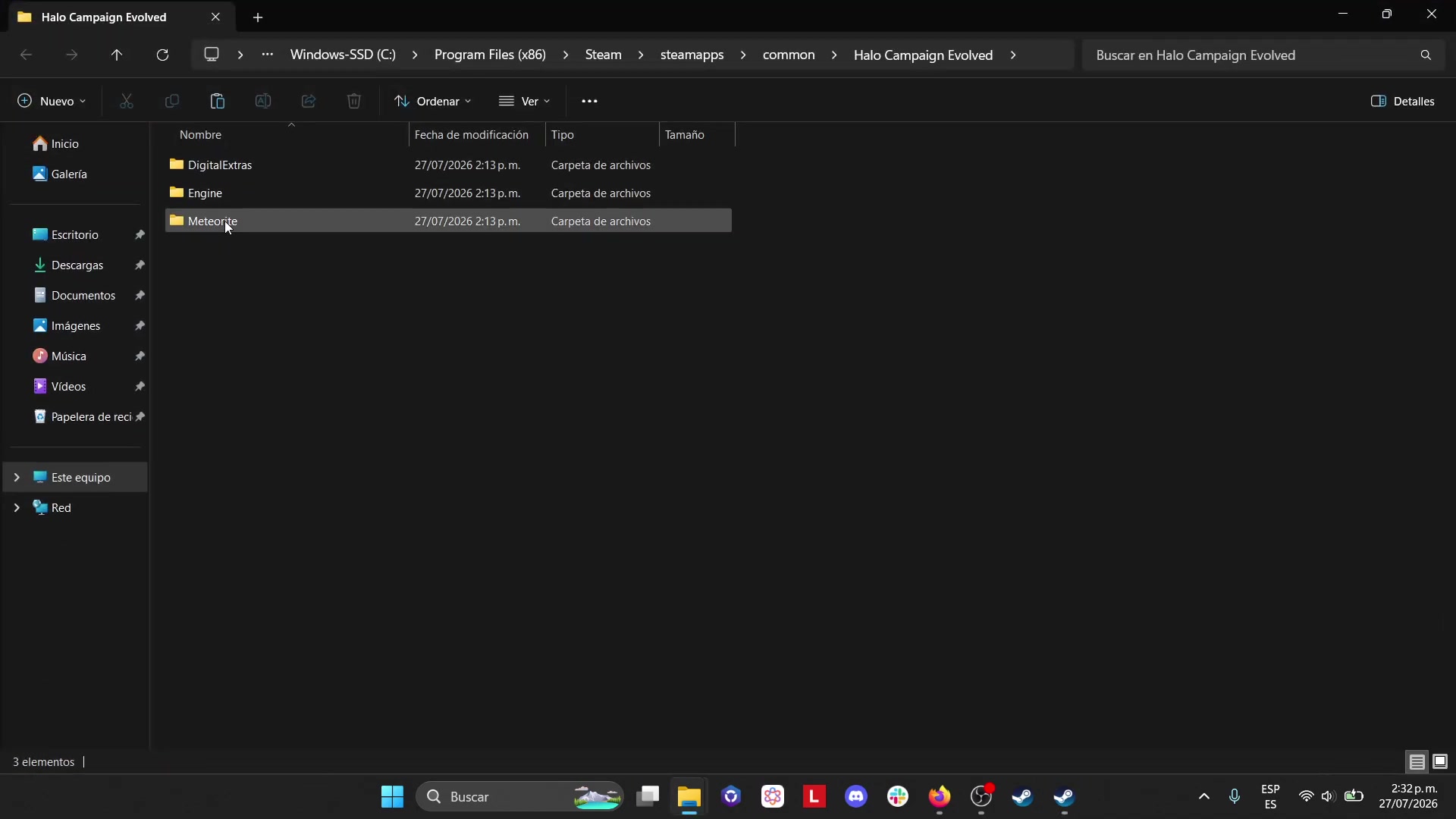
Target
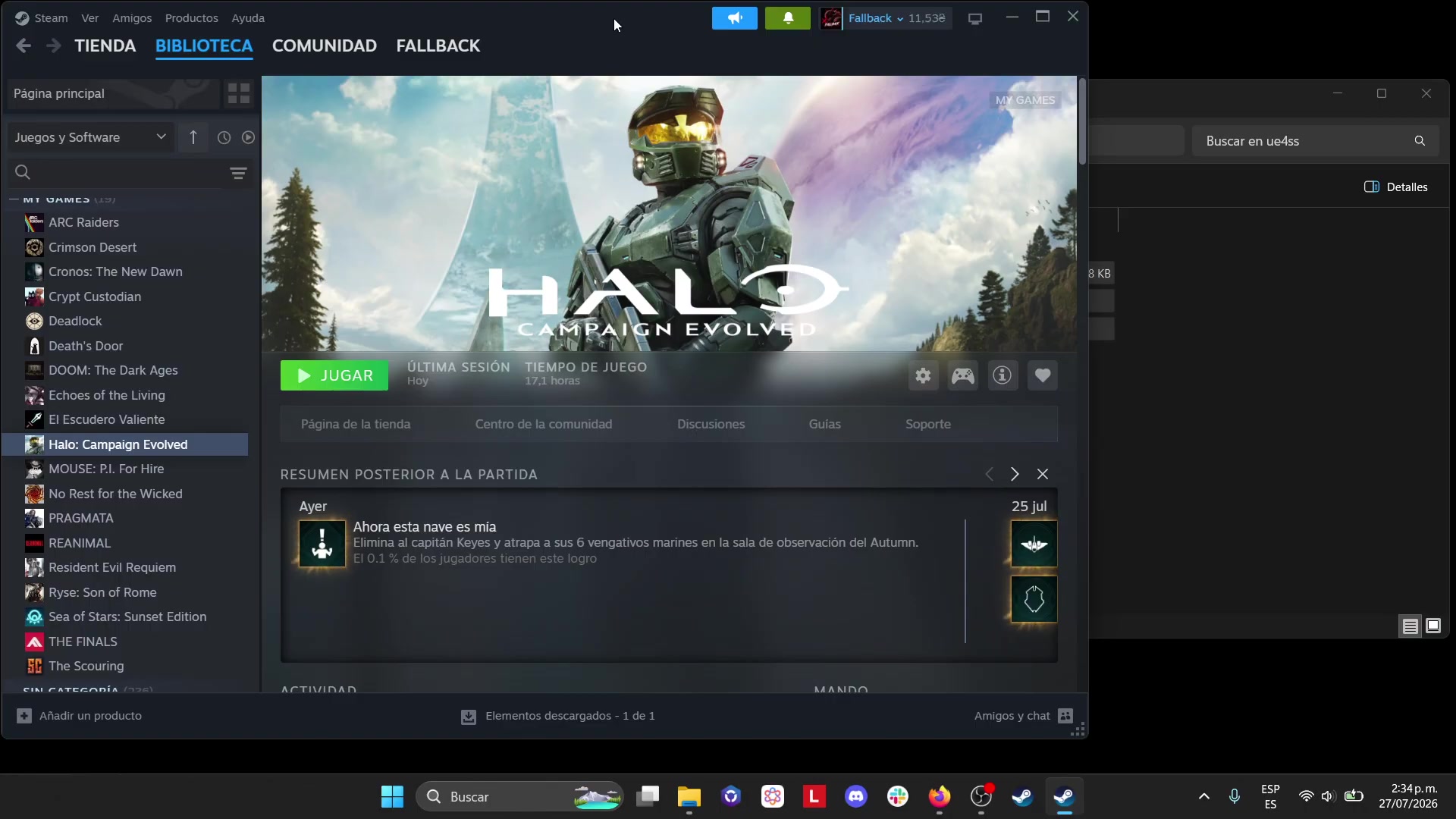
Open Halo Campaign Evolved's Steam local files
- Checkpoint
- The package is extracted
- Landmark
- Steam's Local Files entry leading to the game's install directory
Do this
- 1Open Halo Campaign Evolved in Steam and use the Local Files path shown in the source.
- 2Keep that installation folder open beside the extracted package before moving any files.
Confirmation
You are looking at the game folder opened through Steam's local-files control.
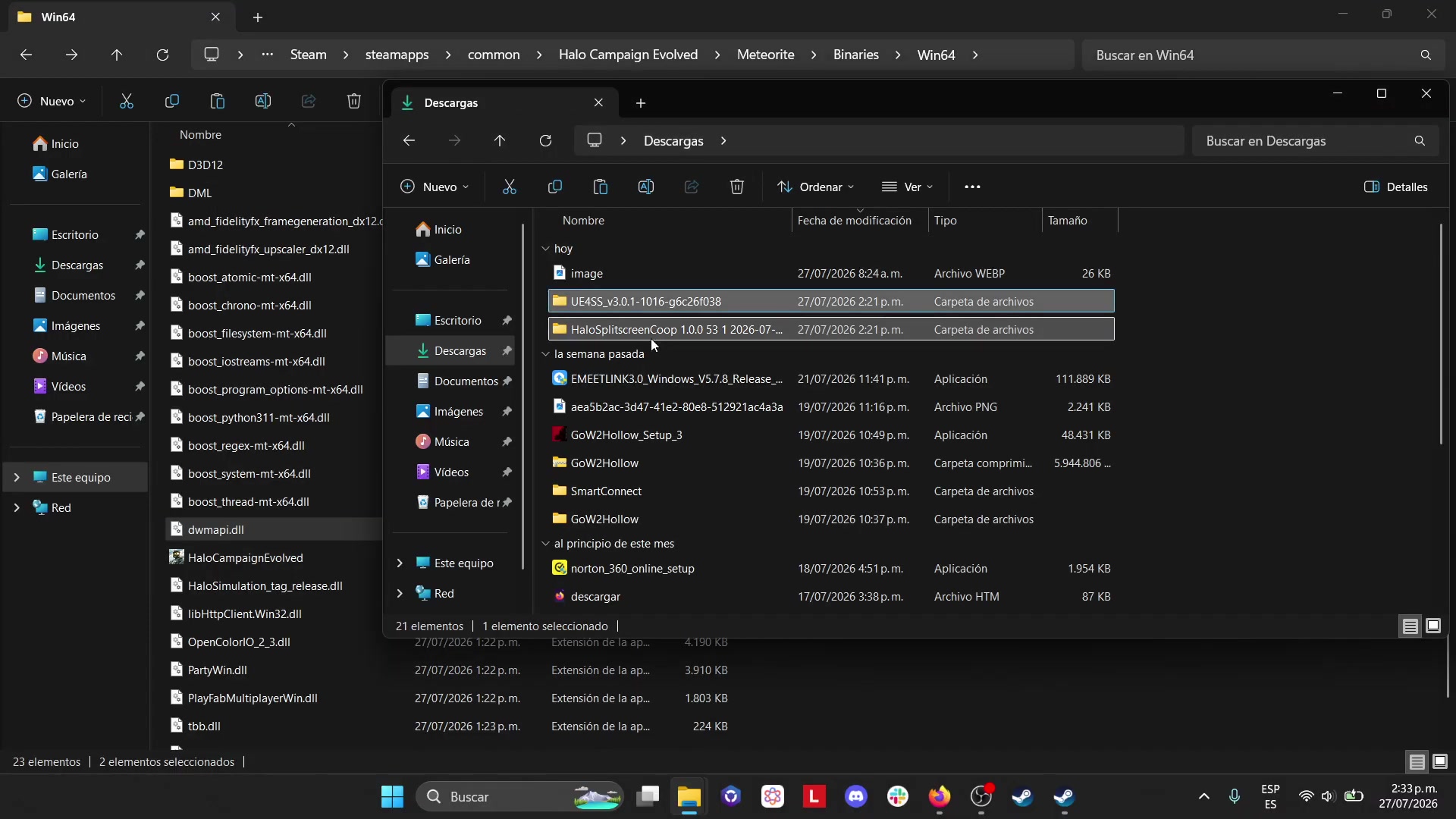
Target
Copy the extracted contents to the executable folder shown
- Checkpoint
- Both the extracted package and Steam local-files folder are open
- Landmark
- The source's game directory where the package contents are placed
Do this
- 1Copy the extracted package contents into the game executable folder shown by the video.
- 2If Windows shows a replacement prompt, pause and verify you are in the same Steam-opened folder before accepting the operation.
Confirmation
The source package contents are present in the game executable folder used by the video.
Target
Connect two gamepads before opening co-op
- Checkpoint
- The source package is in the shown game folder
- Landmark
- The source's two-controller requirement before the menu join
Do this
- 1Connect two gamepads to the PC before starting the local-player flow.
- 2Use the Windows or Steam controller check already available to make sure both are present before entering the game.
Confirmation
Two gamepads are connected and ready before the source's co-op menu step.
Target
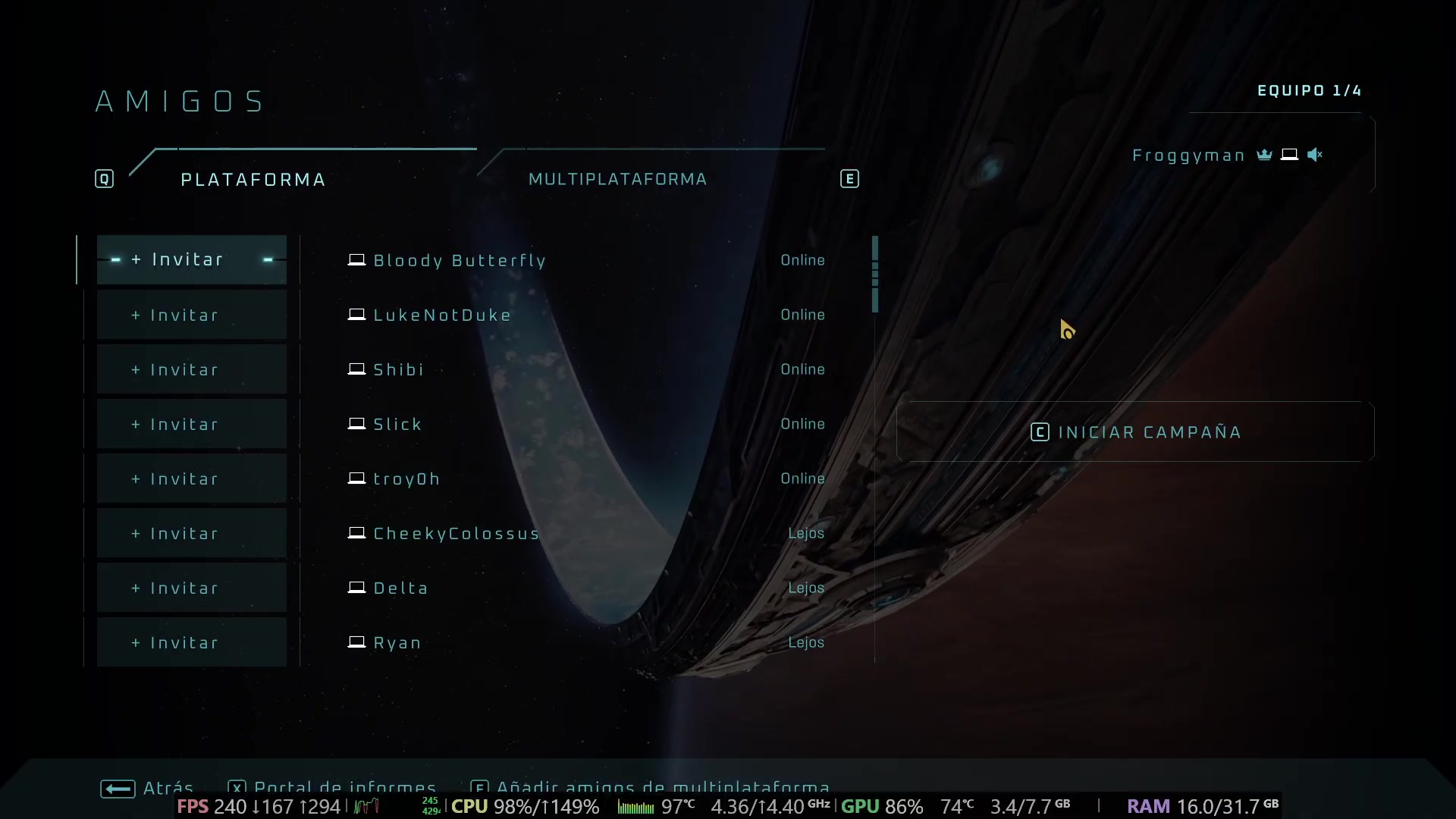
Enter Co-op Campaign and use the shown keyboard command
- Checkpoint
- Both gamepads are connected and the game is running
- Landmark
- The Co-op Campaign menu followed by the source's Ctrl+Y prompt
Do this
- 1Navigate to Co-op Campaign as shown in the source.
- 2Press Ctrl+Y at the source's join point, then use the secondary gamepad input when the video prompts it.
Confirmation
The local-player join action has been triggered from the Co-op Campaign flow.
Target
Check that the second player is actually visible
- Checkpoint
- The join command has been used from Co-op Campaign
- Landmark
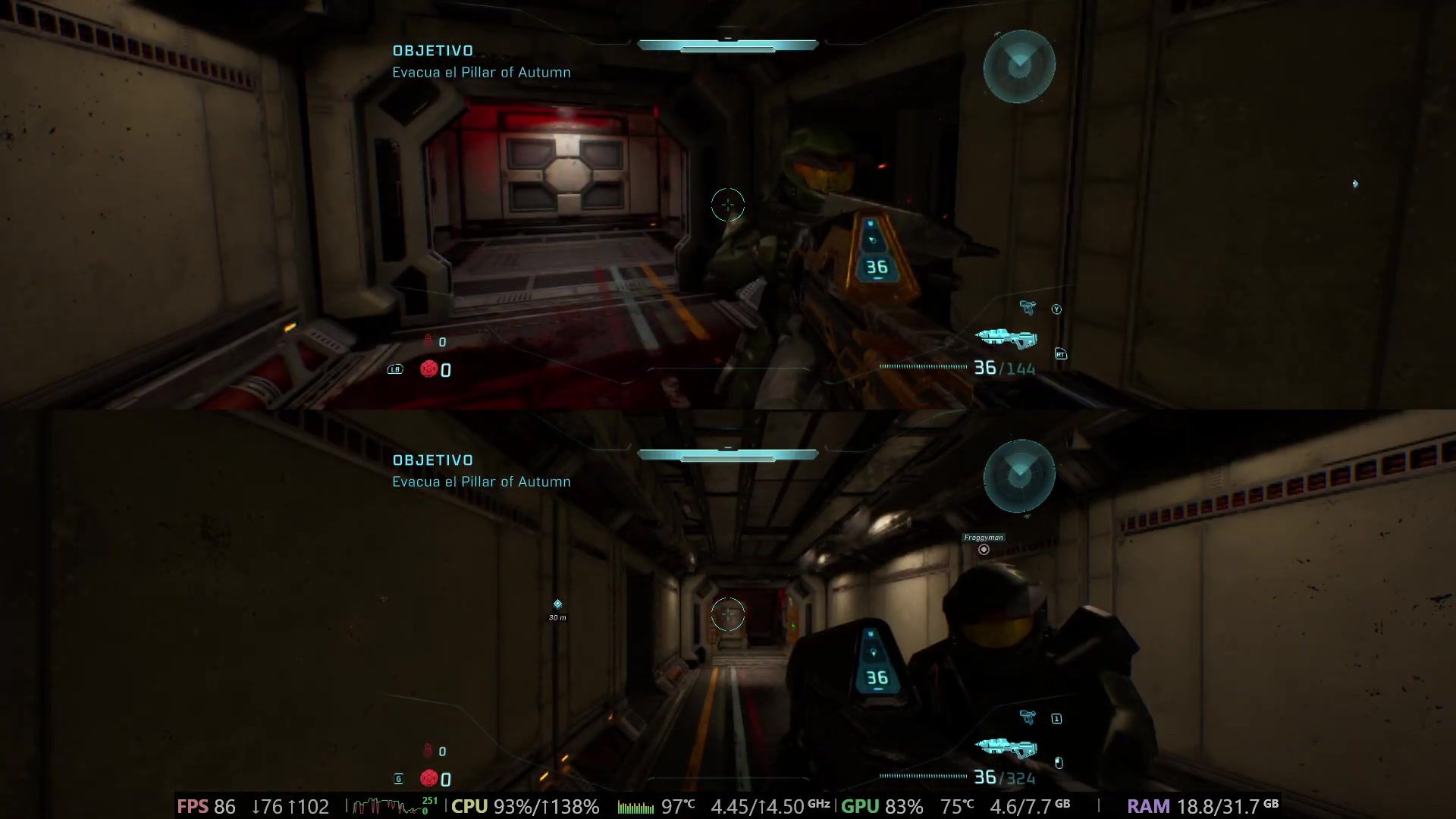
- The gameplay view with the second local player visible
Do this
- 1Start or resume the co-op session and look for the second player's visible gameplay presence.
- 2Use this visible second-player state as the completion check before assuming the setup worked.
Confirmation
A second local player is visibly present in the split-screen gameplay view.