
Quick answer
Download the exact Fully Playable Marines archive from its Nexus Mods page, unpack its six files, open Halo Campaign Evolved through Steam's Browse Local Files command, and place those six files under Meteorite > Content > Paks. To return to the normal player model, move only those same six files into a separate holding folder.
Guide briefing
Install the Playable Marine Mod Without Losing a Clean Rollback
This five-checkpoint route selects the exact package, verifies its six extracted files, opens the live Steam installation, places the files in Meteorite > Content > Paks, and preserves a clean way back to the normal player model. The video is the single factual source; Nexus Mods and Steam frames are temporary source visuals.
Before you start
- — Use the Steam PC version shown by the source.
- — Keep the downloaded archive outside the game folder until it has been unpacked.
- — Do not treat this six-file character replacement like a UE4SS mod.
Applies to
- — Steam PC installations of Halo Campaign Evolved
- — The Fully Playable Marines character-replacement package shown by the source
- — Players who want a reversible manual install without mixing in UE4SS mods
Target
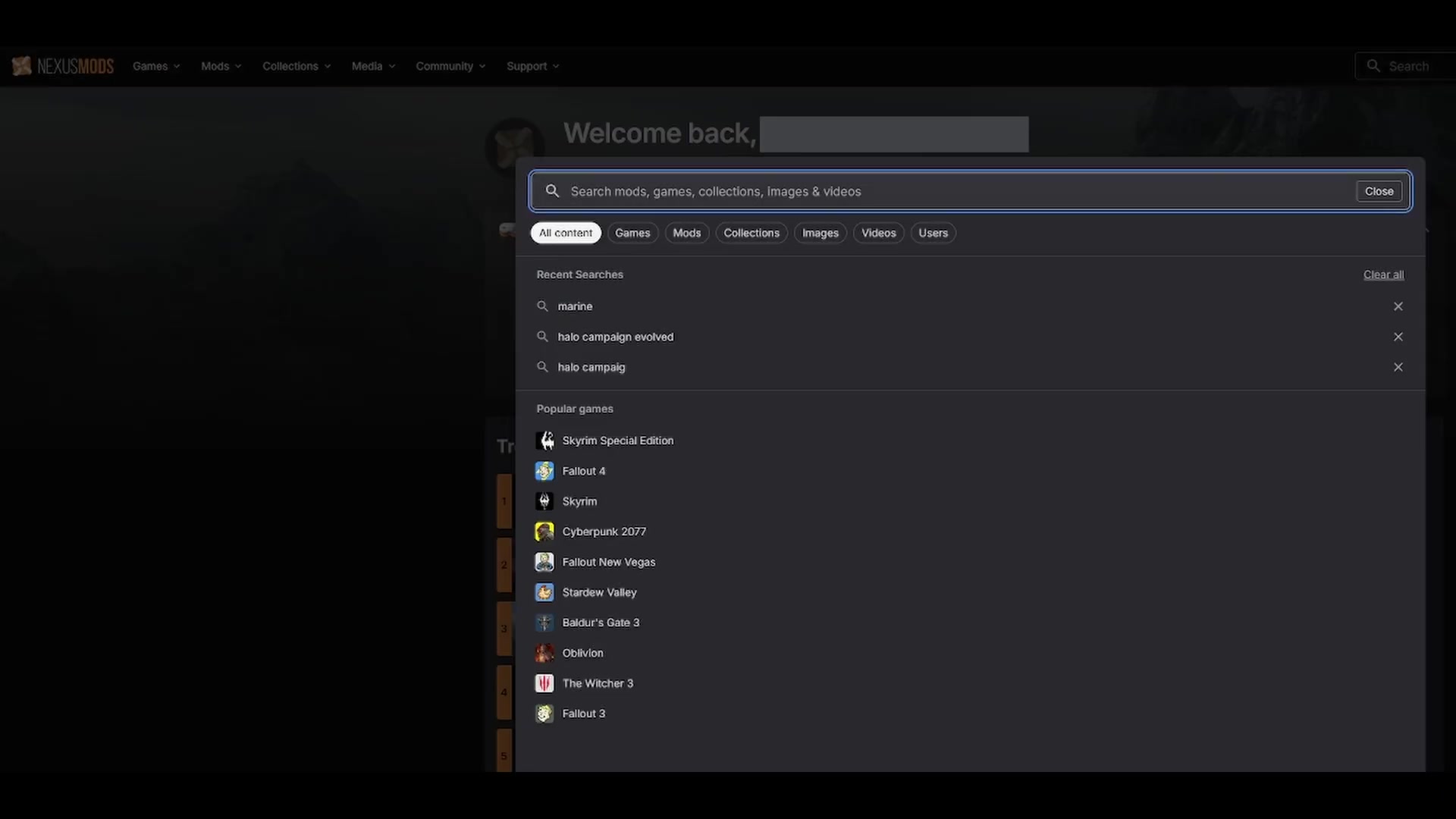
Open the exact Fully Playable Marines package
- Checkpoint
- Nexus Mods is open and Halo Campaign Evolved is selected.
- Landmark
- The Halo Campaign Evolved Nexus Mods listing with marine entered in the search field.
Do this
- 1Open Nexus Mods, search for Halo Campaign Evolved, and enter the game's own mod listing.
- 2Search that listing for marine and open Fully Playable Marines, the specific package demonstrated by the source.
Confirmation
The package page identifies Fully Playable Marines and exposes its own Files, description, installation, and uninstallation areas.
Target
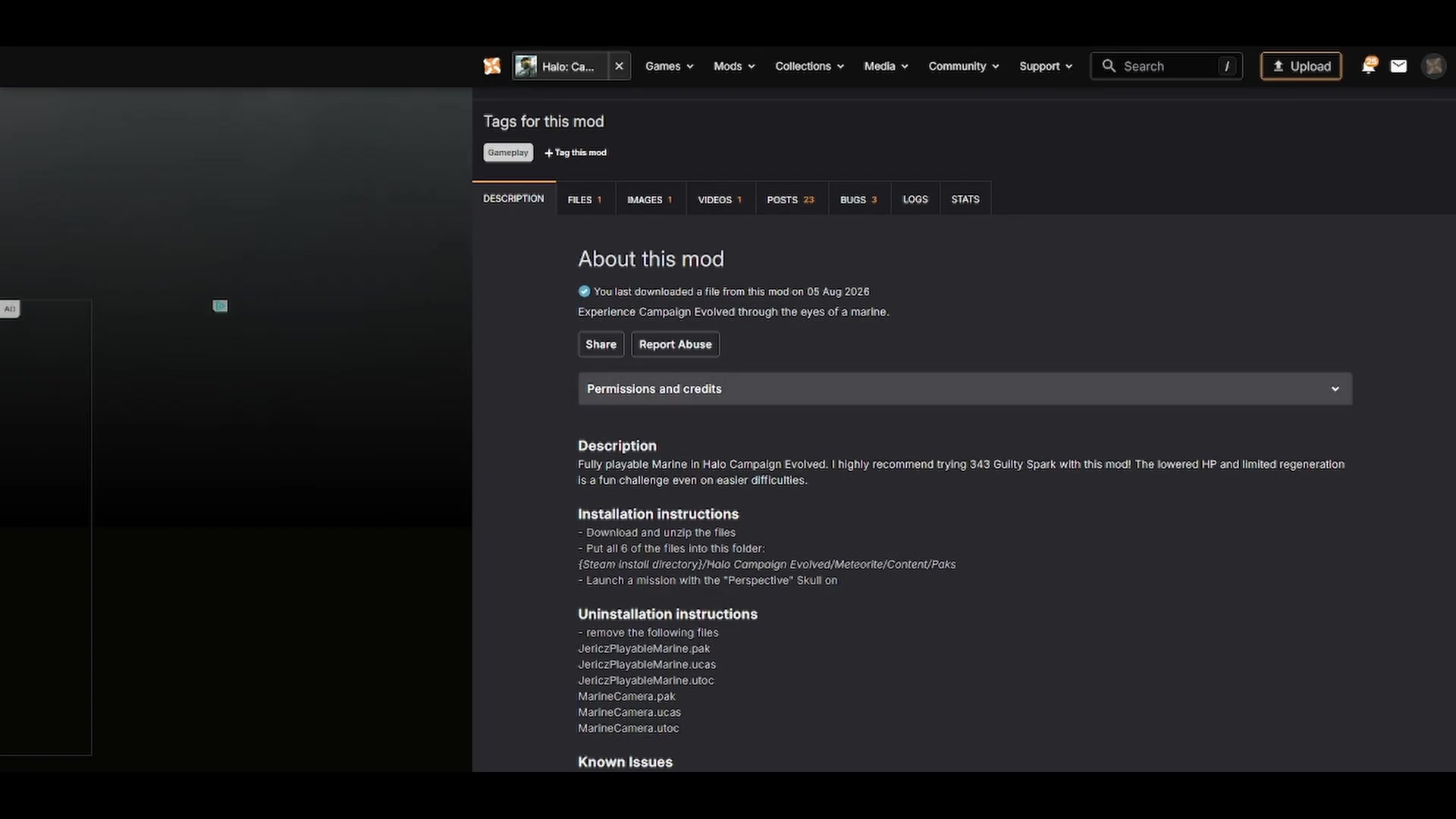
Download and unpack the six-file package
- Checkpoint
- The Fully Playable Marines page is open.
- Landmark
- The mod page's Files area and its written installation and uninstallation instructions.
Do this
- 1Open Files, choose Manual Download, and use the slow-download path demonstrated in the video.
- 2Open Downloads, unpack the archive, and confirm that the extracted package contains six individual files before moving on.
Confirmation
A normal folder—not the compressed archive—shows the same six Marine package files described on the mod page.
Target
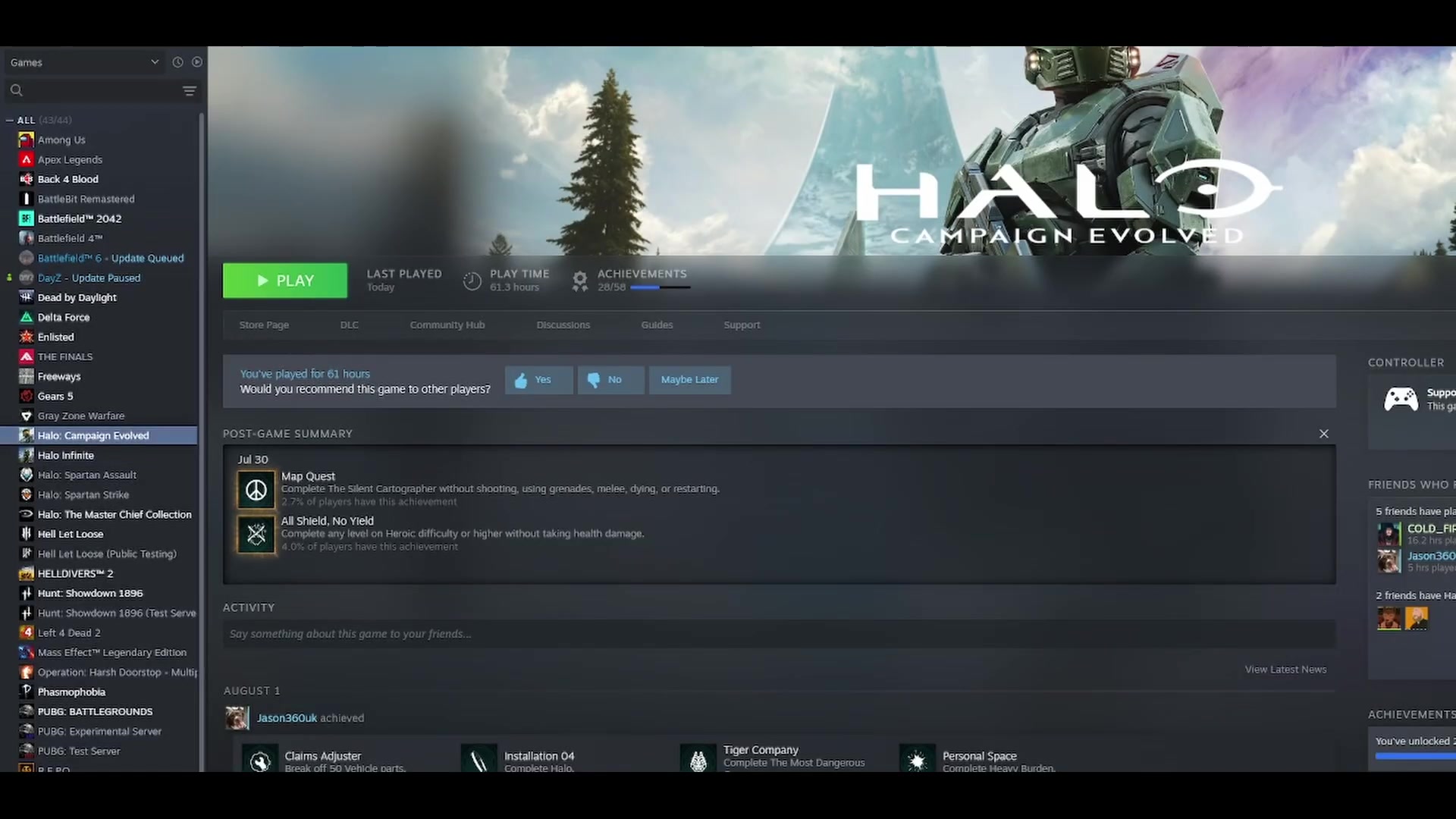
Open the active installation through Steam
- Checkpoint
- The archive is unpacked and Steam is running.
- Landmark
- The Halo Campaign Evolved Steam library page beside the Manage control used for Browse Local Files.
Do this
- 1Select Halo Campaign Evolved in Steam and open its Manage menu.
- 2Choose Browse Local Files, then keep the Steam-opened game window beside the Downloads window containing the six extracted files.
Confirmation
File Explorer opens directly from Steam while the Halo Campaign Evolved library page remains selected.
Target
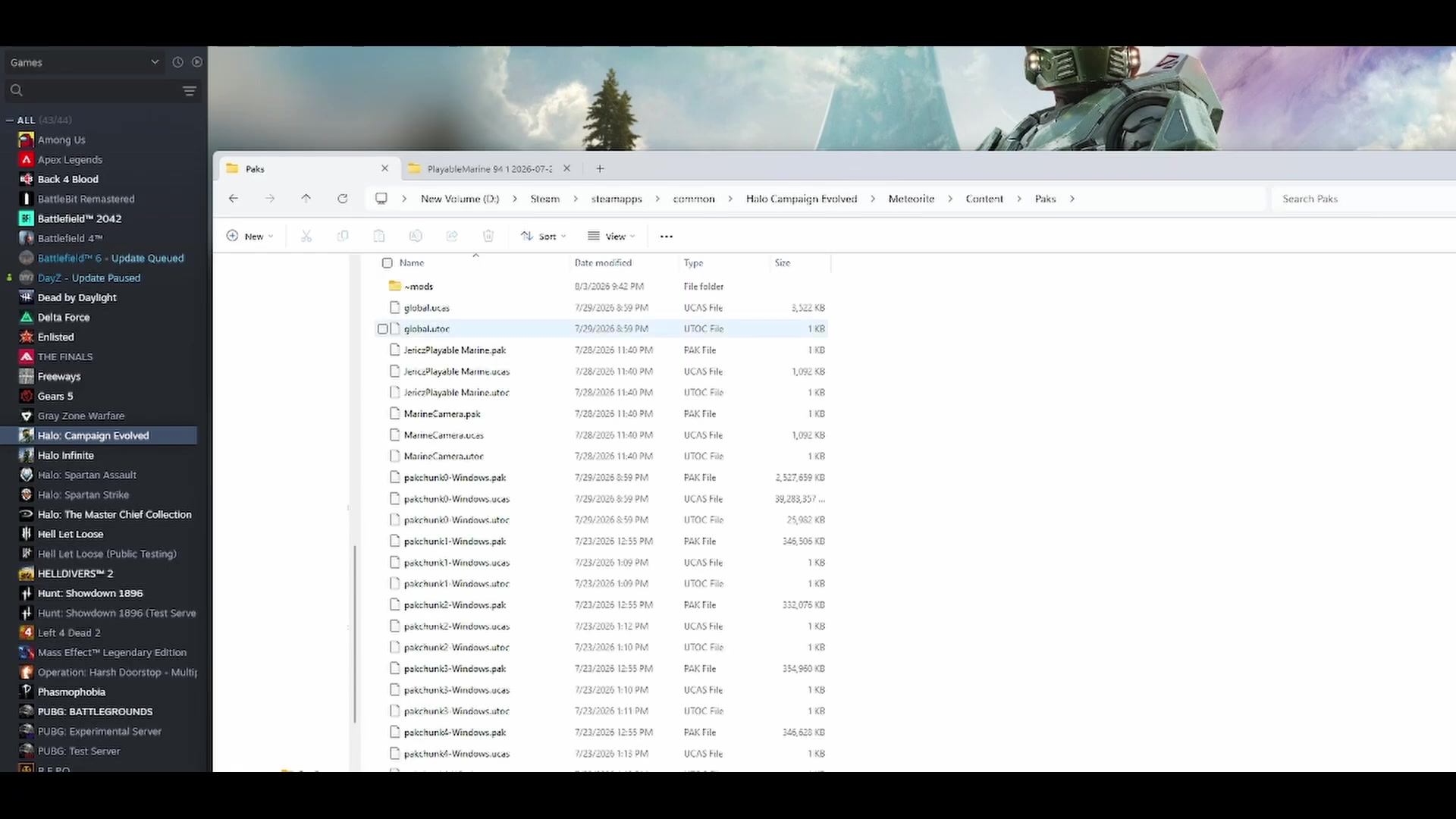
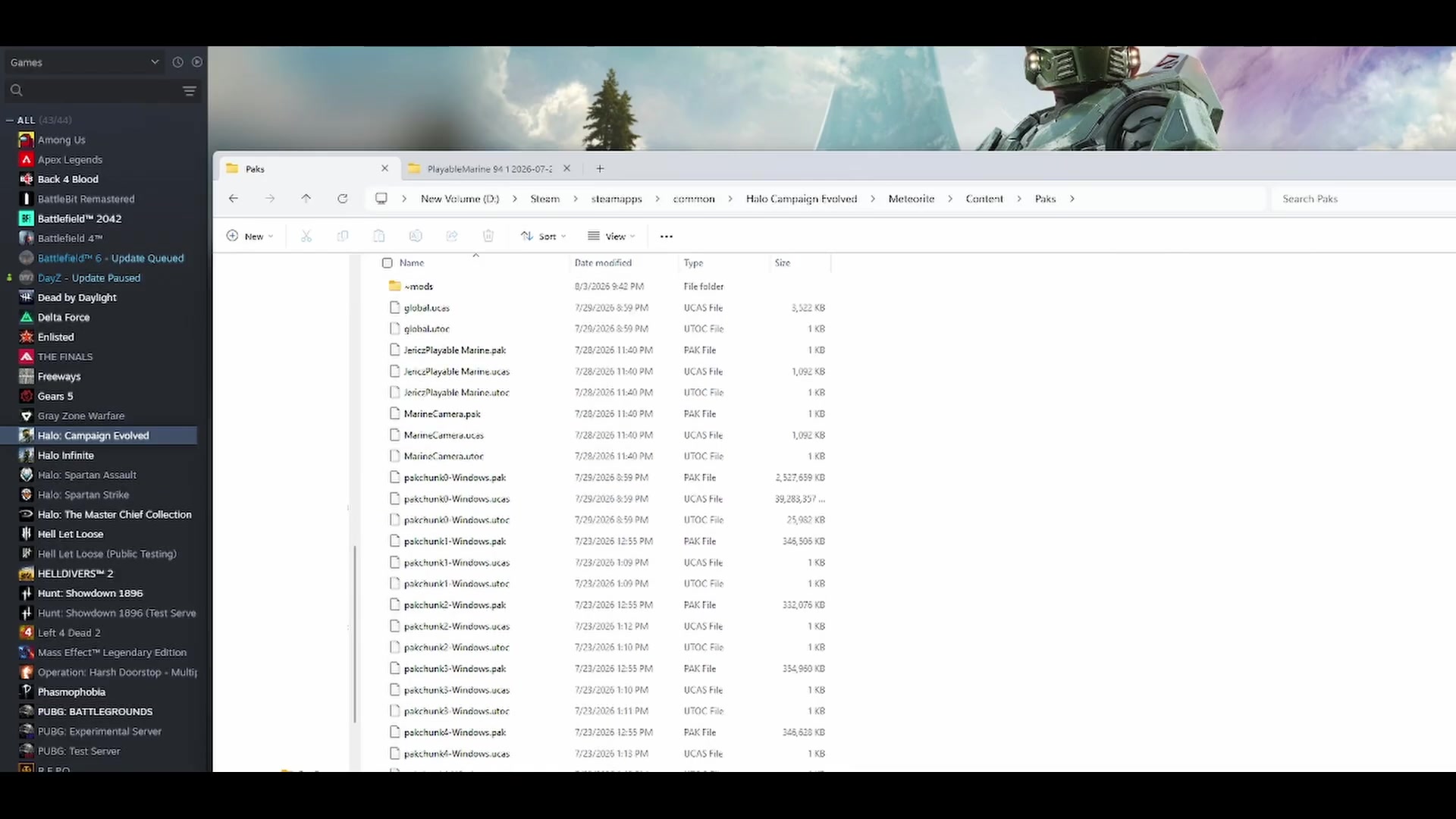
Place all six files in Meteorite > Content > Paks
- Checkpoint
- Steam has opened the active installation and all six extracted files are visible.
- Landmark
- File Explorer's breadcrumb ending in Meteorite > Content > Paks.
Do this
- 1From the Steam-opened installation, enter Meteorite, then Content, then Paks.
- 2Select all six extracted Marine files and copy or cut them into Paks as one complete group.
Confirmation
The Paks directory shows all six Marine files together; no file remains only in the compressed archive.
Target
Restore the normal character without deleting unrelated Paks
- Checkpoint
- The Marine replacement is installed and the original six filenames can still be identified.
- Landmark
- The six Marine files selected inside Paks before they are moved to a separate holding folder.
Do this
- 1When you want normal play again, return to Paks and select only the same six Marine files.
- 2Cut those files into a separate holding folder; move the six-file group back into Paks only when you want the Marine replacement enabled again.
Confirmation
Paks no longer contains the six Marine replacement files, while the holding folder preserves the complete set for reuse.