
Quick answer
The source opens File Explorer, reveals AppData through View > Show > Hidden Items when needed, then enters Local and follows the shown game folder to Saved Games and its Windows configuration folder. It does not provide backup or editing rules.
Guide briefing
Find the Windows Save and Config Folders Shown by the Source
Use File Explorer and follow the source's visible folder trail instead of guessing a typed path. The video starts at AppData, explains how to reveal hidden folders, then moves through Local to the game folder. It separately shows a Saved Games destination and a Windows configuration destination; this guide does not add unsupported backup or file-editing instructions.
Before you start
- — A Windows desktop with File Explorer available.
- — Permission to view hidden items if AppData is not visible.
- — The source's folder screen available for visual comparison while you navigate.
Applies to
- — Windows PC players locating the folders shown by the source
- — Readers whose AppData folder is hidden
- — Players who need to distinguish the shown Saved Games and Windows configuration destinations
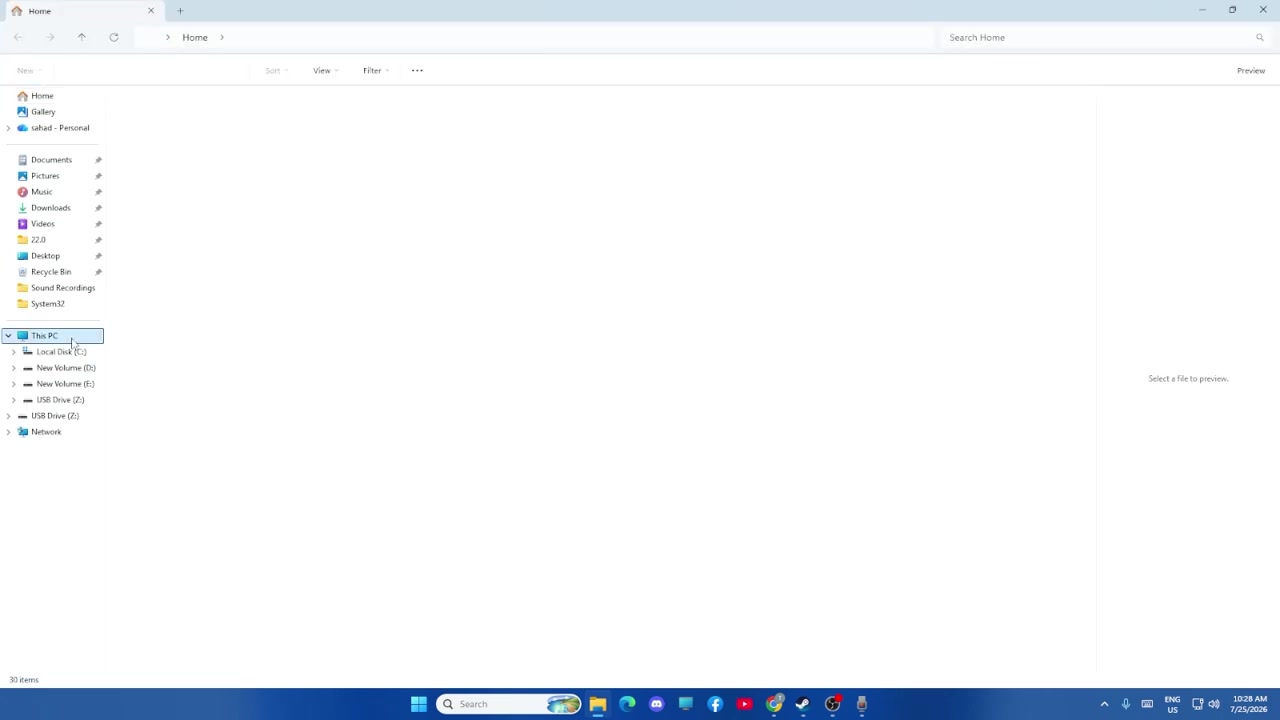
Target
Start in File Explorer before following the source's folder trail
- Checkpoint
- Before searching for game files
- Landmark
- A File Explorer window at the Windows user-folder level
Do this
- 1Open File Explorer as the source does.
- 2Navigate to the user-folder area where AppData would be visible if hidden items are enabled.
Confirmation
File Explorer is open at the user-folder level and ready for the AppData check.
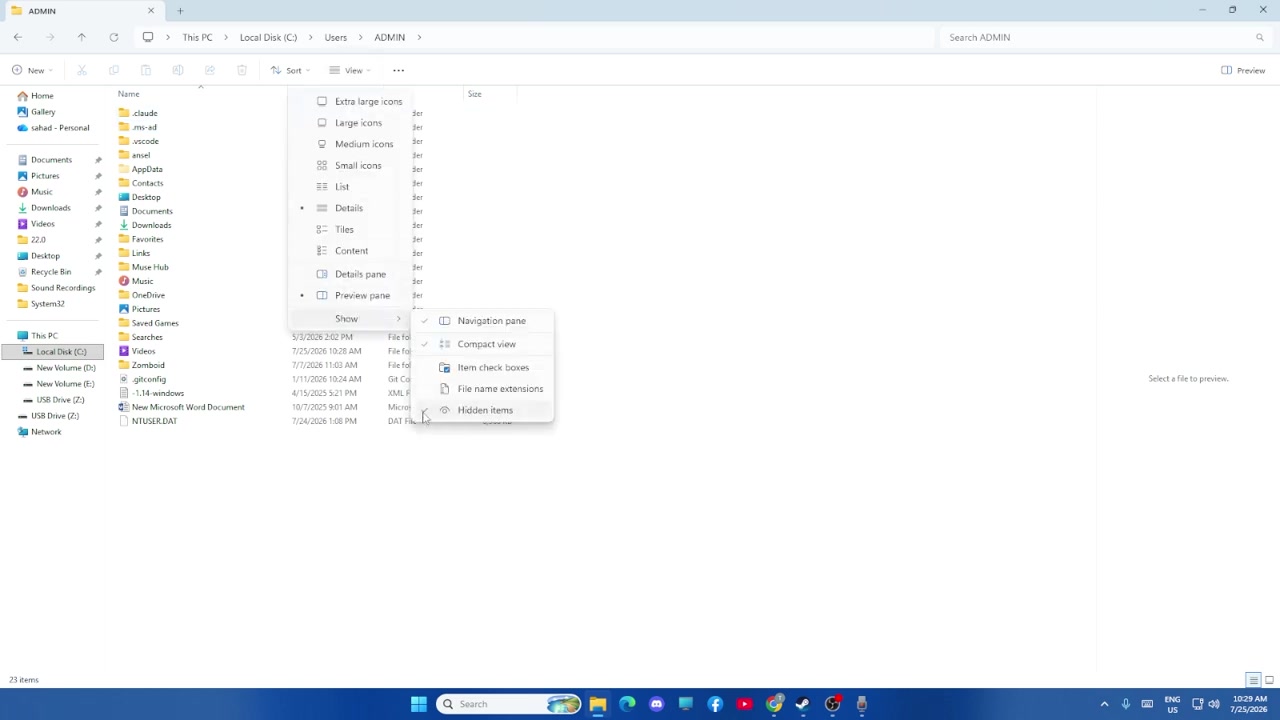
Target
Reveal AppData if it is hidden
- Checkpoint
- The user-folder view is open but AppData is not visible
- Landmark
- File Explorer's View > Show > Hidden Items controls
Do this
- 1Open View, then Show, and enable Hidden Items as demonstrated.
- 2Return to the user-folder view and look for AppData before moving deeper.
Confirmation
AppData is visible in File Explorer, or it was already visible and needs no further reveal step.
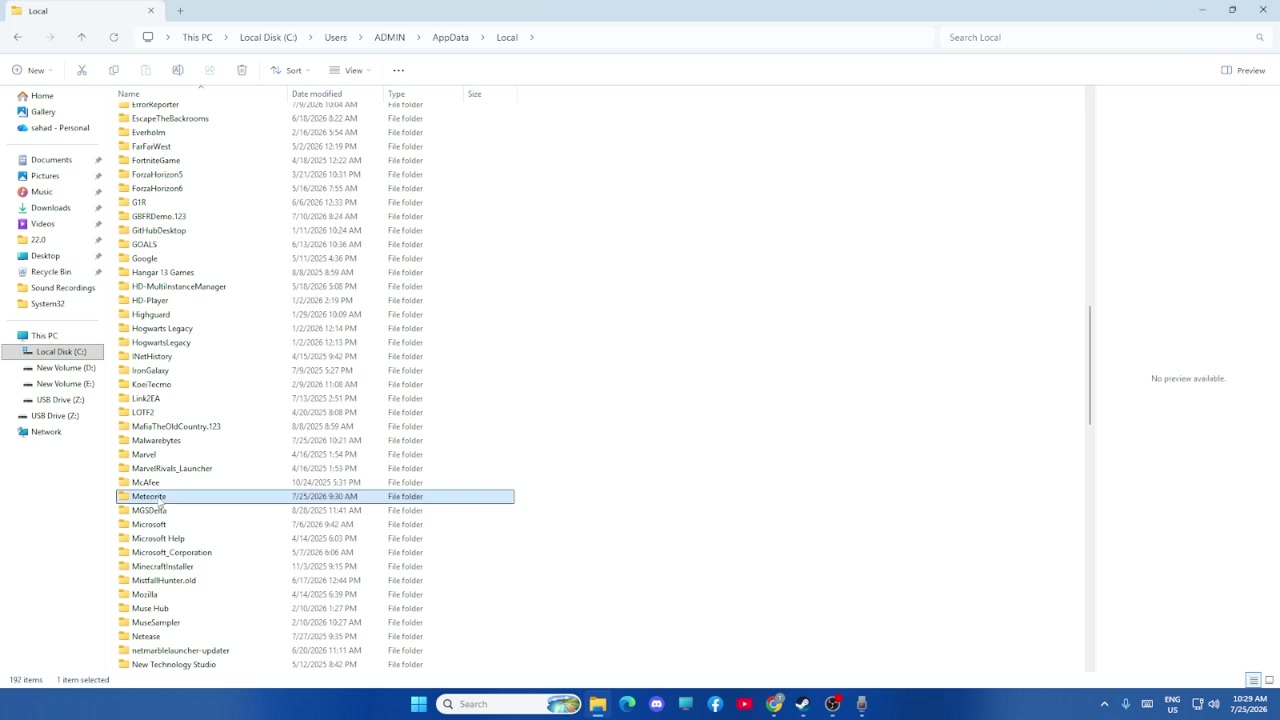
Target
Enter AppData and then Local
- Checkpoint
- AppData is visible
- Landmark
- The AppData contents with Local shown as the next folder
Do this
- 1Open AppData.
- 2Open Local, matching the intermediate folder shown by the source before locating the game folder.
Confirmation
The Local folder is open and you are following the source's visible sequence.
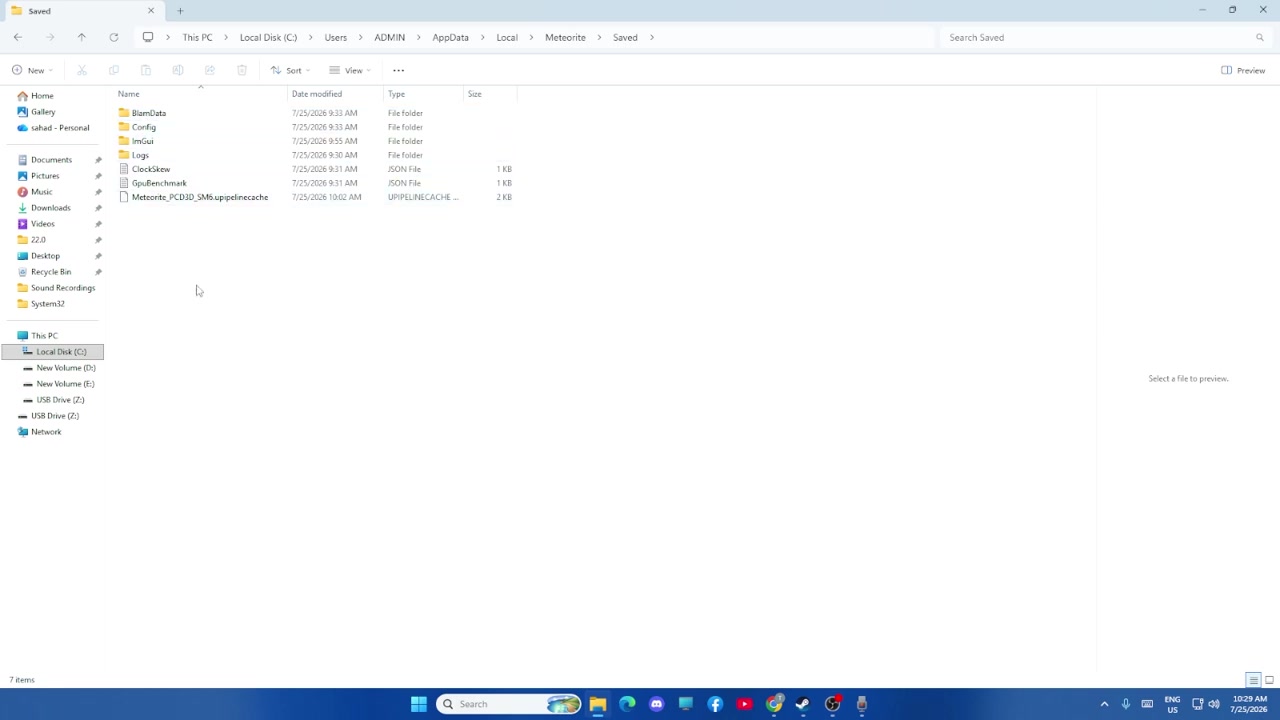
Target
Follow the shown game folder to Saved Games
- Checkpoint
- Local is open and the source's game-folder view is being compared
- Landmark
- The game folder opened to a Saved Games destination
Do this
- 1Use the source's File Explorer view to locate and open the game folder displayed after Local.
- 2Open the Saved Games destination shown within that route and stop there to identify the save location.
Confirmation
You have reached the source's visible Saved Games destination.
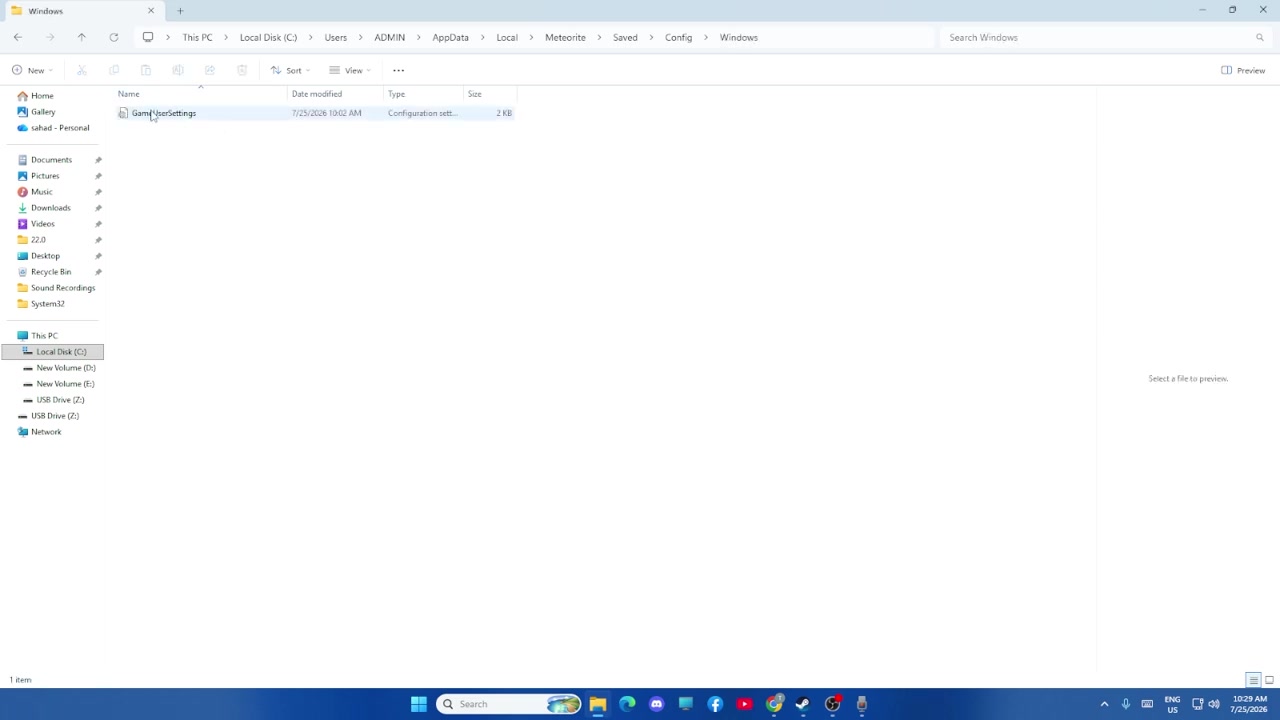
Target
Open the shown Windows configuration destination
- Checkpoint
- The game folder route has been located
- Landmark
- The source's Windows folder shown after its configuration reference
Do this
- 1From the same source-demonstrated game-folder route, open the Windows folder shown for configuration files.
- 2Use the visible Windows-folder view as the confirmation point; do not infer editing or backup actions that the source does not demonstrate.
Confirmation
The source's Windows configuration destination is visible in File Explorer.