
Quick answer
The source says the controller Down D-pad conflict must be moved from Drop Weapon first. Then hold Interact plus Down D-pad to lower the weapon or Interact plus Up D-pad for Machinima Mode; keyboard uses hold E plus Down or Up Arrow.
Guide briefing
Use Lower Weapon and Machinima Mode Without the Drop Weapon Conflict
The demonstrated controls depend on first freeing the controller Down D-pad from Drop Weapon. The source uses holds, not taps: Interact plus Down D-pad lowers the weapon; Interact plus Up D-pad enters Machinima Mode. On keyboard it shows E held with the Down or Up Arrow.
Before you start
- — Access to the game's Settings > Controller bindings.
- — A controller or keyboard available for an in-game confirmation.
- — A safe game or menu state where a dropped weapon will not disrupt the test.
Applies to
- — Controller players whose Down D-pad is still bound to Drop Weapon
- — Keyboard players who need the demonstrated hold combinations
- — Players who need a concrete hold-versus-tap check
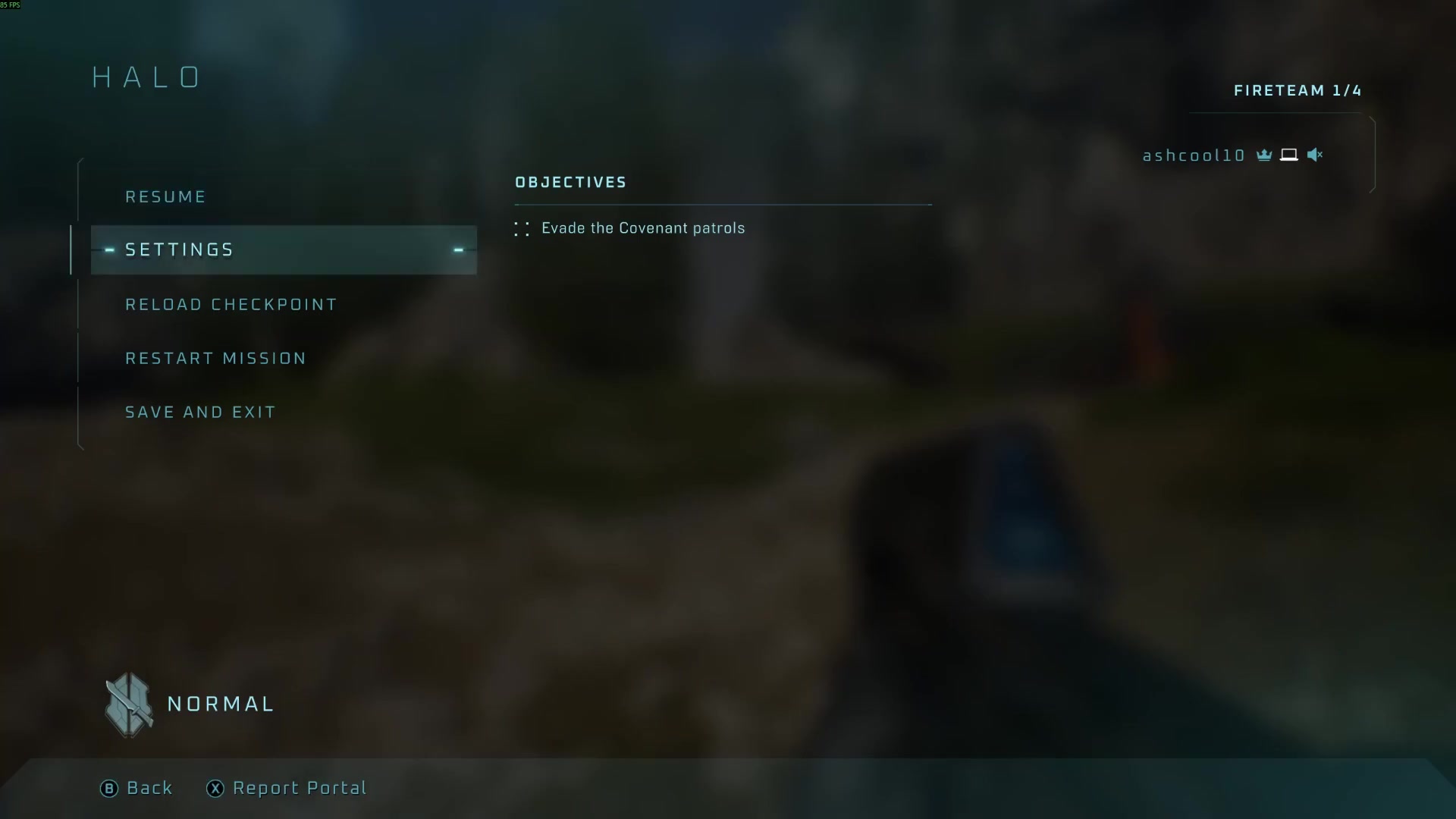
Target
Identify Down D-pad's Drop Weapon conflict
- Checkpoint
- Before attempting the controller hold combination
- Landmark
- Settings > Controller with Drop Weapon selected
Do this
- 1Open Settings, then Controller, and select the Drop Weapon action shown in the source.
- 2Check whether Down D-pad is still assigned to it before trying the lower-weapon input.
Confirmation
You have identified whether Down D-pad is occupied by Drop Weapon.
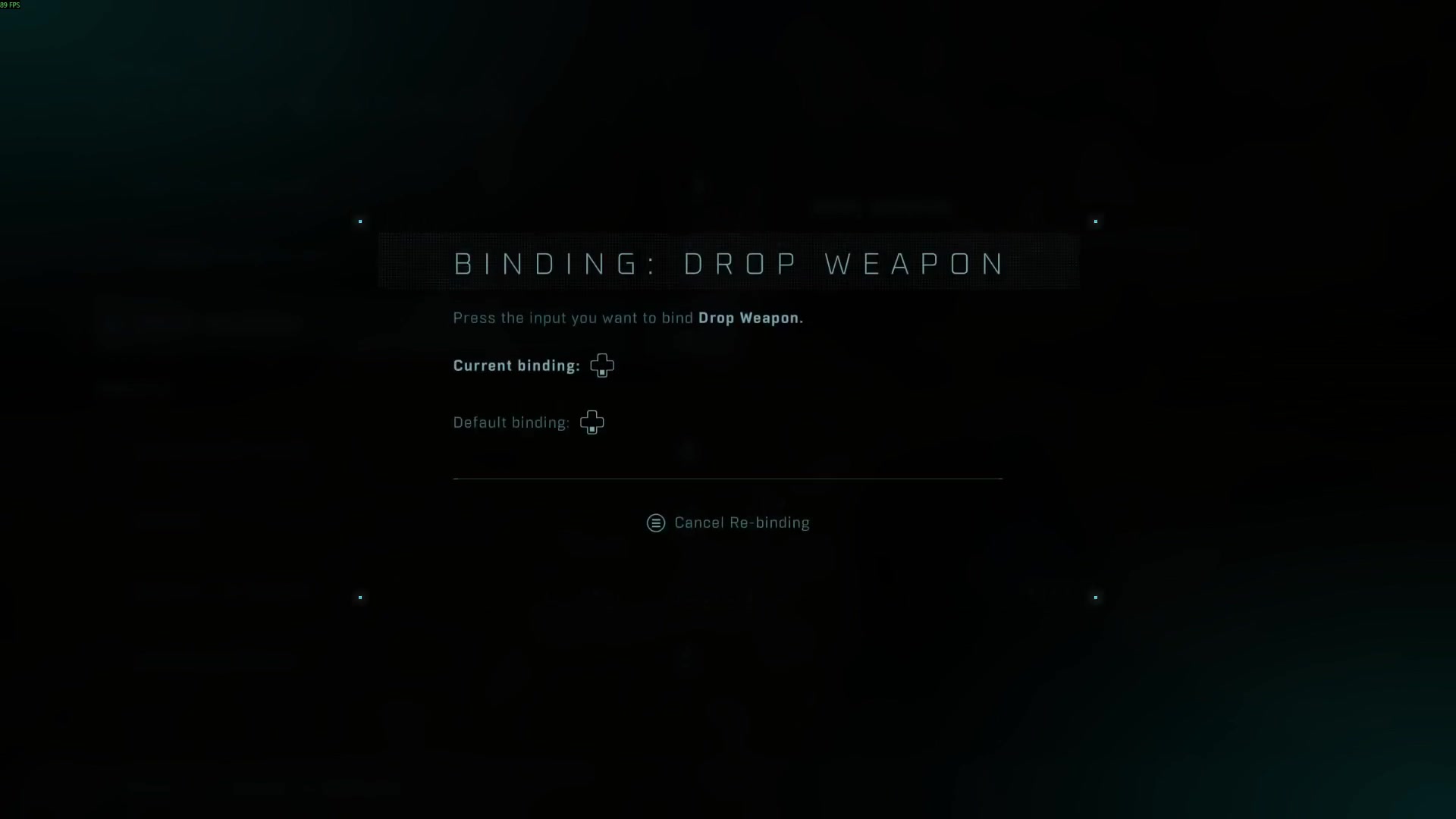
Target
Move Drop Weapon away from Down D-pad
- Checkpoint
- Drop Weapon is selected in Controller settings
- Landmark
- The binding-edit screen used by the source
Do this
- 1Assign Drop Weapon to another available controller input as the source instructs.
- 2Return to gameplay only after Down D-pad is no longer reserved for that action.
Confirmation
Down D-pad is free from the Drop Weapon assignment.
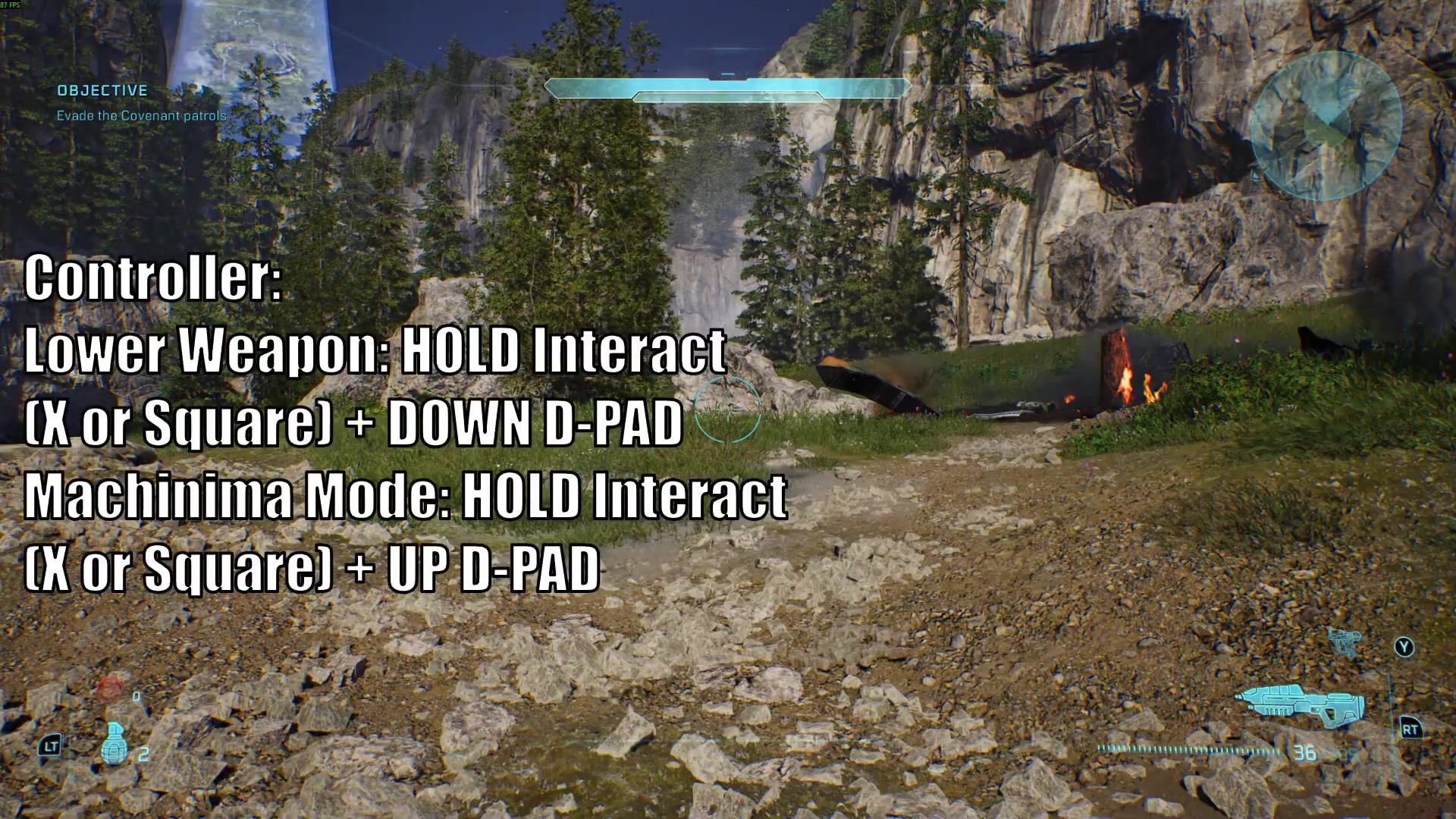
Target
Lower the weapon with the demonstrated hold
- Checkpoint
- Down D-pad is free from Drop Weapon
- Landmark
- Gameplay with the controller combination shown on screen
Do this
- 1Hold the Interact button, identified by the source as X on Xbox-style controls or Square on PlayStation-style controls.
- 2While still holding Interact, hold Down on the D-pad; do not treat it as a tap.
Confirmation
The weapon lowers while the shown combination is held.
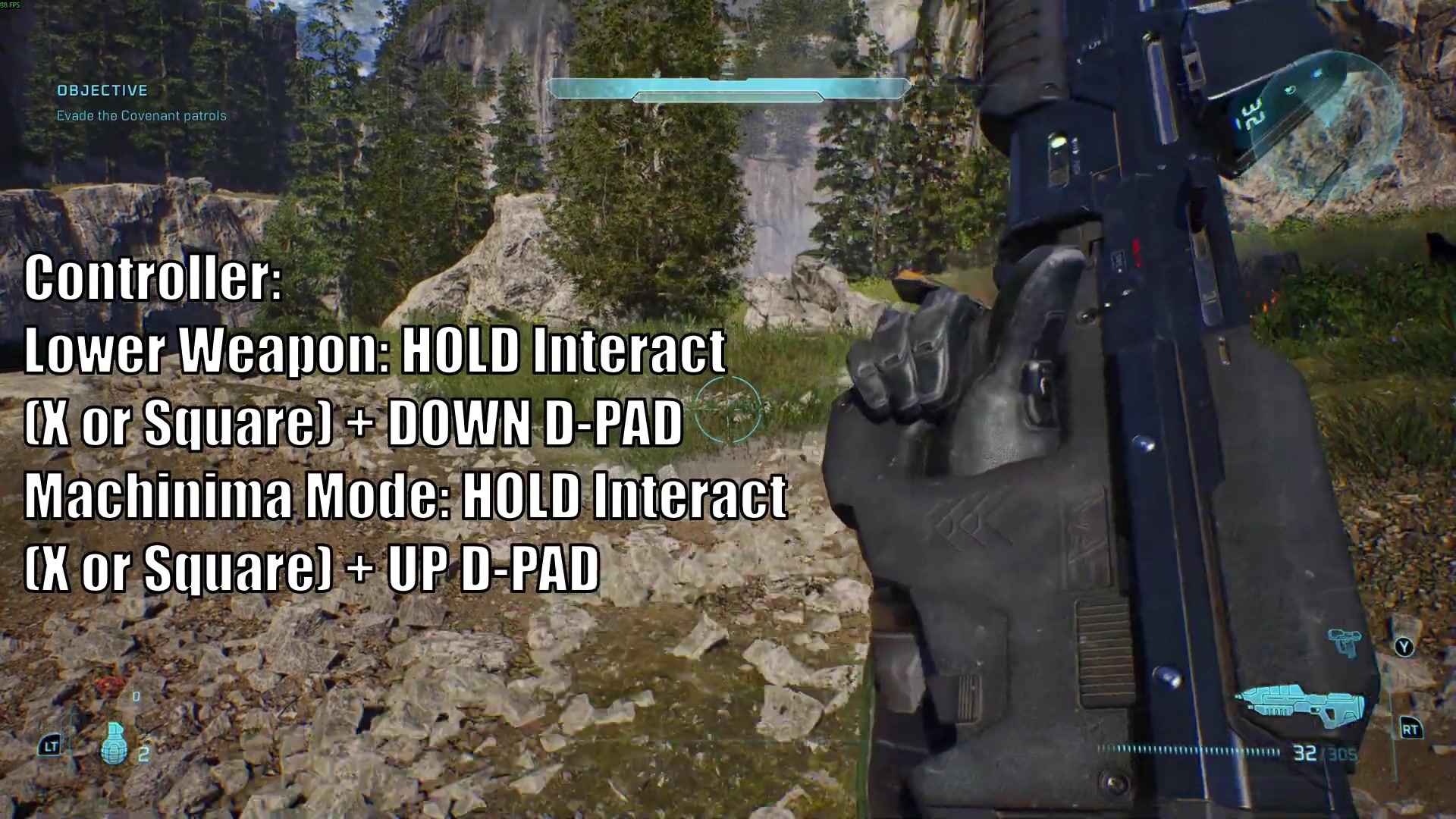
Target
Enter Machinima Mode with the demonstrated hold
- Checkpoint
- The lower-weapon hold has been tested
- Landmark
- Gameplay with the controller Up D-pad combination shown
Do this
- 1Hold the same Interact button.
- 2While holding it, hold Up on the D-pad to use the source's Machinima Mode combination.
Confirmation
The Machinima Mode combination has been tested with a hold, using Up rather than Down on the D-pad.
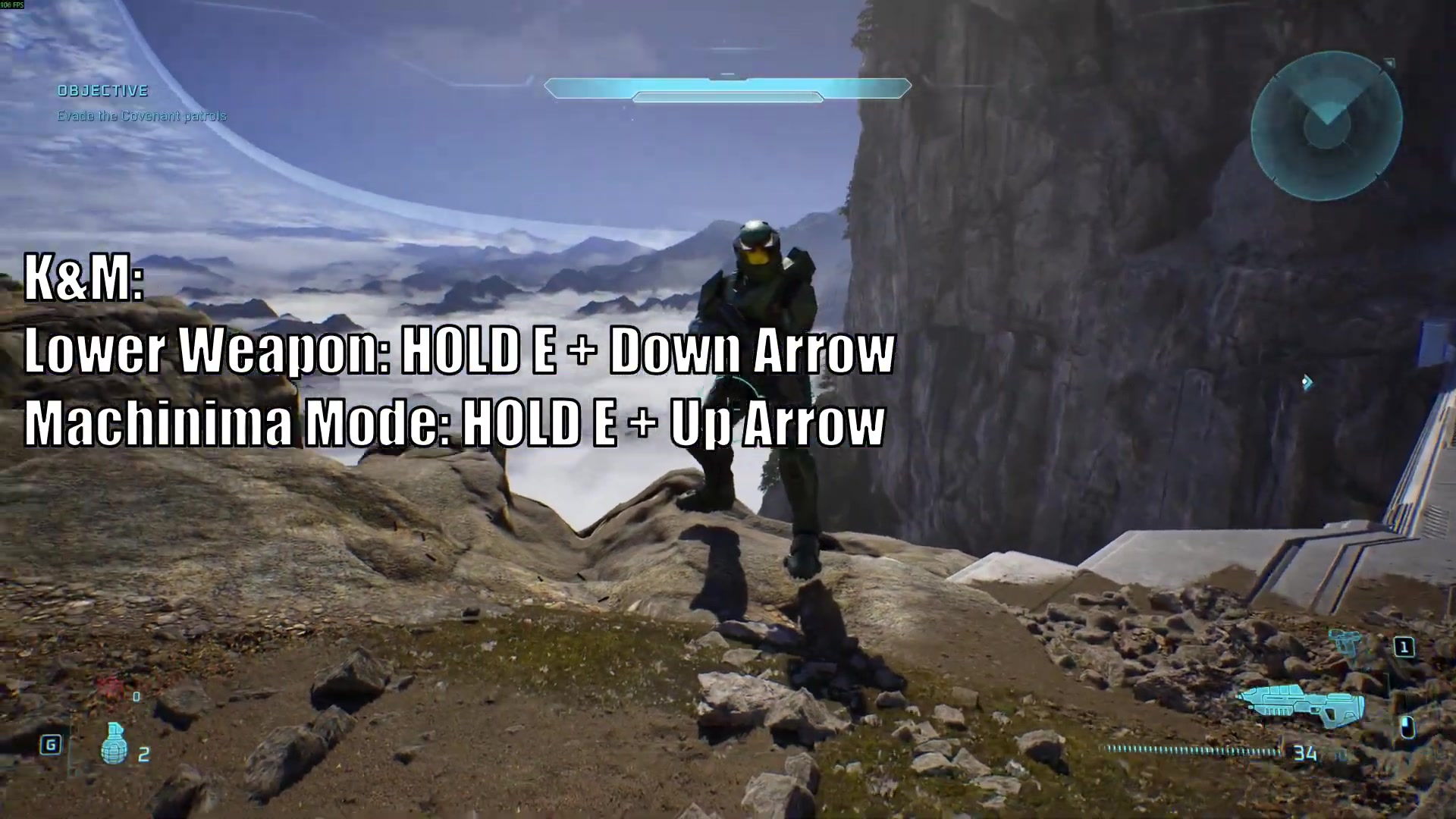
Target
Use the keyboard lower-weapon hold
- Checkpoint
- Testing on a keyboard instead of a controller
- Landmark
- The source's keyboard overlay for the lower-weapon action
Do this
- 1Hold E, the Interact key named by the source.
- 2While holding E, hold the Down Arrow to lower the weapon.
Confirmation
The keyboard lower-weapon action has been tested as an E-plus-Down-Arrow hold.
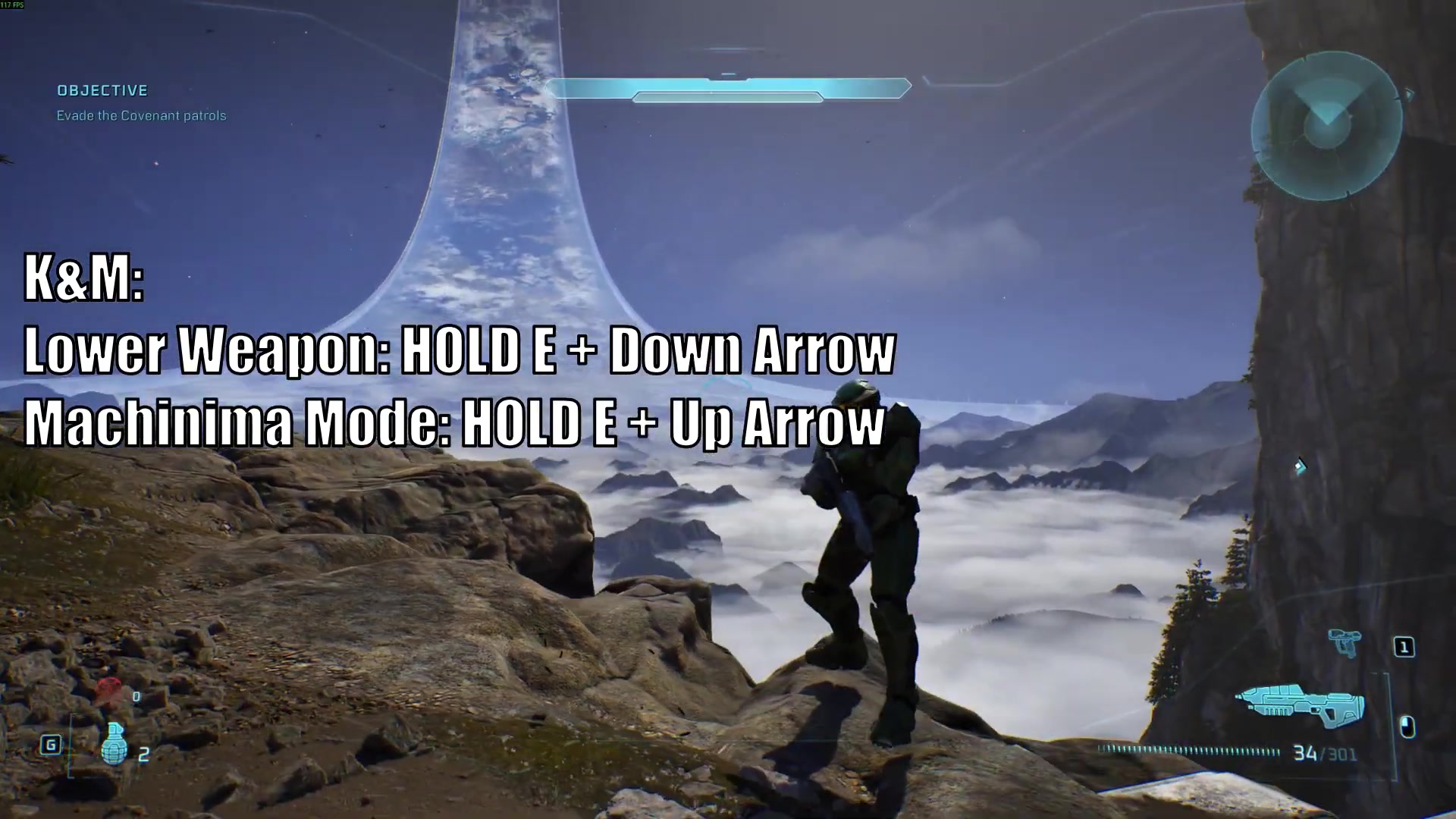
Target
Use the keyboard Machinima Mode hold
- Checkpoint
- The E-plus-Down-Arrow lower-weapon check is complete
- Landmark
- The source's keyboard overlay for Machinima Mode
Do this
- 1Hold E again as the source's Interact key.
- 2While holding E, hold the Up Arrow to test Machinima Mode.
Confirmation
The keyboard Machinima Mode action has been tested with E held plus Up Arrow.